
Koder CLI
From project files to verified changes
Open the local workbench with Koder CLI. Inspect the project, connect a model, review the proposed changes, and verify the result in the terminal.
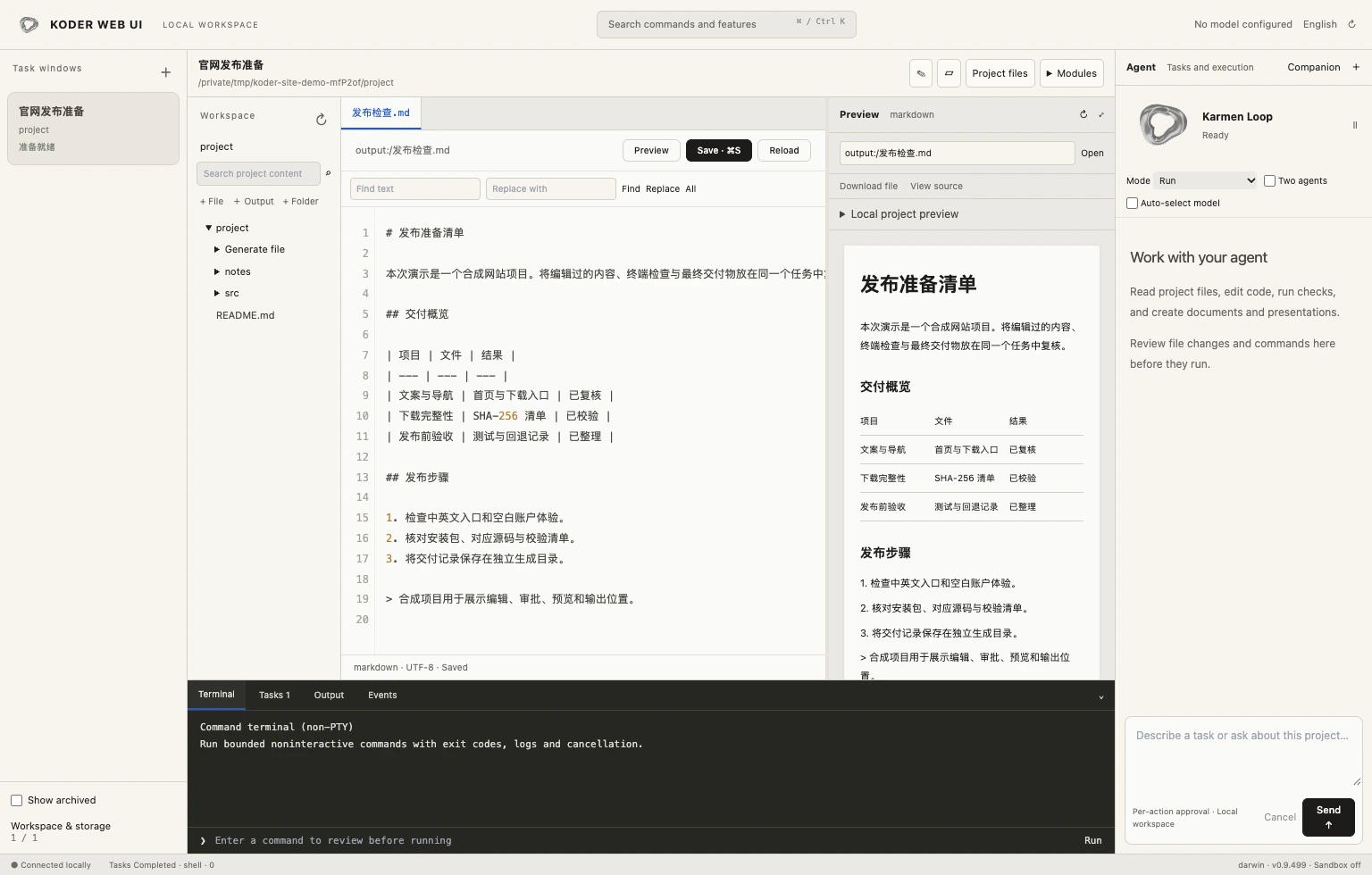
Update a release checklist
The sample project needs a step for verifying its installers. Follow one task from finding the document to reviewing the proposed edit and checking the saved result.
-
Start in the project folder
Run
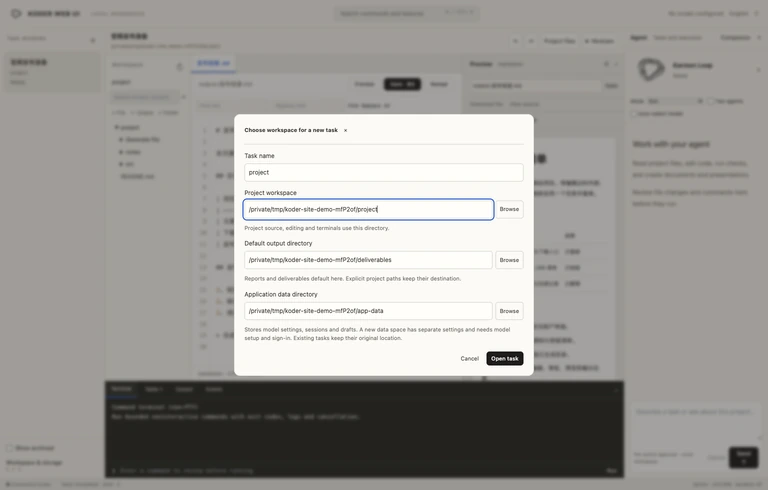
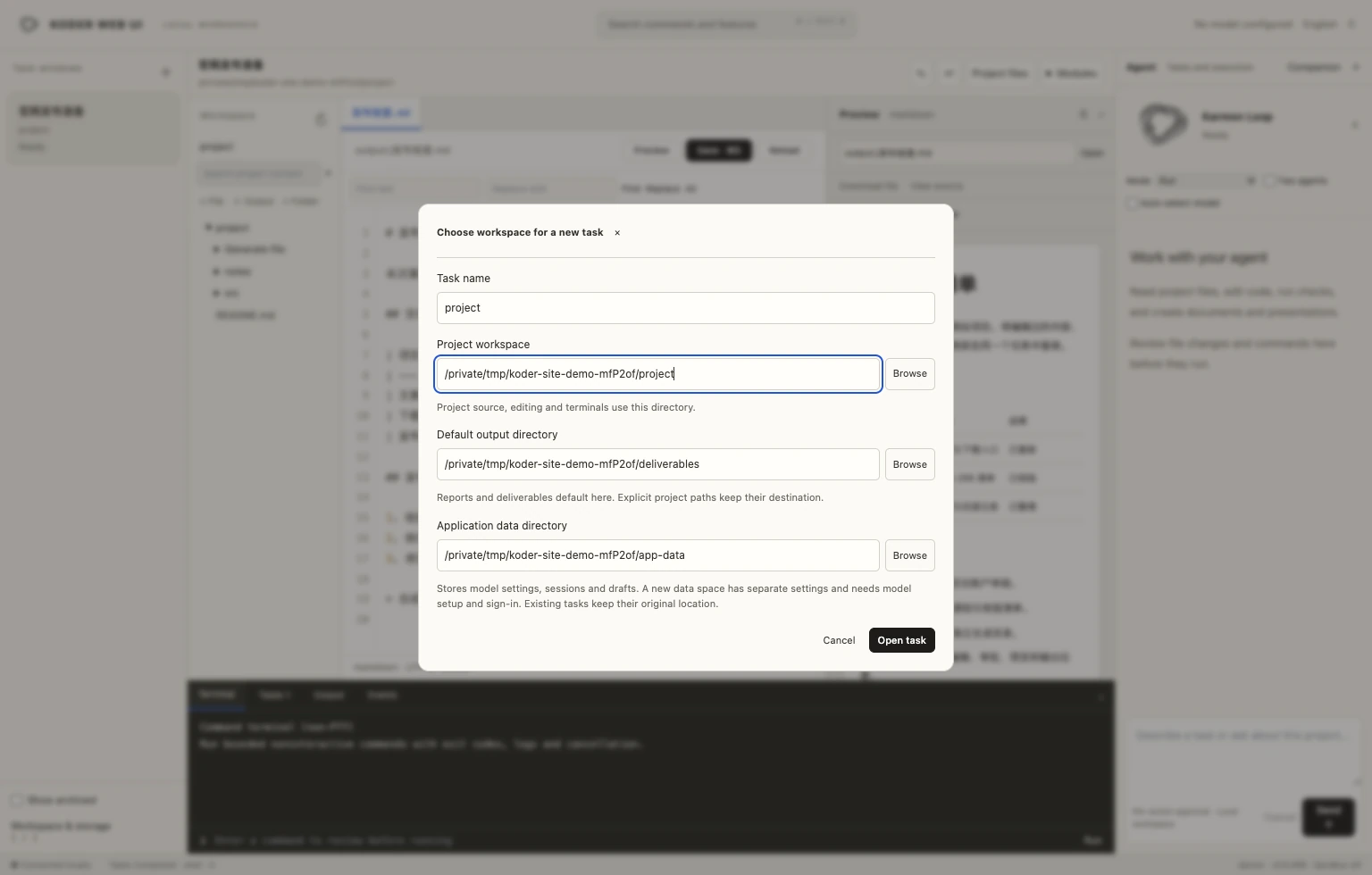
karmenloop uiand open the local address printed in the terminal. Choose a project folder and output location for the task, then find the checklist in the file tree or search results.Choose the project folder that contains the checklist. The sample workspace shown uses separate output and application data folders.
Koder CLI 0.9.499 screenshot · Sample project Open full-size screenshot -
Connect a model for AI tasks
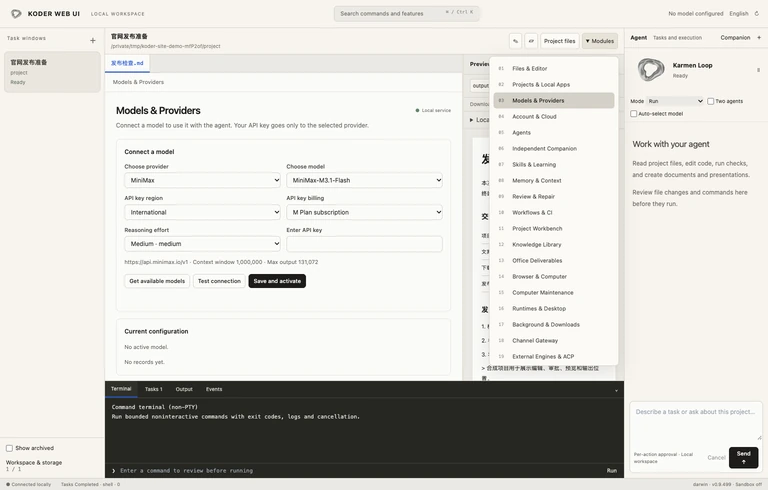
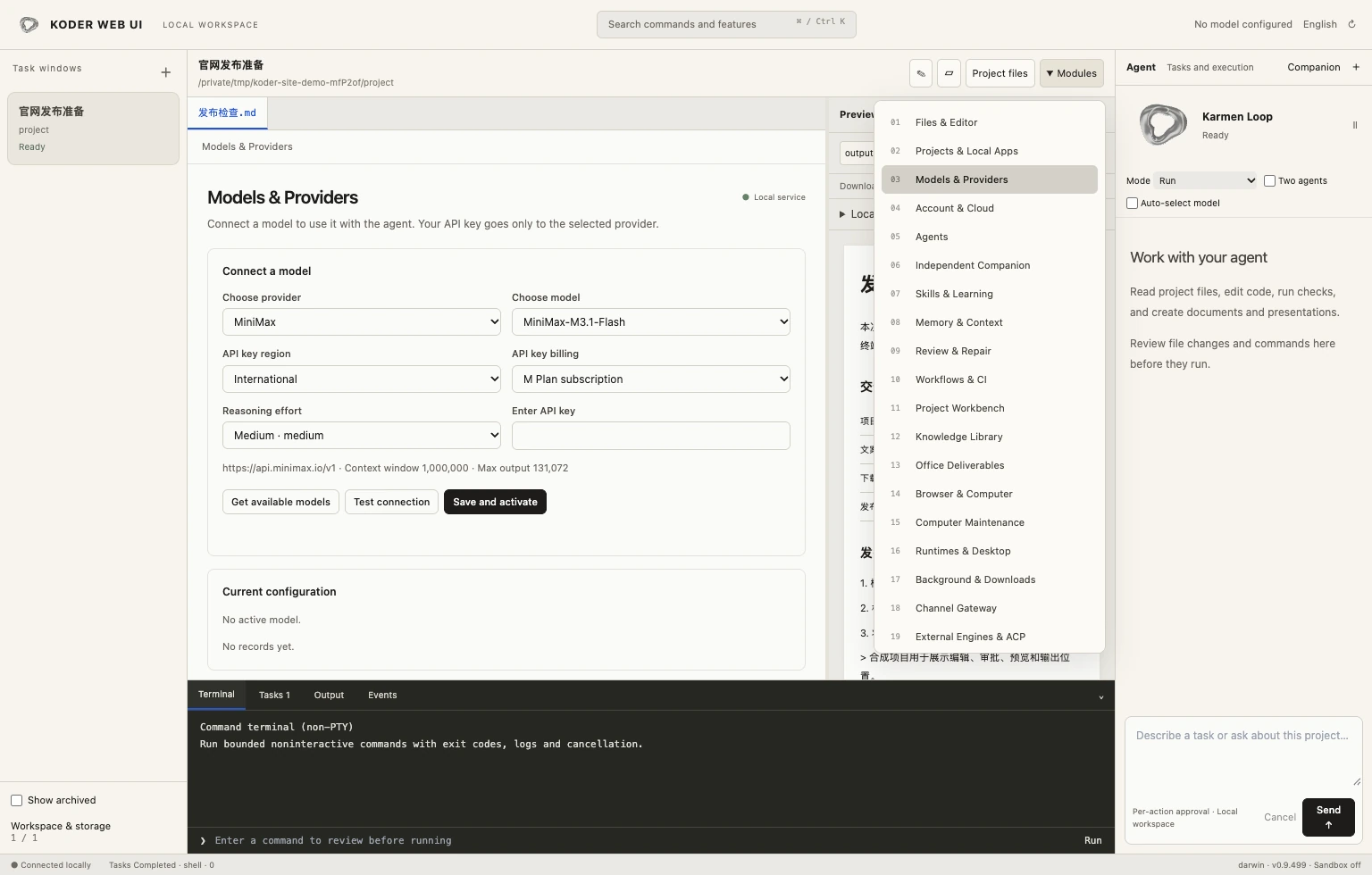
In Models & Providers, choose a compatible provider or enter an endpoint. Fetch the model list, test the connection, and save. An external model provider receives the content you submit to it and manages its own credentials and fees.
Test the model connection before running an AI task. You can edit files and preview Markdown separately.
Koder CLI 0.9.499 screenshot · Sample project Open full-size screenshot -
Review the diff and preview the document
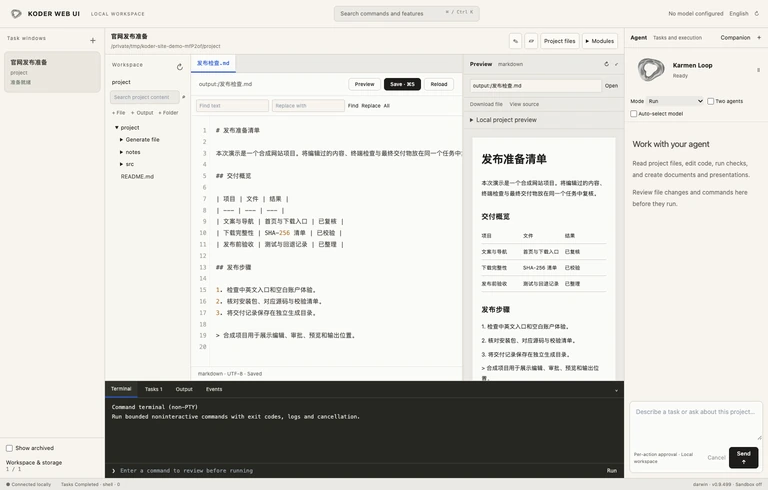
Ask AI to add an installer verification step. Inspect the file diff and apply the changes once they match the request. Open the Markdown preview to check the new step’s placement and formatting.
The screenshot shows the editor and preview. In the diff view, inspect added and removed lines before applying the proposed change.
Koder CLI 0.9.499 screenshot · Sample project Open full-size screenshot -
Verify the result in the terminal
Run the project’s documentation check in the terminal pane. Read the output and exit status, or cancel the running task. In a Git project, you can also check the saved edit with
git diff -- path/to/checklist.md.For an interactive terminal session, run
karmenloop chat. Runkarmenloop tuito open the terminal interface.git diff -- path/to/checklist.md
Choose your platform
On the download site, choose macOS on Apple silicon or Intel, Windows on x64 or ARM64, or Ubuntu on x64 or ARM64. Check the current release and its checksums there.
Frequently asked questions
How do I open the local workbench?
After installing, run karmenloop ui and open the local address printed in the terminal.
Which models can I use?
Configure a compatible model service in the model settings. For external services, any model charges follow the provider’s terms.
Which systems are supported?
macOS supports Apple silicon and Intel. Windows and Ubuntu support x64 and ARM64.
Where do I download an installer?
Choose your system and architecture on the official Koder CLI download page, where you can find installation steps and checksums. Download Koder CLI