Settings
What each settings page does.
Press ⌘, in the app to open Settings. On Windows, press Ctrl+,. You can search on the left, for example “notifications,” “MCP,” or “import.” Changes stay on this computer. The first-run steps are in the tutorial.
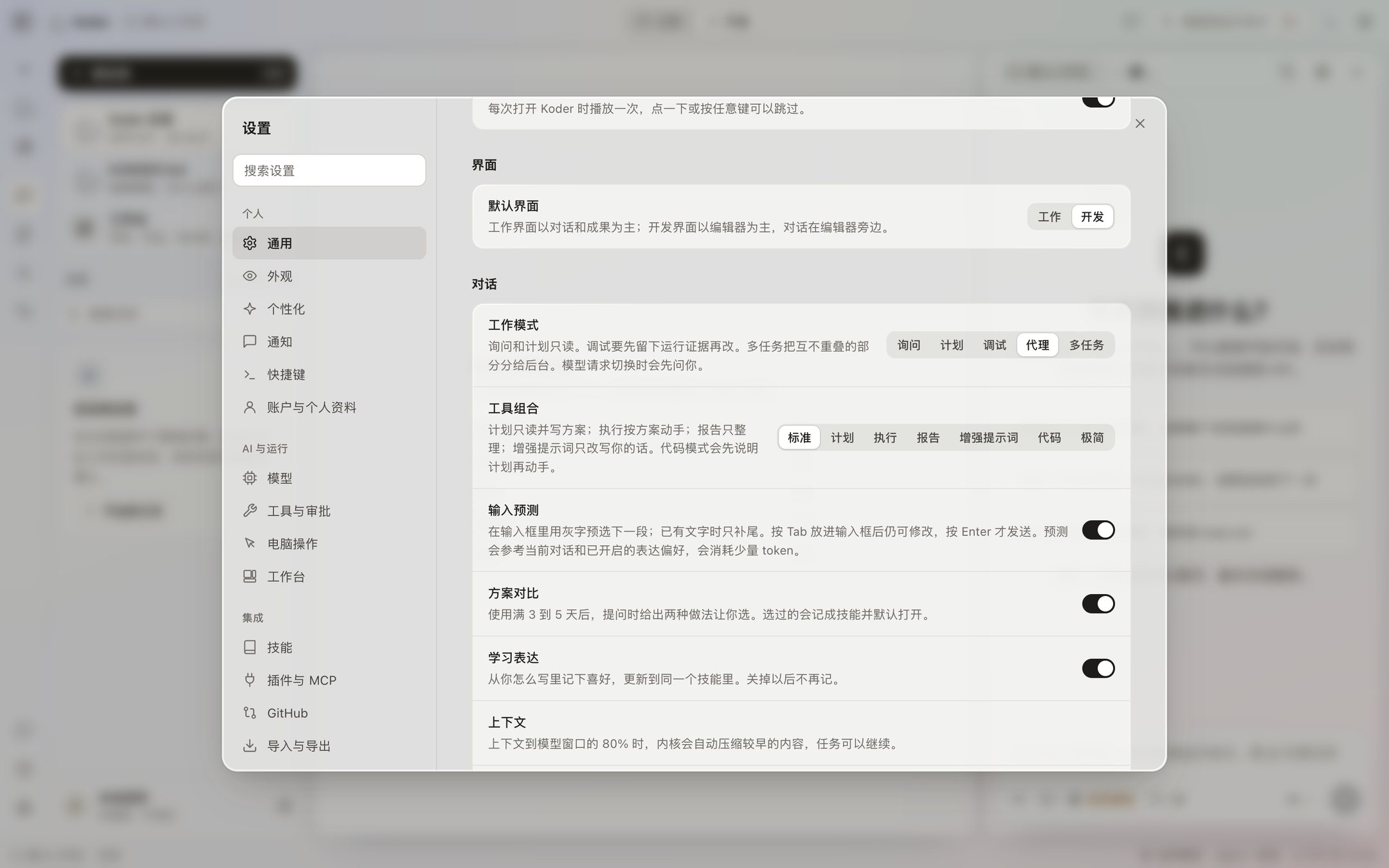
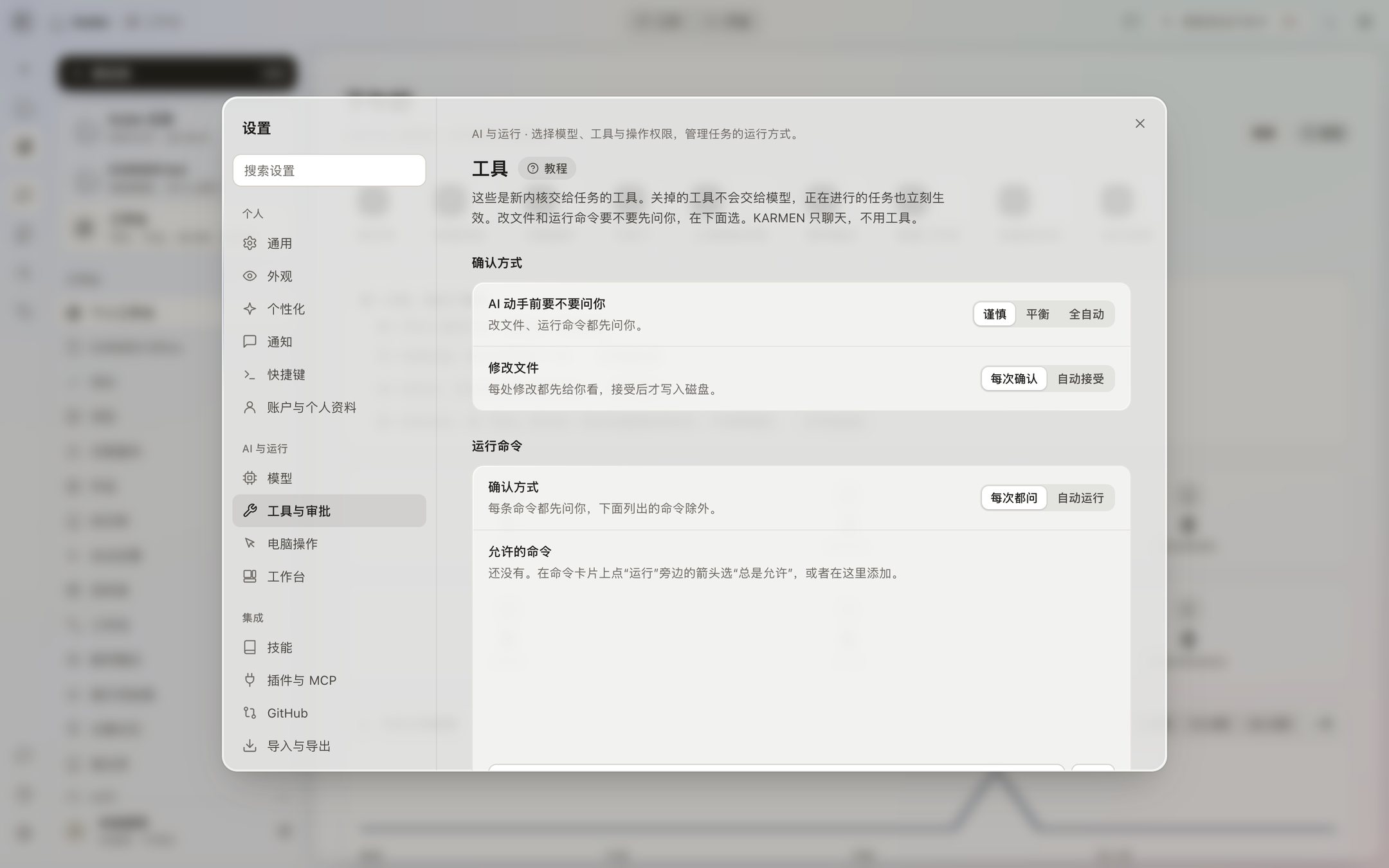
1 / 3
Personal
Look, reminders, and habits on this computer.
General
Whether the window comes back at launch, whether an interrupted task continues, and the opening animation. Work modes are Ask, Plan, Debug, Agent, and Multitask. A message you send while a task is running can wait in line or go out immediately.
Appearance
Light, dark, tint, font and size, high contrast, reduced transparency, and wallpaper. Put the sidebar on the left or the right, and hide the activity bar. The change shows up right away.
Personalization
Input suggestions: the gray text in the box is a suggestion. Tab accepts it, and you can still edit it. If you do not press Tab, it is not written or sent for you. Learn how I write decides whether wording preferences are saved. Suggestions use a small number of extra tokens.
Notifications
In-app reminders, system notifications, sounds, and warnings each have their own switch. An AI summary calls a small model. Turn that off and you see the start of the reply instead. The menu-bar icon is only in the installed app.
Keyboard shortcuts
The shortcuts on this computer. Mac uses Command. Windows uses Ctrl. While a pointer lesson is running, Esc only leaves the lesson.
Account and profile
Your profile, trusted contacts, and parental controls stay on this computer. The page says there is no cloud account, and it does not pretend you are signed in. You do not need to register to use Koder.
AI and running
The model, the tools, and how a task runs.
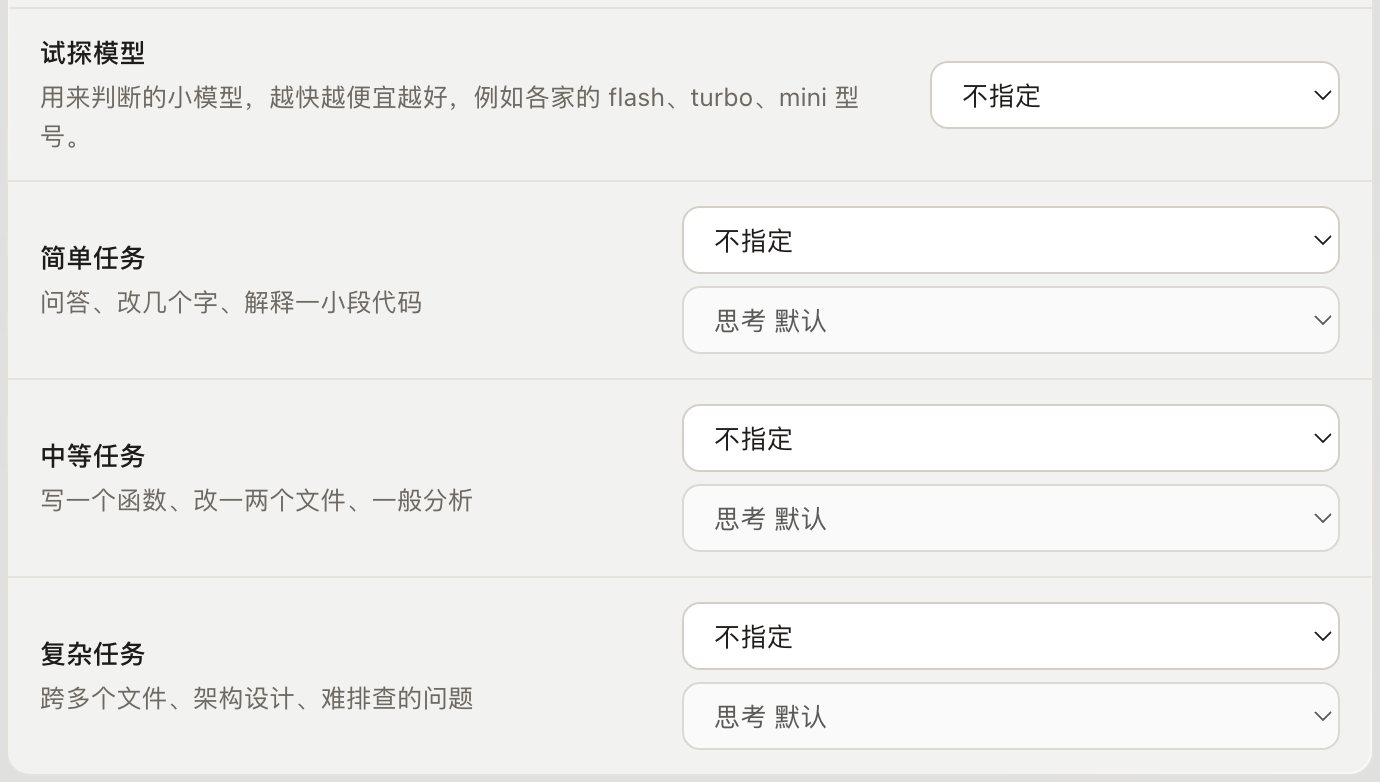
Models
Add or switch a model service and a key, read the provider’s live model list, or point it at a different endpoint. Koder does not read model keys from environment variables or from a .env file.
Tools and approvals
Three modes. Careful: file changes and commands both ask. Balanced: writes inside the task folder go straight to disk, and commands still ask. Automatic: changes and commands both run on their own. Deletes, privilege changes, and .env and key files ask in every mode. You can also turn a tool off on this page. That takes effect immediately.
Computer use
Off by default. After you turn it on, you can ask before every action, ask only for risky actions, or leave it open. A Mac needs Accessibility and Screen Recording. The emergency stop is ⌃⌥⌘. .
Workbench
Whether AI may search the knowledge base, whether automations run on schedule, and how many rounds a task goal may take. Workbench data still lives in the data folder on this computer.
Integrations
Connect tools, skills, and project services you already have. Koder works if you connect none of them.
Skills
A skill is a standing instruction for the AI, such as how you want writing or code to look. A skill you turn on is used in every task.
Plugins and MCP
In plugin management you install, authorize, test, and turn off an external tool. A service that uses OAuth opens that service’s authorization page. After it connects, you can run a test. Disconnecting here does not revoke the authorization on their site.
GitHub
You can connect with an access token. Public projects can be searched directly. The token stays in Settings on this computer. Do not paste it into a chat. If browser sign-in is not set up, that button stays unavailable.
Import and export
Scan chat history this computer can read, then import what you select. You can also import or export a chat bundle. A scan is not an import. Imported history does not bring back sign-in for an external tool.
System
Data protection, usage, and the runtime on this computer. Opening these pages does not upload anything.
Privacy and data
Tasks, chats, files, and keys stay on this computer. The data lock encrypts workbench records and saved sign-ins. Resetting to factory settings destroys that key first. You can also check the program checksum and the permissions on the data folder.
Passwords and saved sign-ins
See whether the data lock is on, and the names of saved sign-ins. It does not show the password or the text of a model key. Sign-in on a web page is kept by the lock in the built-in browser.
Usage and cost
Token use and an estimated cost, by date and model. A record does not include the message or the file, and it is not uploaded. The estimate is not the provider’s bill. What you pay is what the provider says. If a read fails, the last result stays. Missing usage is not shown as zero.
Runtime
Where the Python used by tasks lives, which version, and which packages. The installer includes Python 3.12.15. Opening this page does not install or rebuild it. A rebuild happens only after you confirm.
File types
Which editor inside Koder opens documents, spreadsheets, decks, and PDFs. It does not change the default app on your computer.
System
The version, the security patch level, the kernel status, and a one-click check. The update address is not online yet, so Check for updates does not download a new version. You can download a diagnostic log onto this computer. It does not leave the computer unless you send it.
Which page to open first
On a Mac, press ⌘,. On the other system, press Ctrl+,. Search on the left. The placeholder examples are notifications, MCP, and import. The four groups are Personal, AI and running, Integrations, and System. A page the search finds stays under its group. It does not become a second menu.
Under Personal → General, the default work mode is Agent: it can propose changes and commands, and it asks before it runs them. Ask and Plan do not change files. If a model asks to switch modes, a prompt comes up first. It does not switch unless you agree. Sending another line while a task is running can wait in line or go out immediately. That setting is on General too.
- The three approval modes only change whether it asks. Deletes, privilege changes, disk operations, shutdown, force-push, rewriting history, handing text to a shell, and .env and key files ask in all three.
- Import under Integrations only scans records on this computer, or one chat bundle. It does not bring a sign-in from somewhere else.
- The numbers under System → Usage and cost are an estimate on this computer. They are not the provider’s bill.
Current tutorials and versions
October 20, 2026: all 75 desktop topics, 30 CLI 0.4.0-preview.22 lessons, five TUI 0.1.0 steps and SDK 0.1.1 setup. CLI lessons cover license, revocation, memory and groups, device prerequisites, learning, reflection, apps/MCP, API and updates in two languages and four shells.
The complete desktop manual follows the 0.4.53 Beta tutorial center. Mac and Windows desktop 0.4.53 Beta are available. Windows testing is in progress. Match instructions to your installed version; CLI permissions and memory sharing do not establish desktop availability.
ESVORIQ availability
ESVORIQ 1.0 is in training and has no public inference endpoint. Do not enter an assumed ESVORIQ API address or key. Continue with an available provider or compatible local service. Current status.