Product
Teaching
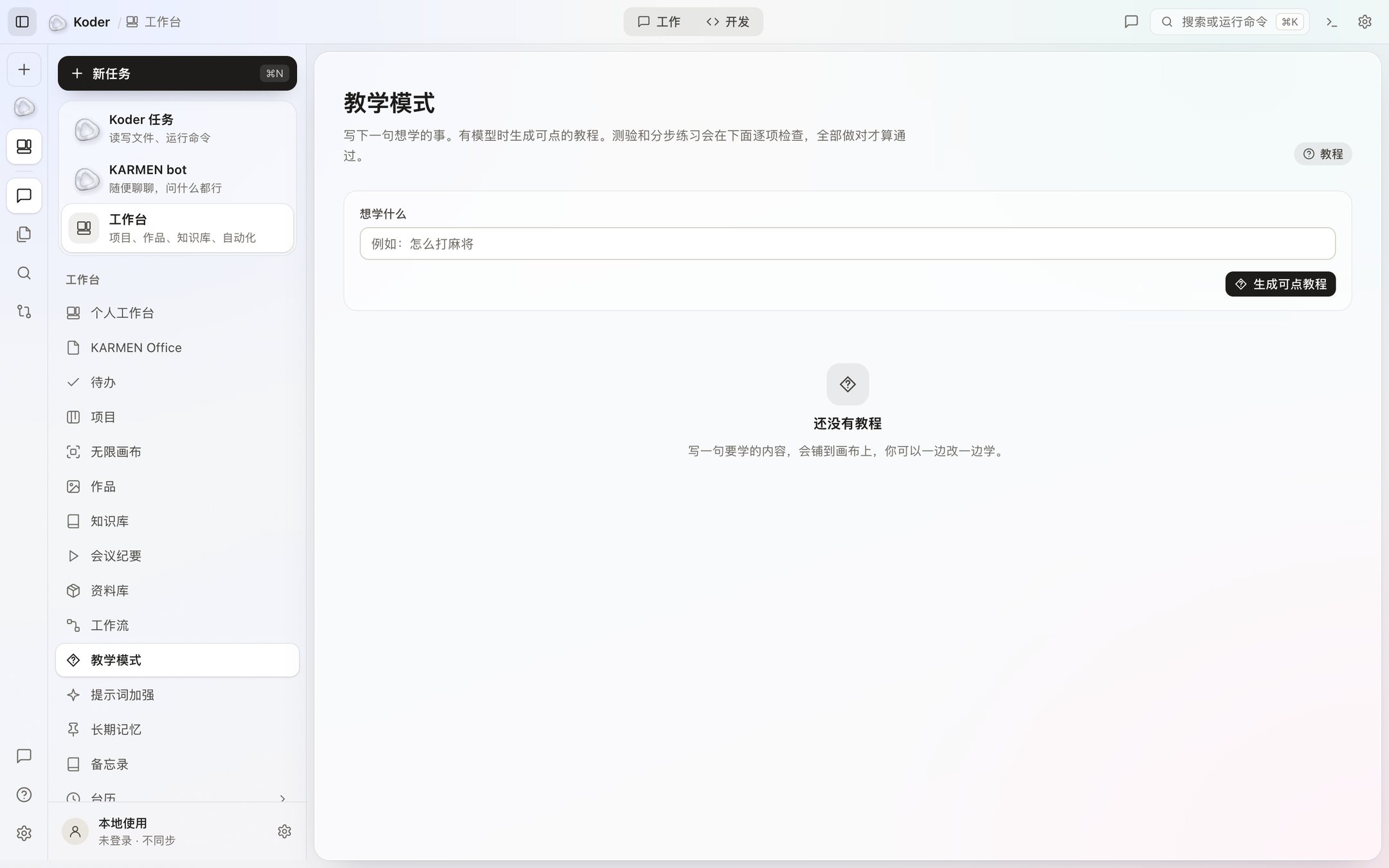
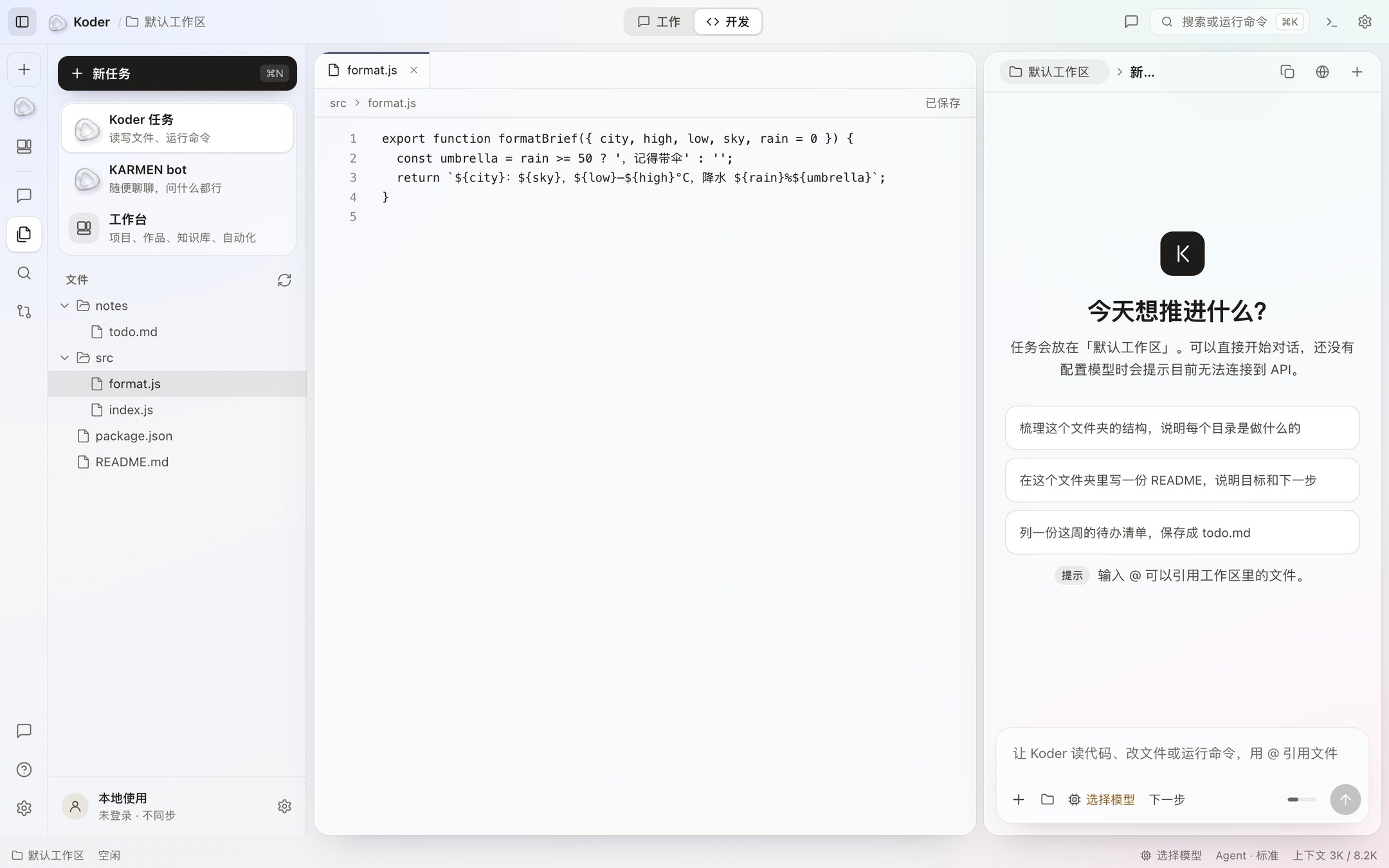
There is no separate teaching edition, and there is no class, roster, or school admin. Koder is this one desktop app. The workbench already has a teaching mode, for learning one specific thing step by step.
1 / 2
How teaching mode works now
- Open teaching mode in the workbench and write one thing you want to learn.
- Koder lays it out as steps on an infinite canvas. A practice you can click stays on the canvas and tells you where to click next.
- It uses the model you have connected. In this version there is no official model, so with no model there is no walkthrough.
- File changes and commands still follow your approval settings. Teaching mode does not skip a confirmation to make a demo.
Not here
- There is no installer aimed at a school, and no place for a teacher to assign work to a whole class.
- The phone app is not available for download.
- Working with other people is being finished and will open soon, but that is not a teaching edition. Until it opens, practice stays on this computer.
From install to the first change, see the tutorial.
What teaching mode actually looks like
In the workbench sidebar, click Teaching mode and write one thing you want to learn. The canvas opens in steps, and those steps still run inside a task. If the task needs to change a file, it is still the Reject / Accept card. If it needs to run a command, it is still Reject, Always allow, and Allow. Teaching mode does not switch approvals to automatic.
There is no separate teaching installer, no class roster, and no switch that sends a learning record to another computer. Notes you want to keep live in this project folder and in the knowledge base. The index is on this computer.