Use
Examples
No examples have been published yet. Here is how one change moves through the app.
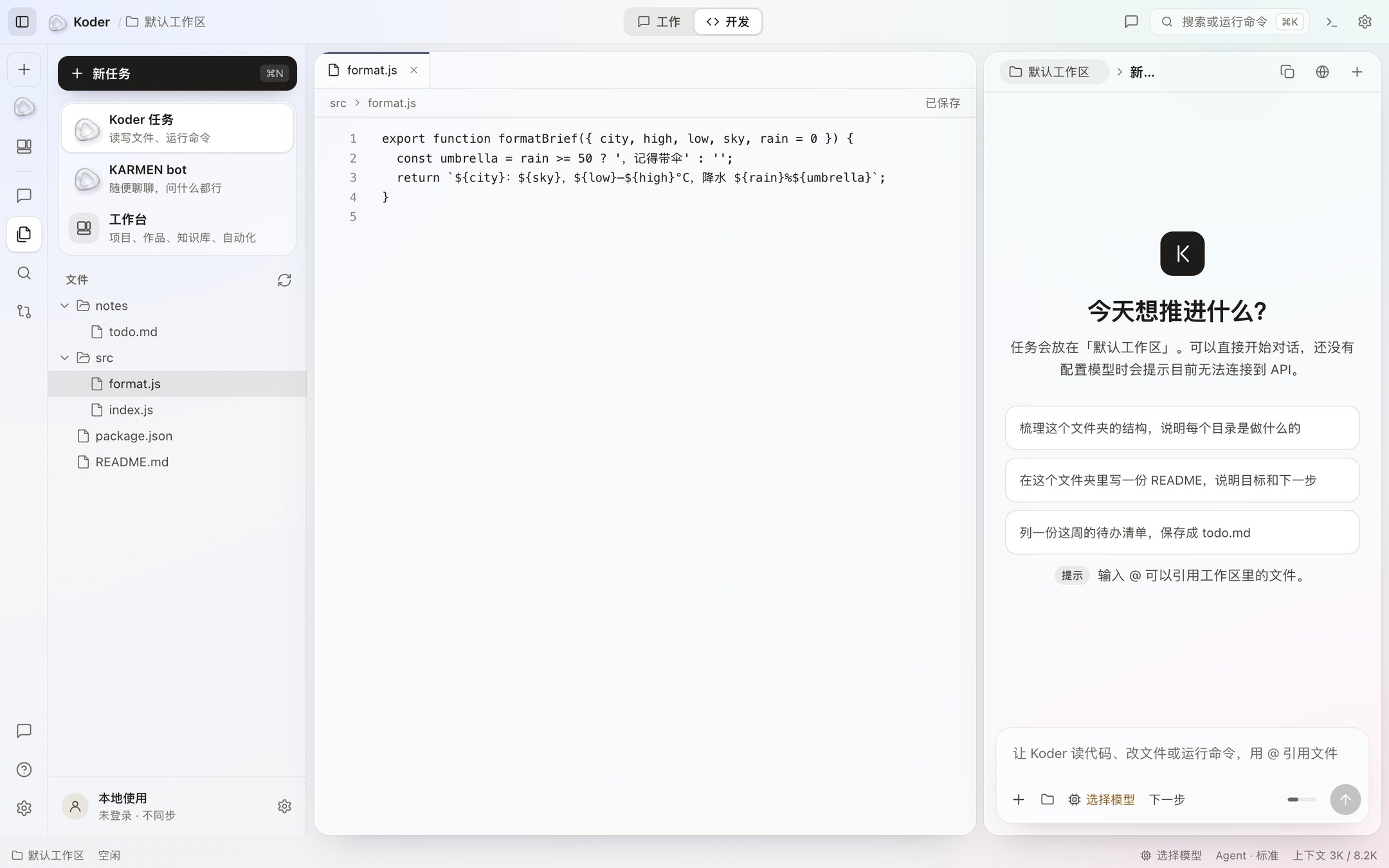
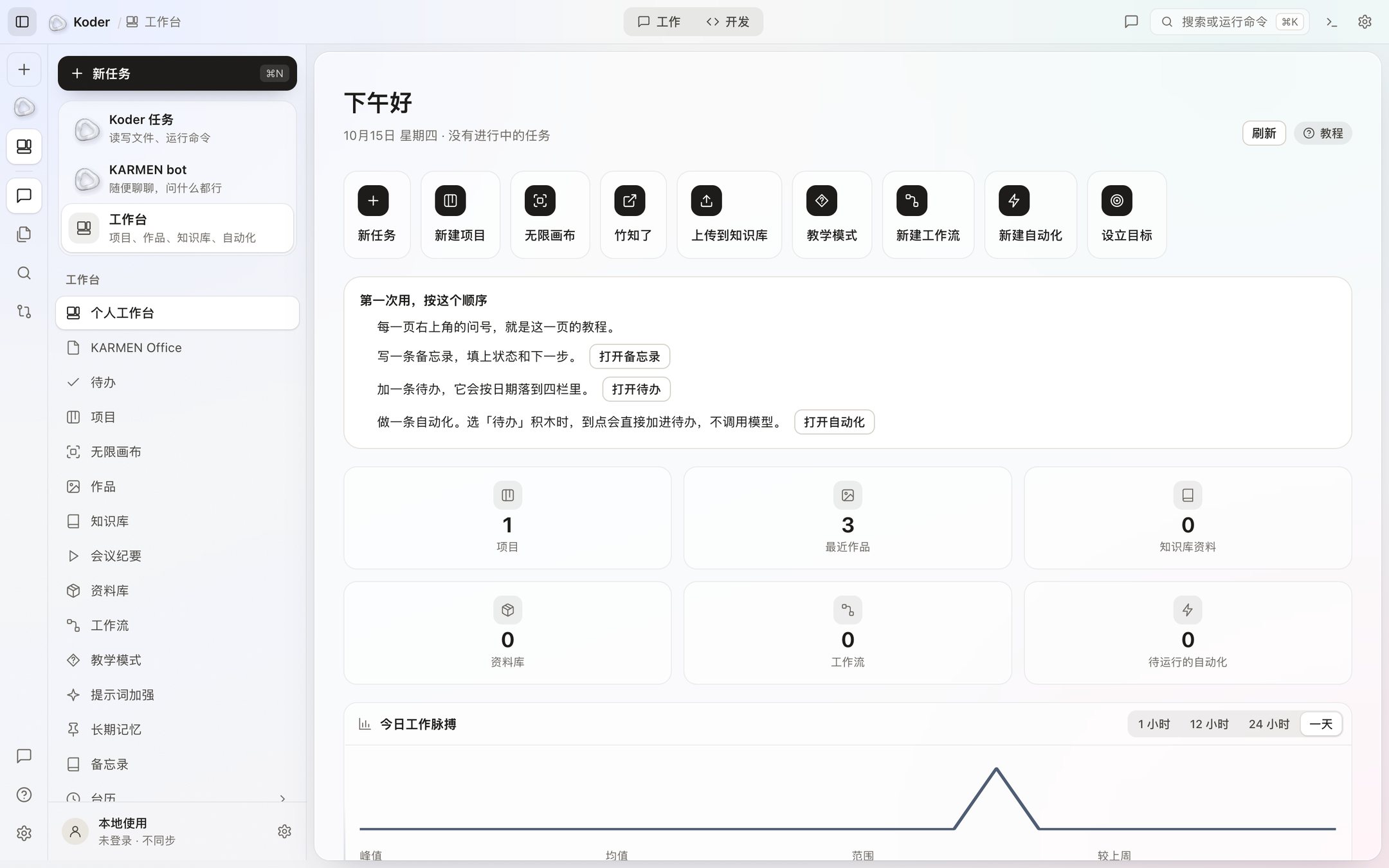
1 / 2
One change, inside the app
- Start a task in a folder and write the change you want, for example move the Friday deadline to Thursday and run the tests.
- Koder shows a diff for
notes/plan.md. It is written only when you click Accept. A rejection is not written to disk. - A command that needs to run is its own card. It asks first by default. The review column keeps files waiting for Accept and commands waiting for Allow.
- The workbench home can show this task, the related work, and the next automation. An automation runs only while Koder is open.
What the window looks like is on the window. To do it yourself, see the tutorial.
Walk the window yourself
Start a task, pick one of your folders as the workspace, and type a specific change, for example move the Friday deadline to Thursday. A “wants to edit” card appears in the middle. A red line is what would be removed. A green line is what would be written. Click Reject and the file stays as it is. Click Accept and it is written.
If a command needs to run at the same time, it is its own card. The three buttons are Reject, Always allow, and Allow. Always allow remembers the rule for that one command. A dangerous command still asks every time. The workbench home can then show this task and the related work.