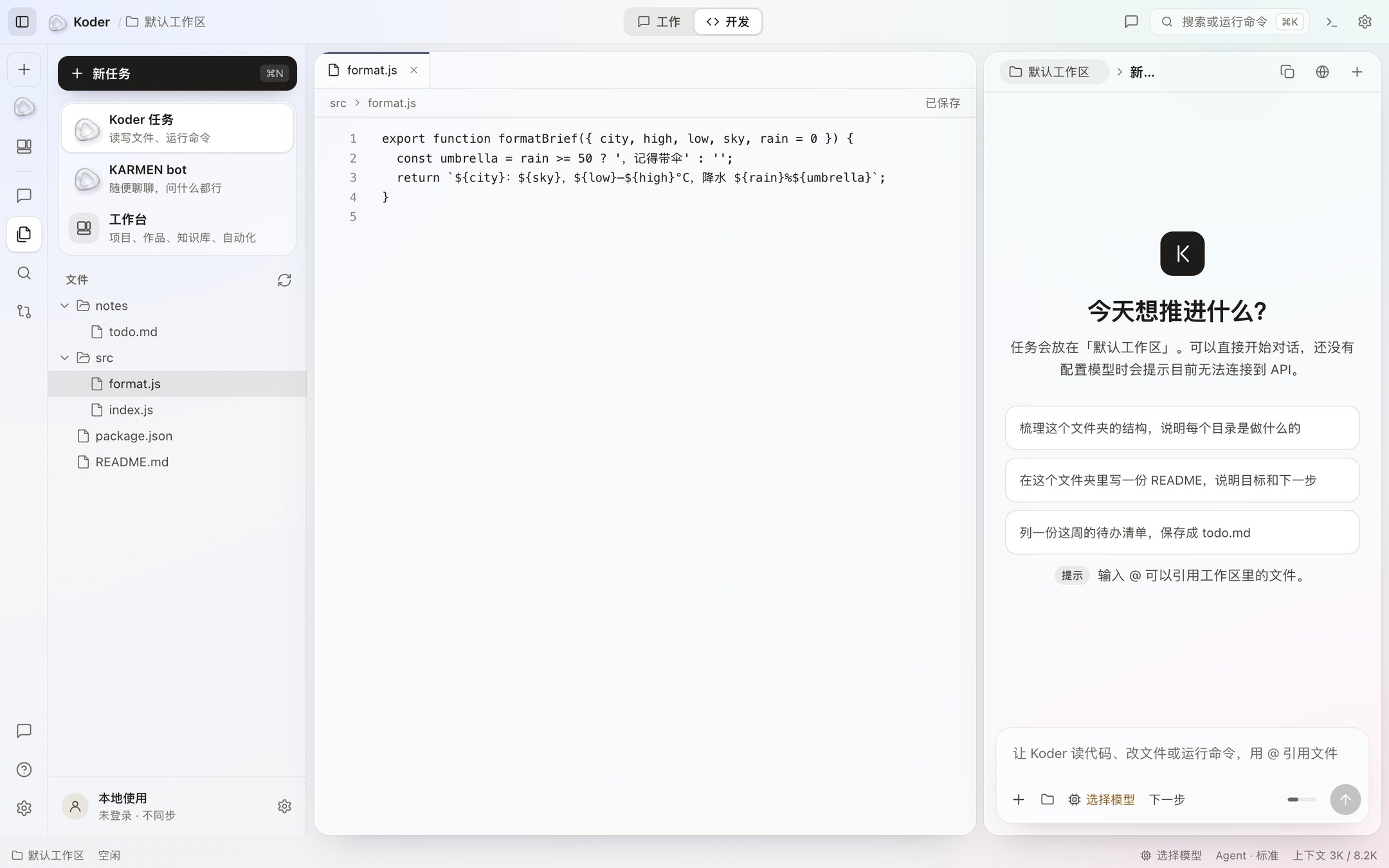
Koder IDE is the dev view in Koder for computers: the file tree on the left, the editor in the middle, this turn’s chat beside it, and a terminal at the bottom. A file change shows a before and after, and is written only when you click Accept. Commands ask by default too. The Mac version needs an invite code. The Windows version: needs an invite code.
0.4.53 · Apple silicon · macOS 13 or later · 222 MB
What is in the window
The top of a task window switches between the work view and the dev view. The work view puts the chat in the middle. The dev view is built around the editor, and everything below is in that one window.
File tree
The files in the task folder, on the left. Each task reads and writes only in the folder you choose.
Editor
Files open in the middle. Edit them yourself, or let Koder edit them.
Chat
This turn’s chat sits beside the editor. Use @ to reference a file, and switch the folder, model, and thinking level.
Terminal
At the bottom. Press ⌘J on a Mac or Ctrl+J on Windows. Terminal output is not sent to the model unless you paste it into the chat.
Review panel
On the right, the files changed and commands run in this turn.
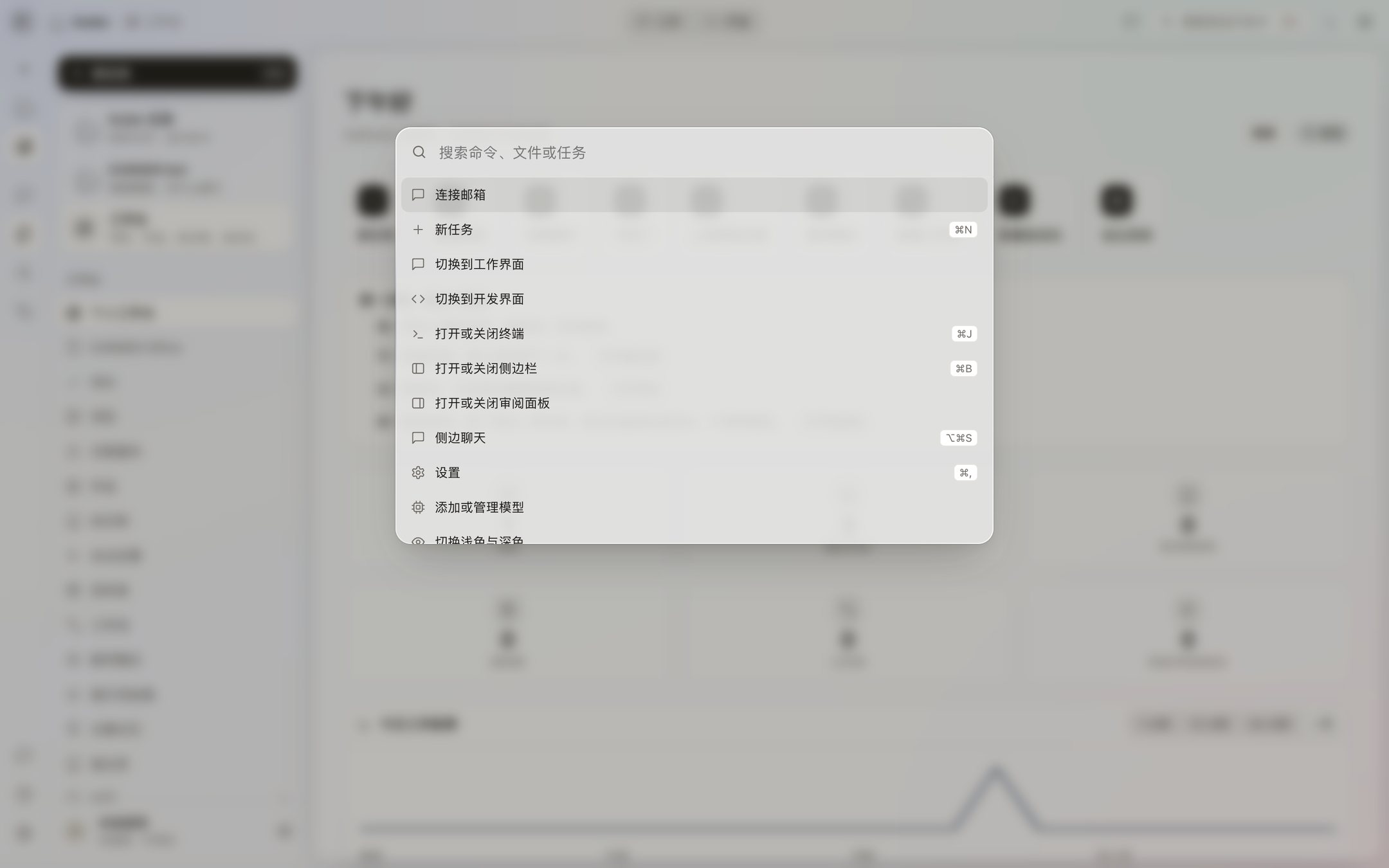
Command palette
⌘K or Ctrl+K. Find files and tasks, or run commands such as Terminal, Settings, or Light.
1 / 3
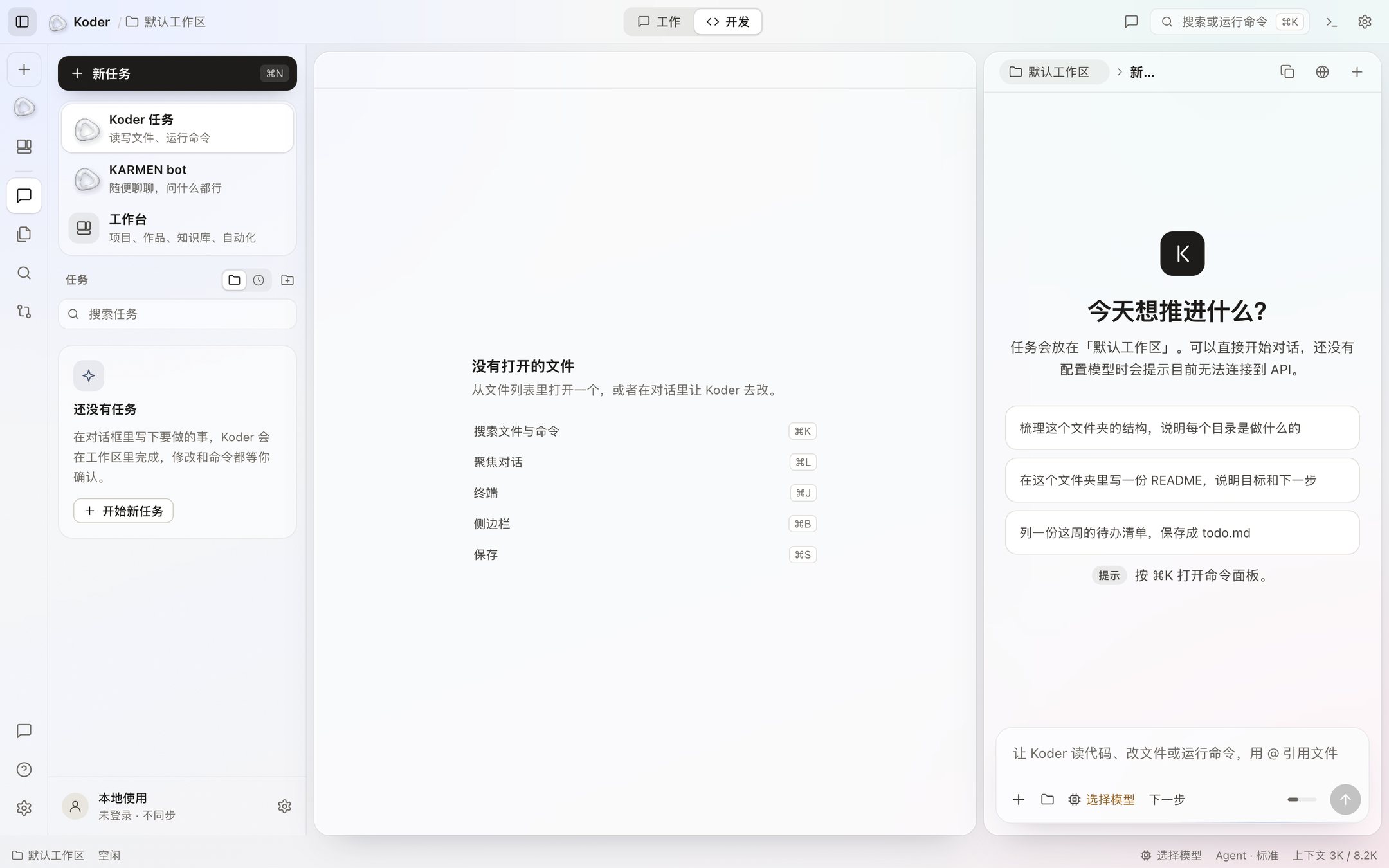
Screenshots: The dev view with src/format.js open from the sample workspace, the dev view on first open with no file open, and the ⌘K command palette. Captured from Koder 0.4.45.
Quick start
Six steps from download to the first change. The tutorial center in the app has the same steps, and a few of them can walk you through the real window with a pointer. The full guide is in the tutorial.
Download and install
This Mac version is for Apple silicon on macOS 13 or later. Click download and enter an invite code. Afterwards you can check the file. The output should match the SHA-256 below:
shasum -a 256 ~/Downloads/Koder-0.4.53-mac-arm64.dmg
This installer has no Developer ID signature, and Apple has not notarized it. After you download it, or copy it from another Mac, macOS blocks the first open. You have to allow it once from the shortcut menu:
Open the disk image and drag Koder into Applications.
In Applications, Control-click Koder and choose Open.
Click Open in the dialog. After that, a normal double-click works.
If the dialog has no Open button, go to System Settings › Privacy & Security, find Koder near the bottom, and click Open Anyway.
Connect a model
Koder does not include a large language model. Open Settings → Models with ⌘, on a Mac or Ctrl+, on Windows. Pick a service on the left. There are about thirty presets, and you can also enter a local model or another compatible endpoint. Paste the key you created on that service’s website into API key, then click Add model.
The first model you add becomes the current one. Keys are encrypted with AES-256-GCM on this computer, and the window never shows any part of a key again.
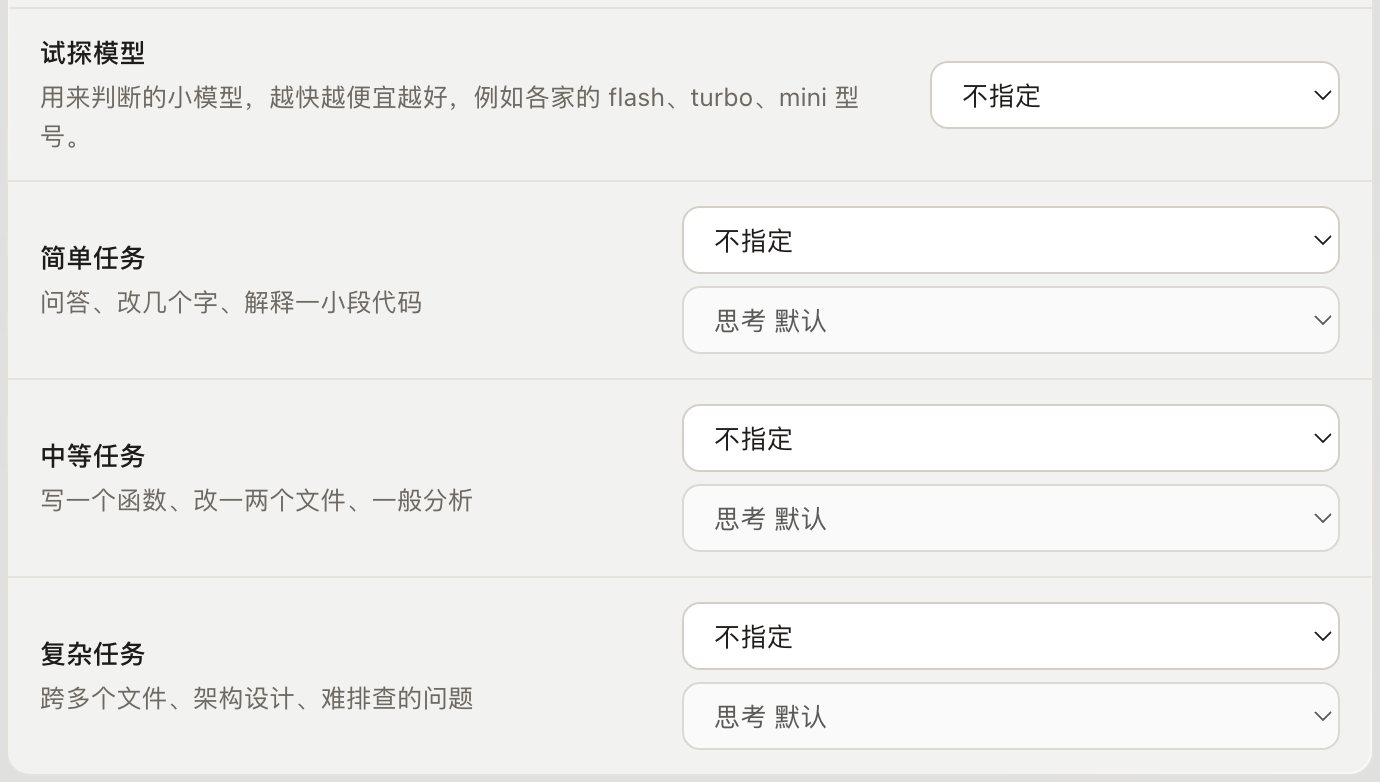
Screenshots: the hourglass in Settings → Models, off by default. When it is on, a faster model judges how hard a new task is, then hands it to the model you set for that level.
Start a task
Click + at the top left (⌘N / Ctrl+N), choose a folder of your own, type what you want done, and press Return. A read-only first try:
Explain what each file in the src folder does. Do not change any files yet.
The work mode starts as Agent, which can propose changes and commands. You can switch to Ask or Plan (read-only), Debug, or Multi-task.
Screenshots: the task input, with the model picker and next step below it.
Switch to the dev view
Switch to Dev at the top of the task window. The file tree is on the left, the editor in the middle, and the chat beside it. ⌘B hides the sidebar and ⌘J opens the terminal. On Windows they are Ctrl+B and Ctrl+J.
Screenshots: the dev view on first open, with new task and the task list on the left and the chat and input on the right.
Approve changes and commands
Before a file is written or changed, the chat shows a before and after. It is written only when you click Accept, and a declined change never reaches the disk. A command shows in full, and you can decline it, allow it, or always allow that kind of command. To have it make a change, try this with your own file name:
Add tests for src/format.js. Read the existing tests first and follow their style.
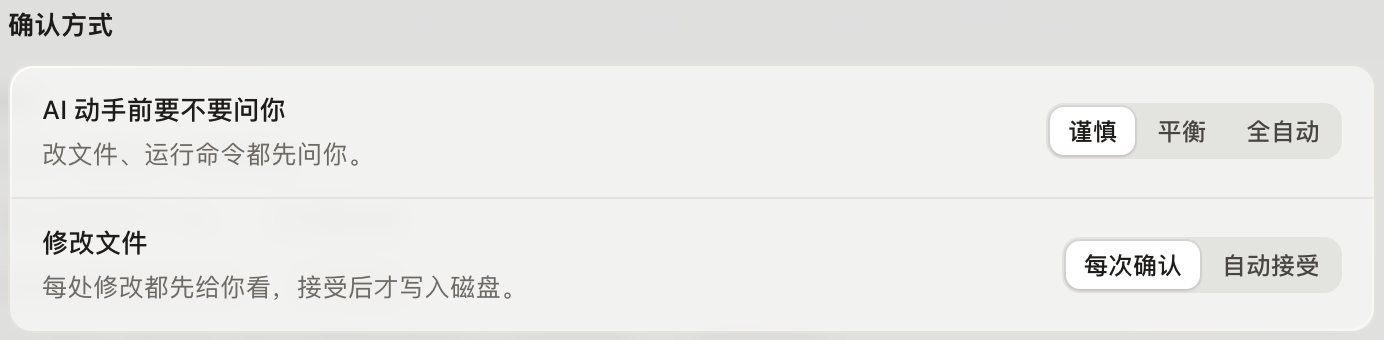
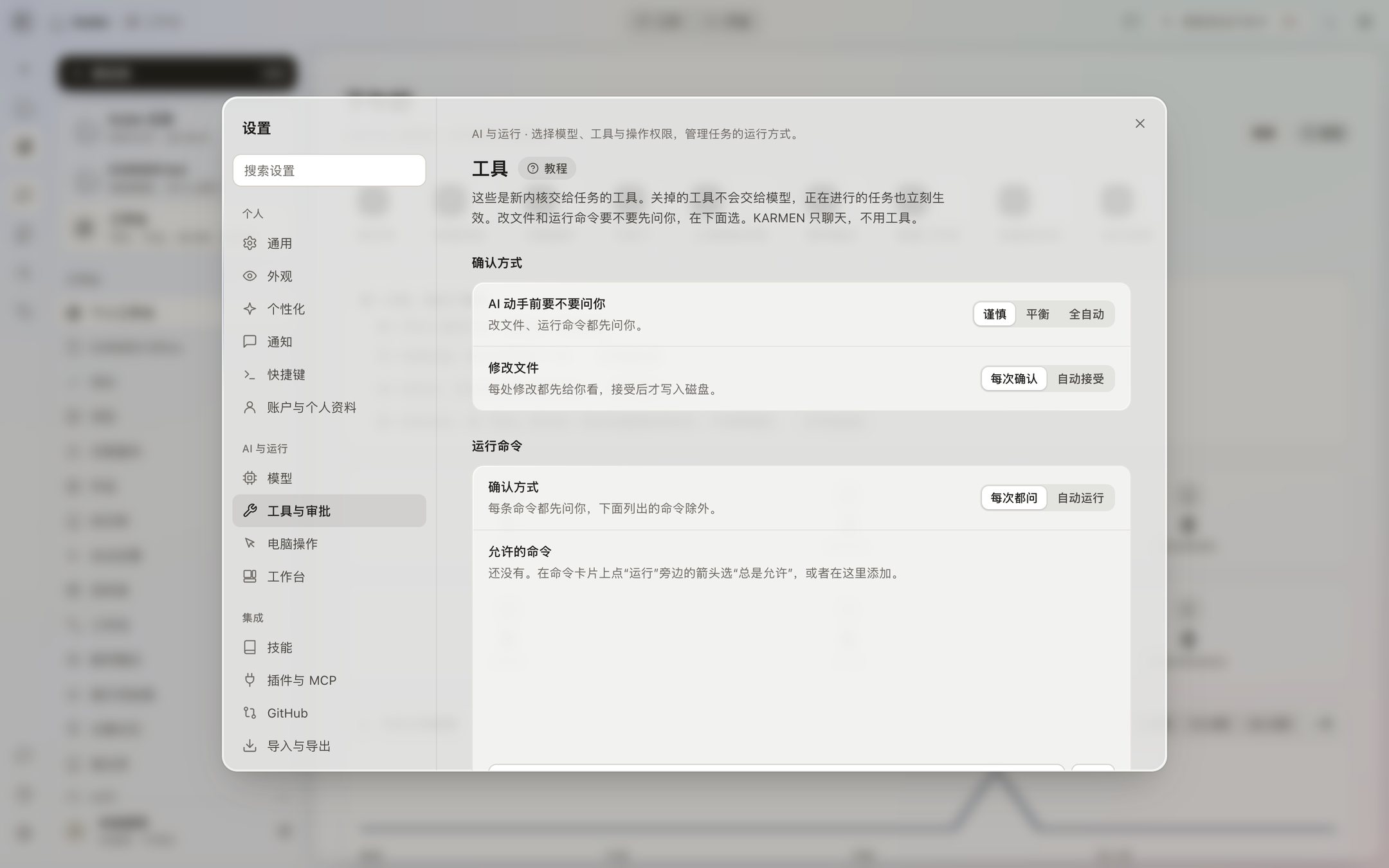
Screenshots: the approval settings in Settings → Tools and approvals. File changes ask every time by default.
Open the tutorial center
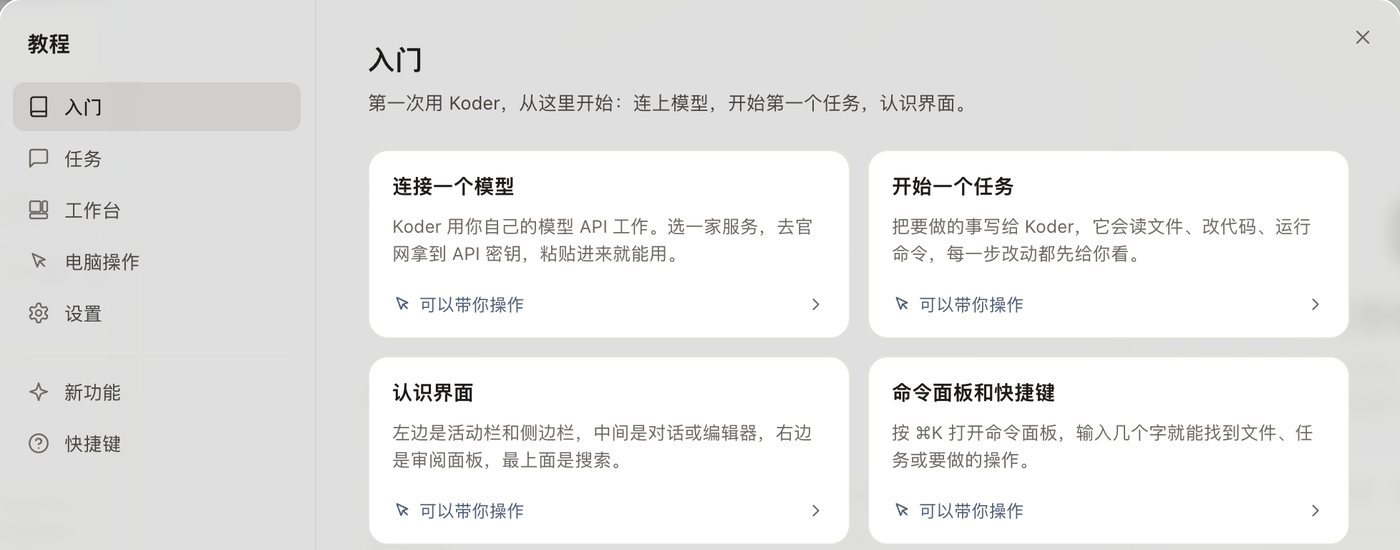
Click the question mark at the bottom of the activity bar. Tutorials are grouped into Getting started, Tasks, Workbench, Computer use, and Settings. The ones marked as guided point to each step with a pointer. Esc only leaves the tutorial.
Screenshots: the tutorial center, with groups on the left and guided cards on the right.
Changes wait for you, commands follow your rules
Before any file is written or changed, you see a before and after. It is written only when you click Accept.
Commands ask every time by default, and show the full command.
A pending change or command waits up to 30 minutes. After that it counts as declined.
Deleting, raising privileges, disk operations, shutdown or restart, force-pushing and rewriting git history, and .env and key files always ask, whatever the setting.
Settings → Tools and approvals has three levels: Careful (everything asks), Balanced (changes in the task folder are written directly, commands ask), and Full auto (everything runs, except the cases above, which still ask).
Screenshots: Settings → Tools and approvals. Careful by default, every file change confirmed, and every command asks.
Shortcuts
On Windows, Command becomes Ctrl and Option becomes Alt.
Key
What it does
⌘N
New task
⌘L
Focus the input
⌘K
Command palette
⌘B
Hide or show the sidebar
⌘J
Terminal at the bottom
⌘,
Settings
⌥⌘S
Side chat
Esc
Stop the current run. During a pointer tutorial, it only leaves the tutorial.
Tab
Accept the suggestion in the input
Shift+Enter
New line in the input
Download
The IDE is in the desktop installer, and downloading it needs an invite code. There is no cloud account and no registration. To work only in a terminal, see Koder CLI and TUI, which need no invite code.
The complete desktop manual follows the 0.4.53 Beta tutorial center. Mac and Windows desktop 0.4.53 Beta are available. Windows testing is in progress. Match instructions to your installed version; CLI permissions and memory sharing do not establish desktop availability.