Tutorial
From install to the first change.
Follow this order and you can start. The tutorial center inside the app has the same walkthrough, and a few of those lessons move the pointer across the real interface. What each settings page does is in Settings. How the window is laid out is on the window.
InstallConnect a modelThe windowFirst taskApprovalsWorkbenchComputer useTutorials in the appAll 75 desktop topics30 CLI lessonsSDKCLI installCLI modelUse CLITUI installTUI modelUse TUI
Check your installed version
Updated October 20, 2026. The published CLI is 0.4.0-preview.22, with 30 lessons. Mac and Windows desktop 0.4.53 Beta are available. Windows testing is in progress. The TUI package remains 0.1.0; current public SDK source is 0.1.1.
The desktop introduction follows the published interface. The 75-topic manual follows the 0.4.53 Beta tutorial center. Older media retains its capture version. Check release notes for desktop ports, native Windows, live channels and multi-device availability.
1 / 3
1. Install the current beta
- Get the current version from the download page. The download needs an invite code.
- This Mac build is Apple silicon, and it needs macOS 13 or later. There is no Intel build. The installer has no Developer ID signature and is not notarized.
- The Windows build is a 64-bit installer, for 64-bit Windows 10 and Windows 11. There is no separate 32-bit package. It has not been tested on a real Windows PC, and it is not code-signed. You do not need an administrator to install it.
- You do not register after you open it. There is no cloud account. The bottom of the sidebar says local use, not signed in.
2. Connect a model
Koder does not include a large language model. You pick the service, get the key, and pay that provider.
- Open Settings → Models. On a Mac, press ⌘,. On Windows, press Ctrl+,. The first time you open Koder, it also walks you through connecting the first model.
- Pick a service on the left. Nearly thirty are preset, and you can also enter a local model or another compatible endpoint. Each one says where to get a key.
- Create a key on that service’s site, paste it into API key, and click Add model.
- The first model you add becomes the current one. After that, switch in the model menu on the input. The key is stored on this computer with AES-256-GCM. The interface does not show any part of it again.
This version has no strength buttons next to the input. The hourglass is in Settings → Models, and it is off by default. When you turn it on, a new task first uses a faster model to judge the difficulty, then the model you set for simple, medium, or complex. Each level’s thinking can be Default, Low, Medium, or High.
3. Learn the window
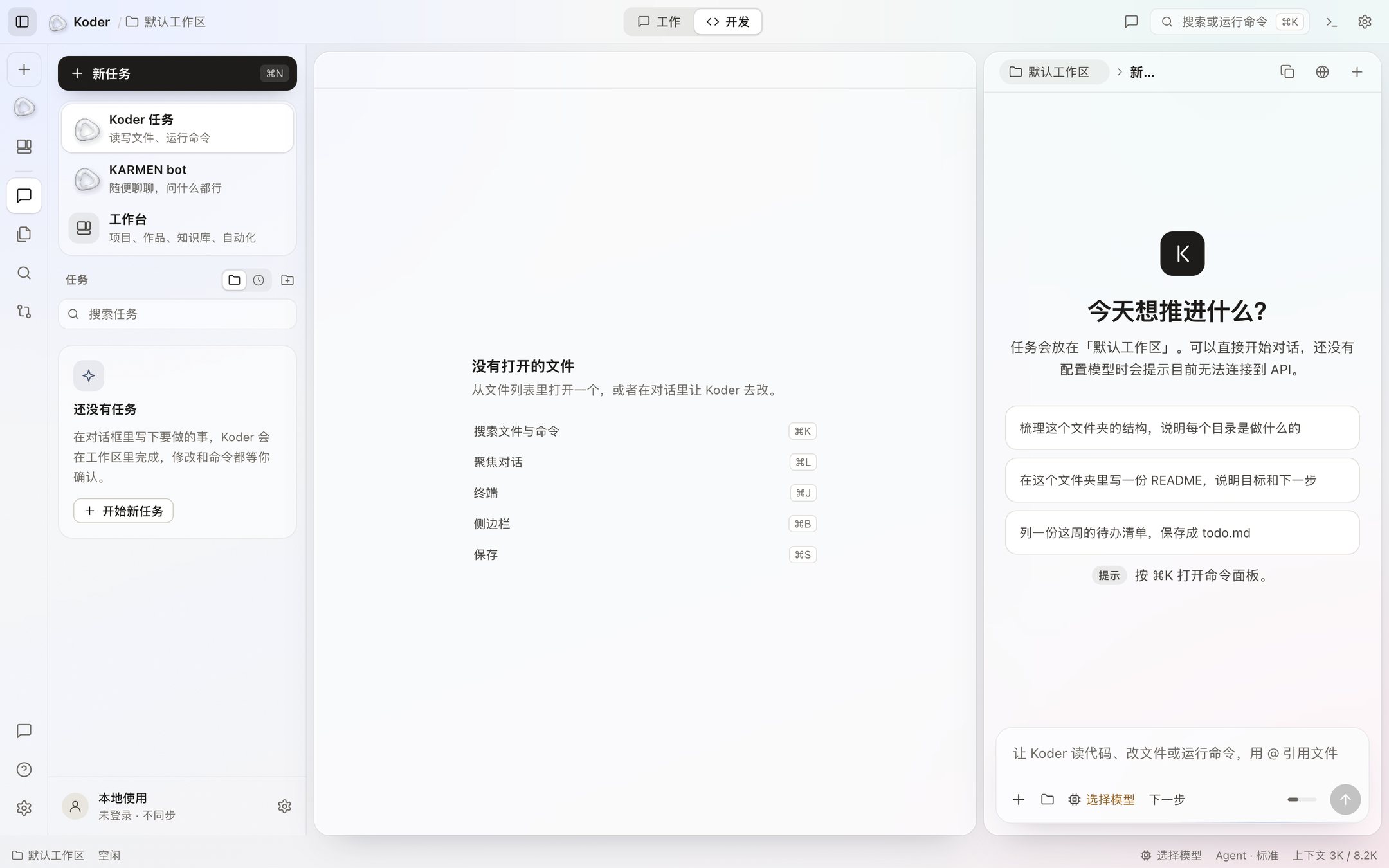
- The activity bar, top to bottom, is New task, KARMEN bot, Workbench, then Tasks, Files, Search, and Changes. Tutorial and Settings sit at the bottom.
- The sidebar shows whatever you selected in the activity bar. ⌘B hides it. On Windows, that is Ctrl+B.
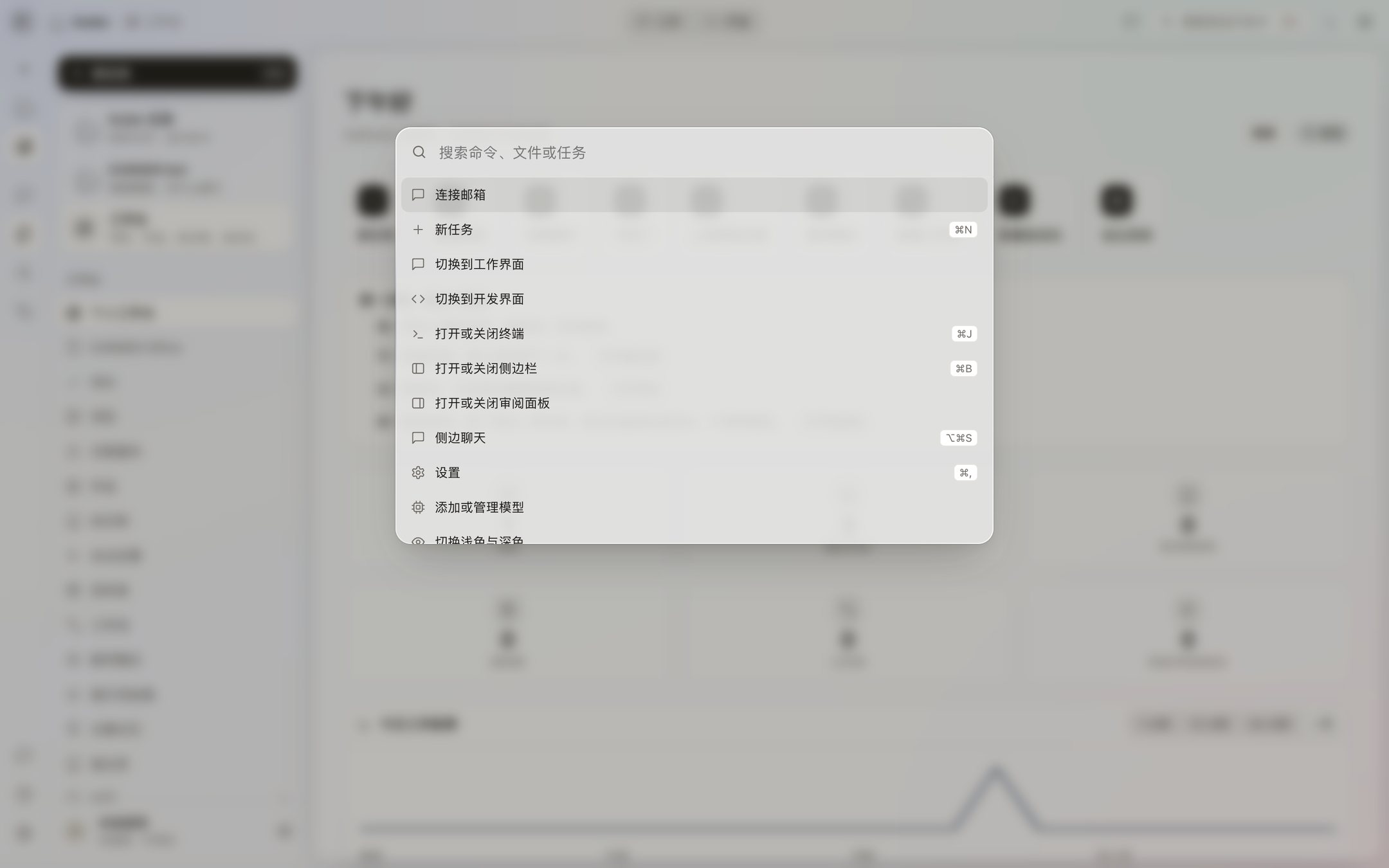
- The search box at the top is the command palette, ⌘K or Ctrl+K. You can find a file or a task, or run a command such as Terminal, Settings, or Light.
- The work view is mostly the chat. The dev view is mostly the editor: the file tree on the left, the editor in the middle, the chat beside it, and the terminal at the bottom (⌘J / Ctrl+J).
- The review panel on the right lists the files changed and the commands run in this turn.
4. Start a task
- Click + at the top left (⌘N / Ctrl+N) to start a task. Each task reads and writes files only in the folder you pick.
- Type what you want done and press Return. You can @ a file, and you can change the folder, the model, and the thinking level.
- The default work mode is Agent: it can propose changes and commands. You can switch to Ask or Plan (read-only), Debug (leave evidence of a run before it changes anything), or Multitask (work that does not overlap goes to the background). If the model asks to switch modes, it asks you first.
- While AI is still working, a new message waits in line by default and goes out when this round ends. To cut in, send that one message now, or set Send while running to send immediately under Settings → General.
5. Approve changes and commands
- When a file needs to be written or edited, the chat shows the before and after. It is written only when you click Accept. A change you reject is not written to disk.
- When a command needs to run, you see the full command by default. You can Reject, Allow, or Always allow that kind of command.
- A change or command waiting for you is kept for 30 minutes at most. After that it counts as a no.
- Deletes, privilege changes, disk operations, shutdown and restart, force-push and rewriting git history, and .env and key files always ask, no matter how you set it.
- Settings → Tools and approvals has three modes: Careful (ask for both), Balanced (writes inside the task folder go straight to disk, commands still ask), and Automatic (both run on their own, and the exceptions above still ask).
6. Open the workbench
Click Workbench in the activity bar. The home screen shows goal progress, tasks in progress, the board, recent work, and the next automation. All of that lives in the Koder data folder on your computer.
- A project is a folder, with a board of To do, In progress, and Done. Hand a card to AI and a task opens in that folder.
- The knowledge base takes text, Markdown, web pages, Word, and PDF. The index is on this computer, and it searches only the libraries you turned on.
- The workflow canvas connects prompts into steps, and you can add an If branch. An automation runs every day, every week, every few hours, or once. It runs only while Koder is open.
- KARMEN bot is its own item in the activity bar. Inside the desktop app it only chats. It does not use tools, and it cannot read or write files or run commands.
7. Leave computer use off
Computer use is off by default. After you turn it on, AI can screenshot, click, type, press shortcuts, scroll, drag, and switch apps. On a Mac it walks you through Accessibility and Screen Recording. By default every action asks. You can change that to ask only for risky actions, or leave it open.
While it is driving, the top of the screen says AI is using the computer, with a Stop button. The emergency stop is ⌃⌥⌘. . Screenshots go only to the model service you chose.
8. The app has a tutorial center
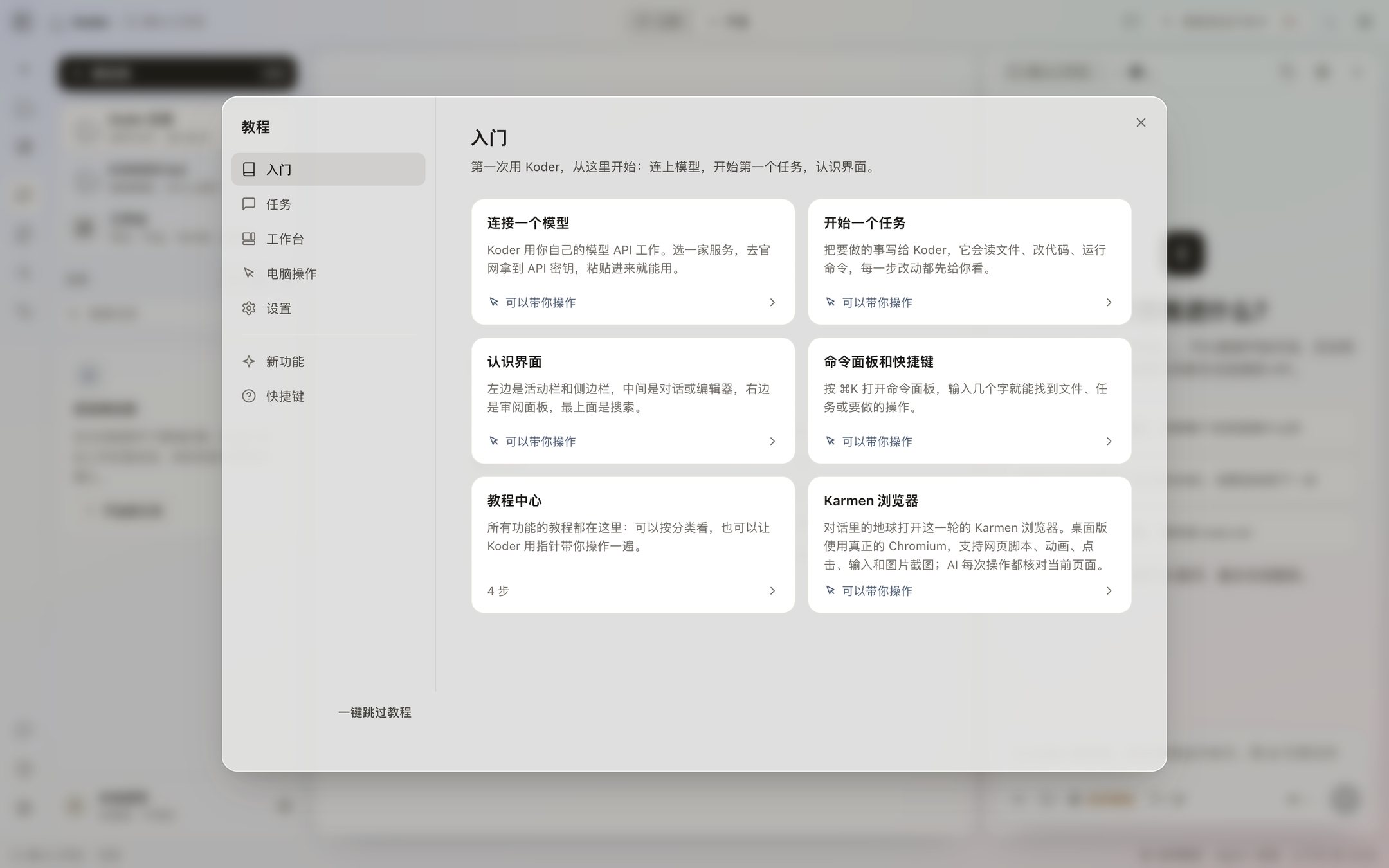
Click the question mark at the bottom of the activity bar. Lessons are grouped into Getting started, Tasks, Workbench, Computer use, and Settings. What’s new lists what was added since you last opened it. A lesson marked “I’ll walk you through it” moves the pointer step by step. Each settings page and each workbench page also has Tutorial next to the title.
Shortcuts you will use: ⌘N for a new task, ⌘L to focus the input, ⌘B for the sidebar, ⌘J for the terminal, ⌘, for Settings, ⌘K for the command palette, and Esc to stop the current run. On Windows, Command is Ctrl and Option is Alt. Side chat is Option/Alt + Command/Ctrl + S. In the input, Tab accepts a suggestion and Shift+Enter starts a new line. While a pointer lesson is running, Esc only leaves the lesson.
Install Koder CLI
Koder CLI 0.4.0-preview.22 is not in the desktop installer, and it does not need an invite code. It needs macOS 11 or later, Linux, WSL, or Windows 10 or 11. Windows XP, 7, and 8 cannot run it. Accept Koder-EULA-1.1 before installing. Accepting the agreement does not allow file changes, computer control, preference learning, or messaging. Those stay off until you turn them on in settings. On macOS, Linux, and WSL, paste the ordinary install command into Terminal. A piped install reads the answer from the controlling terminal. Type accept and press Enter to agree. Type decline or press Ctrl+C to cancel. Empty input cancels on Unix; Windows asks again. Without interaction and without agreement, the installer exits. That exit is not an API or network error. Windows PowerShell and Command Prompt also ask, and they protect redirected input. Release notes record Windows installer checks; verify the result on your own PC. An older updater stops before download because this release changes the license digest. KODER_EULA_ACCEPT does not bypass that check. Run the ordinary install command and type accept. The overlay install keeps configuration, memory and channel bindings. Running koder update directly does not unconditionally complete this upgrade. The full text is the copyright, license and international-use notice and the install page.
github.com/KarmenLoop/koder-cli
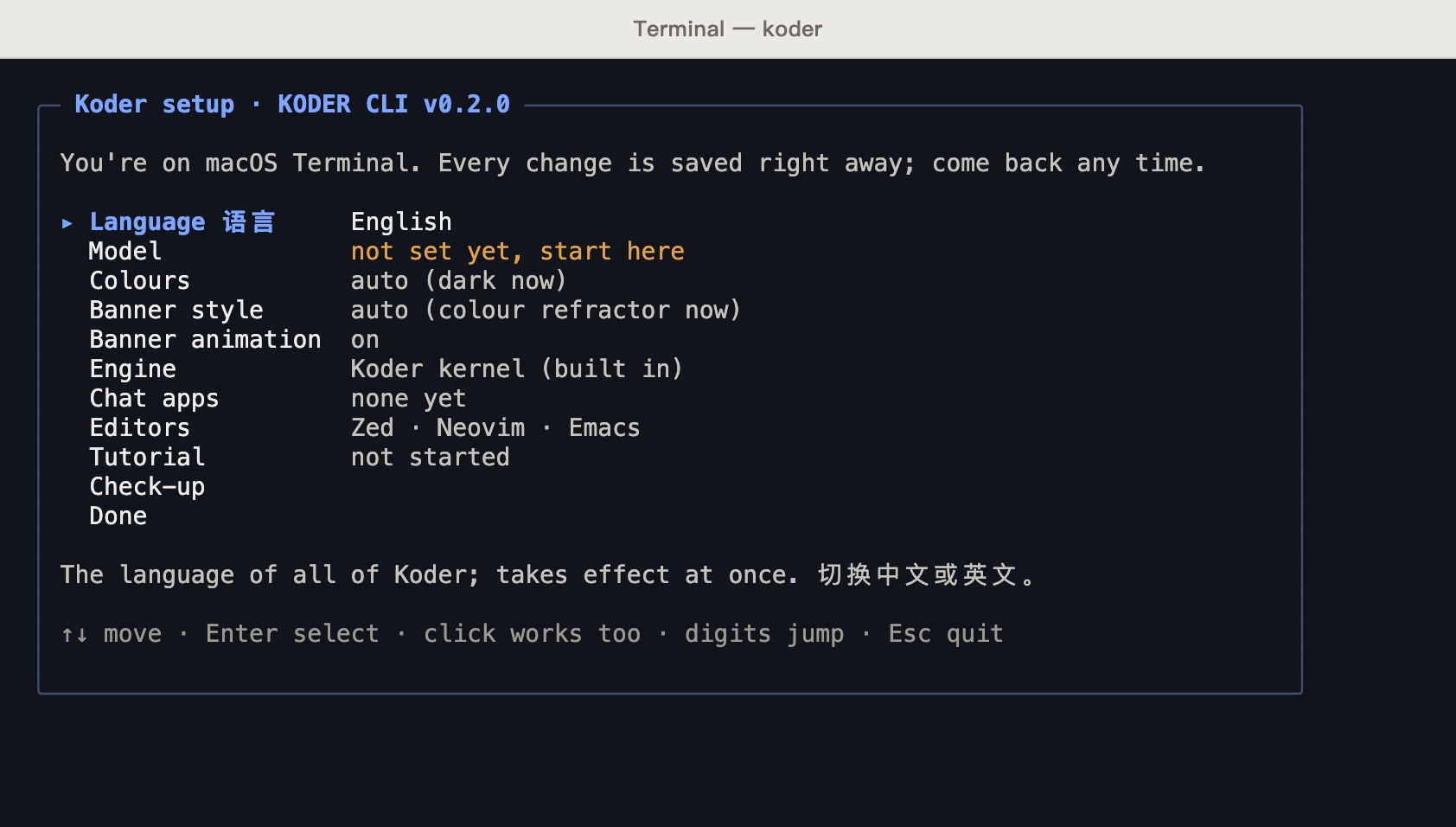
- After it installs, koder setup opens. Move with the arrow keys, Tab, or the mouse. Enter picks, Esc goes back, a digit jumps, and typing filters a list. Language, model, light or dark colors, the intro style, and the intro animation save at once. /setup opens the same screen inside a chat. koder settings is the English alias.
- koder version prints the version and the updates page. koder eula shows the agreement. Before you accept, version, about, help, eula, and uninstall still run. Other commands stop until you accept.
- If you already have 0.3.0, 0.3.1, 0.4.0-preview.1, or 0.4.0-preview.2, run the install command in the repository once. Model settings and memory stay. After that, use koder update. koder update --check looks up the published version and does not install. A failed download or checksum leaves the installed version in place. Updates start when you run the command.
- The release records Windows installer checks. Your device and live WeChat, Feishu, or WeCom accounts still need separate verification.
koder setupkoder versionkoder eulakoder update --checkkoder updatekoder lang enkoder lang zhCLI setup: connect a model
Koder does not include a model. The settings screen is the shortest way. The commands are still there. There are 36 presets. The model is saved in ~/.koder-cli/provider.json, and language and colors are saved in config.json in the same folder. Both files are mode 600. This setup is separate from the desktop app. The TUI reads this same folder. koder model show prints only the last four characters of the key.
-
Use the settings screen
Pick a provider, then a model, then paste the key. The screen can also open that provider's key page. The first time you type koder with no model set, this screen opens by itself.
koder setupColors and the intro can be changed here, or with a command. auto follows the terminal background, and falls back to dark when it cannot tell.
koder theme lightkoder theme auto -
List the presets
koder model presetsPreset names include deepseek, kimi, qwen, claude, chatgpt, and local. local is Ollama on this computer and needs no key.
-
Mac
macOS uses zsh. The first line writes ~/.zshrc. Add it once, and new terminals can read it. The second line lasts for this window only.
echo 'export OPENAI_API_KEY=your-key' >> ~/.zshrc export OPENAI_API_KEY="your-key"koder model set --preset chatgpt --key-env OPENAI_API_KEY -
Ubuntu and other Linux
Ubuntu uses bash, so write ~/.bashrc. For zsh, use ~/.zshrc instead. Then run source ~/.bashrc, or close the terminal and open it again.
echo 'export OPENAI_API_KEY=your-key' >> ~/.bashrc export OPENAI_API_KEY="your-key"koder model set --preset chatgpt --key-env OPENAI_API_KEY -
Windows 10 and 11 · PowerShell
setx saves it for the current user. Windows that are already open do not see it, so open a new one. $env: lasts for this window only. Windows PowerShell 5.1 turns non-ASCII text in a pipe into question marks. Run $OutputEncoding = [Text.UTF8Encoding]::new() once. PowerShell 7 does not have this problem.
setx OPENAI_API_KEY "your-key"$env:OPENAI_API_KEY="your-key"koder model set --preset chatgpt --key-env OPENAI_API_KEY -
Windows 10 and 11 · cmd
setx also saves it for the current user. Close the window and open a new one afterwards. set lasts for this window only, and the quotes must wrap the whole assignment. cmd only understands double quotes. After installing koder, reopen the window too, because this window fixed its PATH when it opened. Changing drives needs /d, for example cd /d D:\code\my-app.
setx OPENAI_API_KEY "your-key"set "OPENAI_API_KEY=your-key"koder model set --preset chatgpt --key-env OPENAI_API_KEY -
Ollama on this computer, or your own endpoint
koder model set --preset local --model qwen3:8bFor a service that is not in the presets, give the address, the model name, and the protocol. The protocol is openai or anthropic. MiniMax-M3, when you do not set a limit, uses a 1,048,576 context window and 32,768 output tokens. A number you set yourself wins. Unknown custom models stay conservative until you fill in the provider's real limits.
koder model set --base-url "compatible-endpoint" --model "model-name" --protocol openai --key-env MY_API_KEYkoder model context --context-window 1048576 --max-output 32768A key typed straight into the command is saved as plain text. Stay with --key-env. --key-stdin reads the key from standard input, so it never appears on the command line.
-
Show, switch, and remove
koder model listkoder model showkoder model use namekoder model remove namekoder model add name registers another model, so you can switch to it or use several models together. koder model clear removes the whole model setup. With --key-env, the key stays in your environment variable.
koder model add kimi --preset kimi --key-env MOONSHOT_API_KEY -
Check that it is ready
koder doctor checks Node, Git, the model, colors, and startup time. --api actually calls the current model and can spend a small amount of API usage. -w sets the workspace. Without it, the workspace is the current folder. This step is done when doctor finishes and koder model show prints the model you just set. For koder ask, exit code 0 finished, 1 failed or you cancelled, and 2 never started.
koder doctorkoder model show -
Scripts and CI, without a setup file
With these three environment variables set, that run does not read provider.json.
Mac and Linux:
export KODER_MODEL="model-name" export KODER_BASE_URL="compatible-endpoint" export KODER_API_KEY="your-key"PowerShell:
$env:KODER_MODEL="model-name" $env:KODER_BASE_URL="compatible-endpoint" $env:KODER_API_KEY="your-key"cmd:
set "KODER_MODEL=model-name"
set "KODER_BASE_URL=compatible-endpoint"
set "KODER_API_KEY=your-key"
Use the CLI
After the model is set, open your own project folder. Project tools start in that folder. Wider access to the computer or your home directory is something you turn on in settings, and the operating system may ask you to allow it too. On Windows, commands Koder runs for you go through cmd, not PowerShell. For PowerShell syntax, write powershell -NoProfile -Command "...". koder learn is a 30-lesson interactive tutorial in a practice project, and it remembers where you stopped. koder learn --print prints the text only. --os switches the edition to powershell, cmd, mac, or linux.
-
Open the folder and say what to do
cd your-project-folder koderType the task and press Return. You can also say it in one line without entering the chat. To ask a question without editing files or running commands, use koder ask.
koder "fix the outdated links in the README"koder ask "how does this project start?"In the chat, /help lists commands, /setup opens settings, /lang en switches to English, /new starts a fresh session, and /exit or Ctrl+D quits. Ctrl+Z does not quit on Windows. The 30 lessons are: welcome, the intro and the prompt, model setup, the first task, command approval, choices, slash commands, read-only questions and pipes, code review, fix until the tests pass, flows and CI, several models thinking together, chat apps, editors (Zed, Neovim, Emacs), scanning local projects, install, update, and switch engines, license and optional consent, computer and file scope, memory and groups, personalization and reflection, apps and MCP, API and update recovery, and reference and graduation.
koder learnkoder learn 3koder learn --printkoder learn 16 --os powershellkoder learn 16 --os cmdkoder learn 16 --os mackoder learn 16 --os linux -
Approve a change
Smart approval handles ordinary project edits and low-risk commands automatically. First run koder permissions execution ask to practice reviewing each action. In ask mode, y accepts the displayed red/green diff and other answers refuse. Sensitive actions still need permission.
koder run "npm test failed; fix total() in cart.mjs"-y auto-accepts file edits and commands. It does not answer questions, and it does not collect passwords.
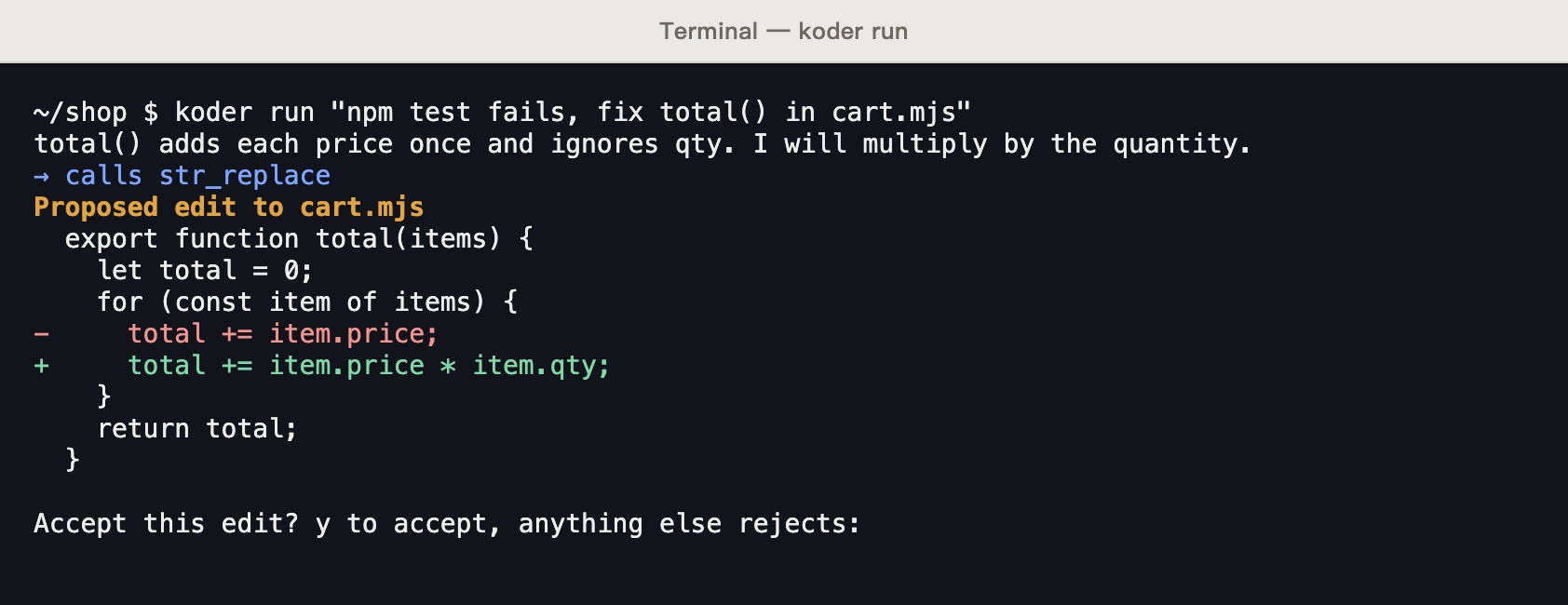
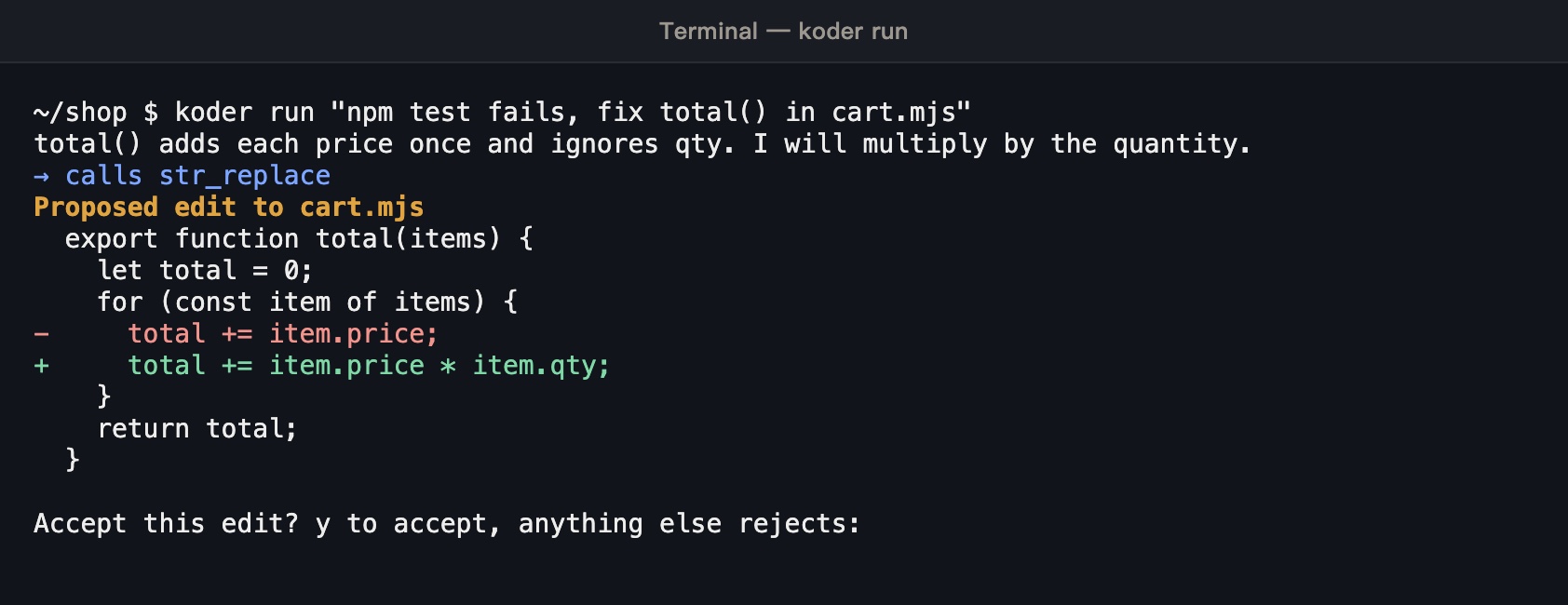
Screenshots: koder run editing cart.mjs, stopped at the accept-this-change prompt. The capture used a local scripted test endpoint, not a real model. -
Review, fix, and add tests
koder review gathers the changes, the repository layout, rule files, and recent commits, then lists each finding with a file, a line, a level, and a suggested edit. koder fix runs a check and hands a failure to Koder, up to 3 times by default. koder test reads the tests you already have, follows the same folders and style, and adds tests.
koder reviewkoder fix --check "npm test"koder test src/price.js --check "npm test" -
Pipes and scripts
--json prints one JSON event per line: assistant, pause, decision, tool_result, and a final result. Exit codes: 0 finished, 1 interrupted or the task failed, 2 could not run, for example the model was unreachable or an argument was wrong. Without --yes, a script rejects every edit and command.
git diff | koder ask "summarize this change"koder run --yes --json "add install steps to the README" -
Flows, CI, and editors
koder flow init writes a JSON flow. A step can be shell, run, ask, review, fix, or test. koder ci init writes .github/workflows/koder.yml. An opened or updated pull request is reviewed and commented on. A comment of /koder review or /koder fix runs that action, and edit commands are accepted from repository members only. Zed, Neovim, and Emacs use koder editor to show the setup. Inside the editor, koder acp chats, shows diffs, and approves edits.
koder flow init pr-gatekoder ci initkoder editor zedkoder editor nvimkoder editor emacskoder acp -
Sessions, memory, and local projects
A session in the same folder stays after you quit. --session names it, --new starts a fresh one, and --no-memory skips the old session for this run. koder memory show prints what is saved. /new in the chat starts a fresh session too. koder scan only lists local projects and recent tasks. It does not start the work.
koder --session feature-akoder --newkoder --no-memory run "a one-off"koder memory showkoder scan -
Change the mode, or let several models advise first
--mode accepts standard, code, minimal, plan, execute, report, or enhance. In the chat, /mode switches the mode for this turn.
koder --mode plan "write a plan first and do not edit files yet"To have several registered models analyse first, and the current model gather the result, register a reference model with koder model add, then:
koder moa set --refs kimikoder --moa "design a cache layer"In the chat, /moa toggles that. koder uninstall removes Koder CLI, and --purge also removes the setup. Uninstall does not require accepting the agreement first.
Install Koder TUI
Koder TUI 0.1.0 is also one command. It is not in the desktop installer and does not need an invite code. The install commands, the scripts, and what they download are in the same repository as the CLI.
TUI setup: the same model
The TUI does not keep its own model, language, or colors. It uses what koder setup wrote under ~/.koder-cli. If that is not done yet, do the CLI model section above first. /learn inside the TUI is still five steps. It is not the CLI's 30 lessons.
-
The CLI is already configured
Open a new terminal and use koder doctor to check configuration and variable availability. Do not print a full API key into terminal output or screenshots. Then:
koder model showWhen the model is listed, open the TUI. There is nothing more to configure.
-
This run, without a setup file
Set these three environment variables before you open the TUI. The TUI reads them. The lines match the CLI script step: Mac and Linux, PowerShell, and cmd.
export KODER_MODEL="model-name" export KODER_BASE_URL="compatible-endpoint" export KODER_API_KEY="your-key" koder-tuiIn PowerShell, replace export with $env:NAME="value", write all three, then type koder-tui. In cmd, use set "NAME=value", then type koder-tui.
-
Look it up after it opens
Type / to open commands. /model shows the model configuration. /lang zh or /lang en changes the same setup as koder lang.
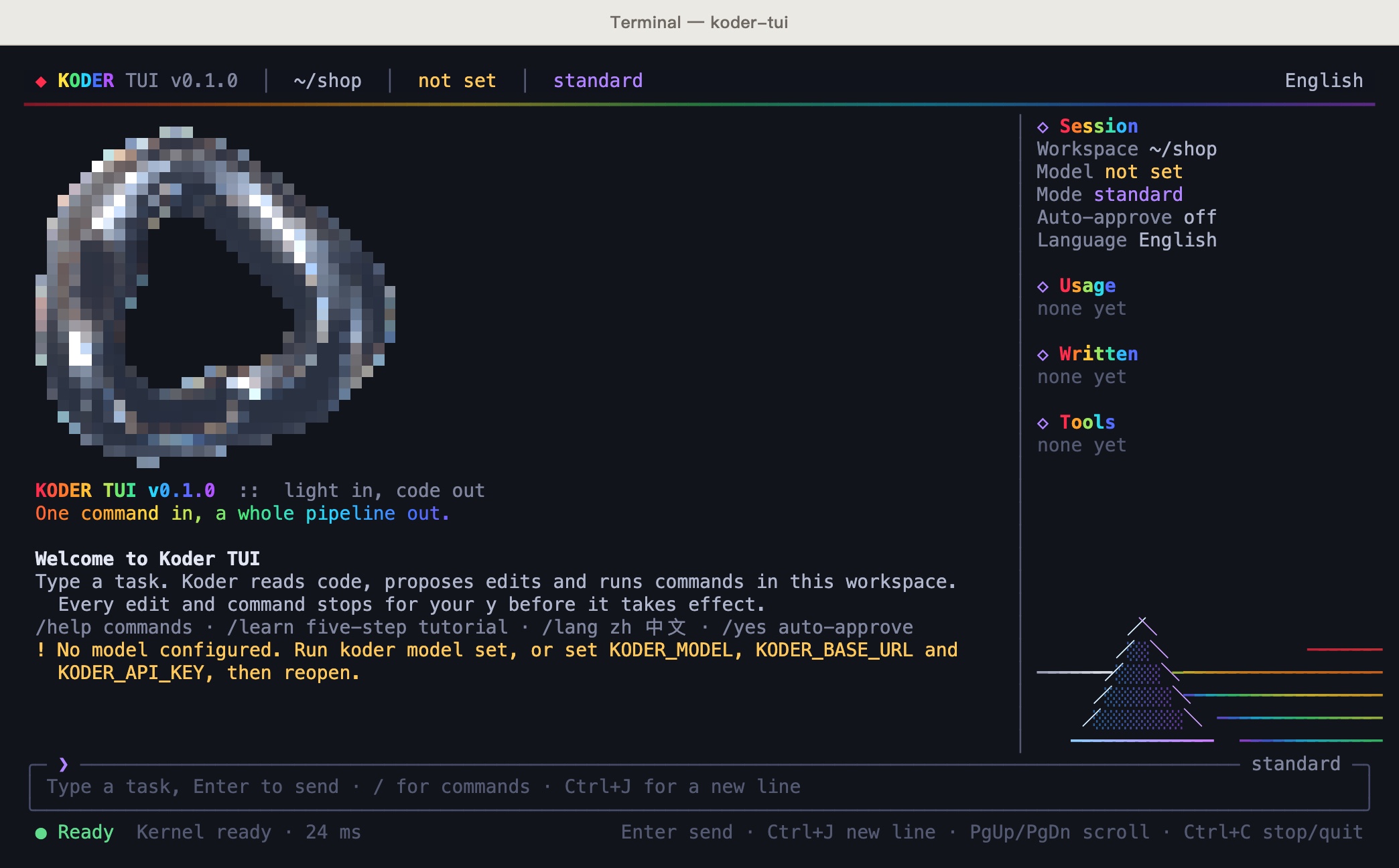
Use the TUI
Inside the program, /learn is a five-step tutorial. Left and right arrow keys change the page, and Esc closes it. The full 30 lessons are in the CLI: type koder learn. The steps below are the TUI's own five, once a model is configured.
-
Open the project folder
cd your-project-folder koder-tuiYou can also set the workspace, language, and mode in one line. --yes auto-approves file edits and commands only. --no-splash skips the intro.
koder-tui -w your-project-folder --lang en -
Say the task
Write what you want in the box at the bottom, for example "add unit tests for src/utils.js", and press Enter. Ctrl+J or Alt+Enter starts a new line. Koder looks at the workspace layout first, then decides which files to read and how to change them.
-
Approve edits and commands
When Koder wants to write a file, a diff window opens: green lines are added, red lines are removed. y accepts, n or Esc rejects, and the up and down arrows scroll. Commands ask first too. /yes covers files and commands only. Questions still ask, and it never fills in a password. Esc also interrupts the current turn. Files you already accepted stay written.
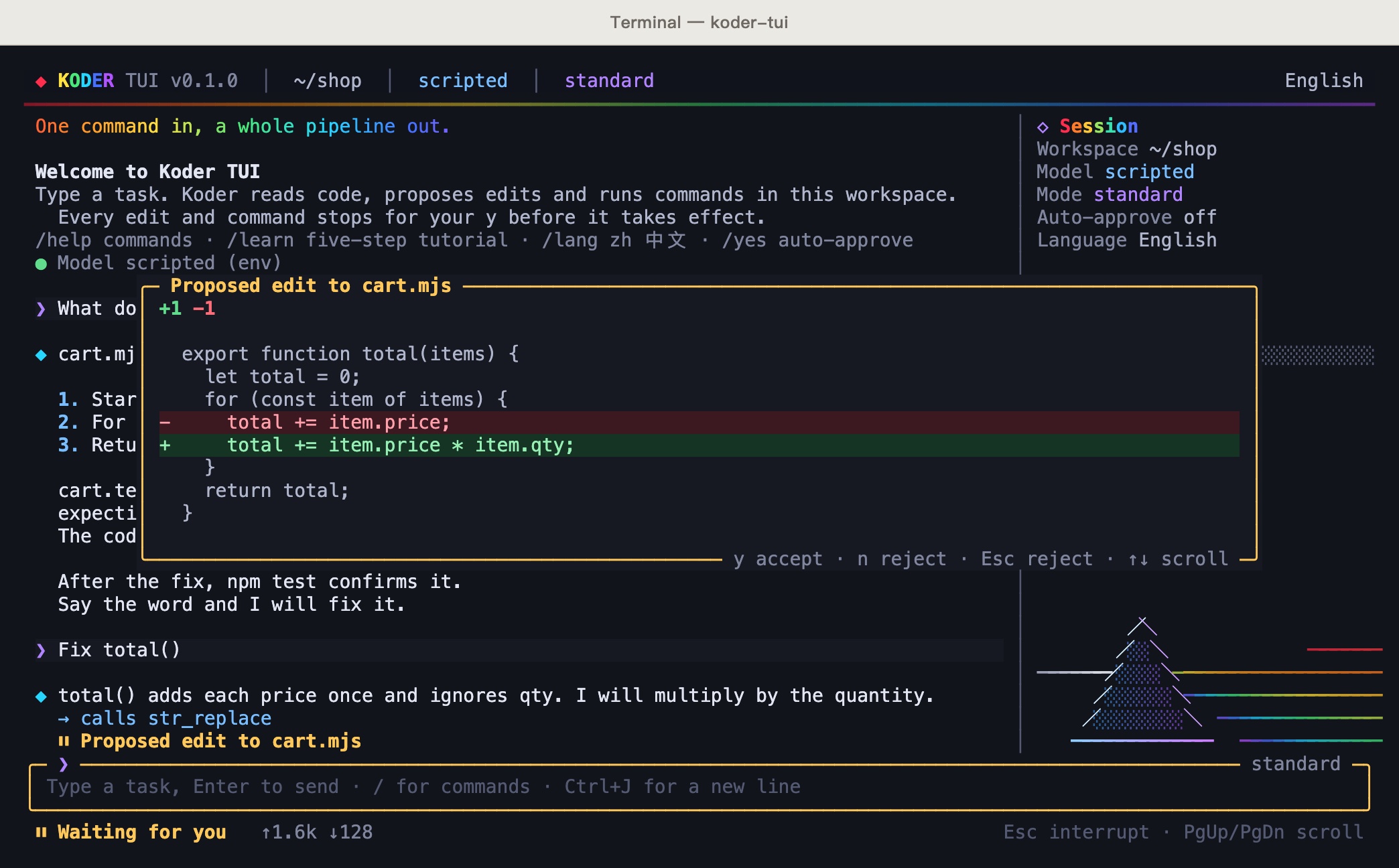
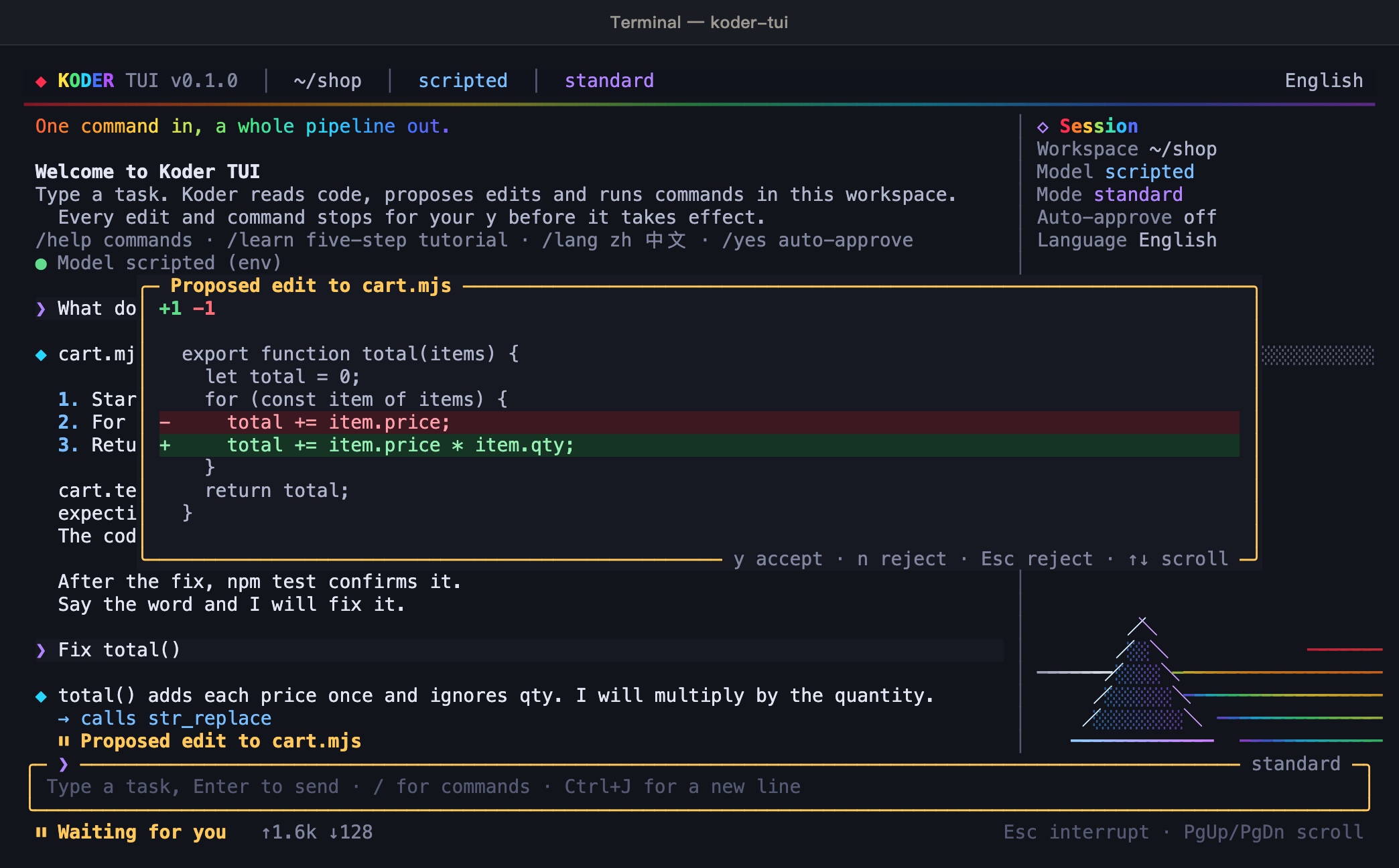
Screenshots: the diff window for cart.mjs, with the status bar waiting for you. The capture used a local scripted test endpoint. The model name scripted in the top bar is that endpoint, not a real model. -
Switch modes, scroll, and quit
/mode lists the modes. code plans before editing; plan writes a plan without touching files; report only writes findings; minimal uses fewer rounds for quick answers. PgUp and PgDn scroll the log, and Ctrl with the up and down arrows scrolls by line. When idle, press Ctrl+C twice, press Ctrl+D on an empty input, or type /exit to quit.
-
Slash commands
Type / to open the command list. Keep typing to filter it. Tab completes a command.
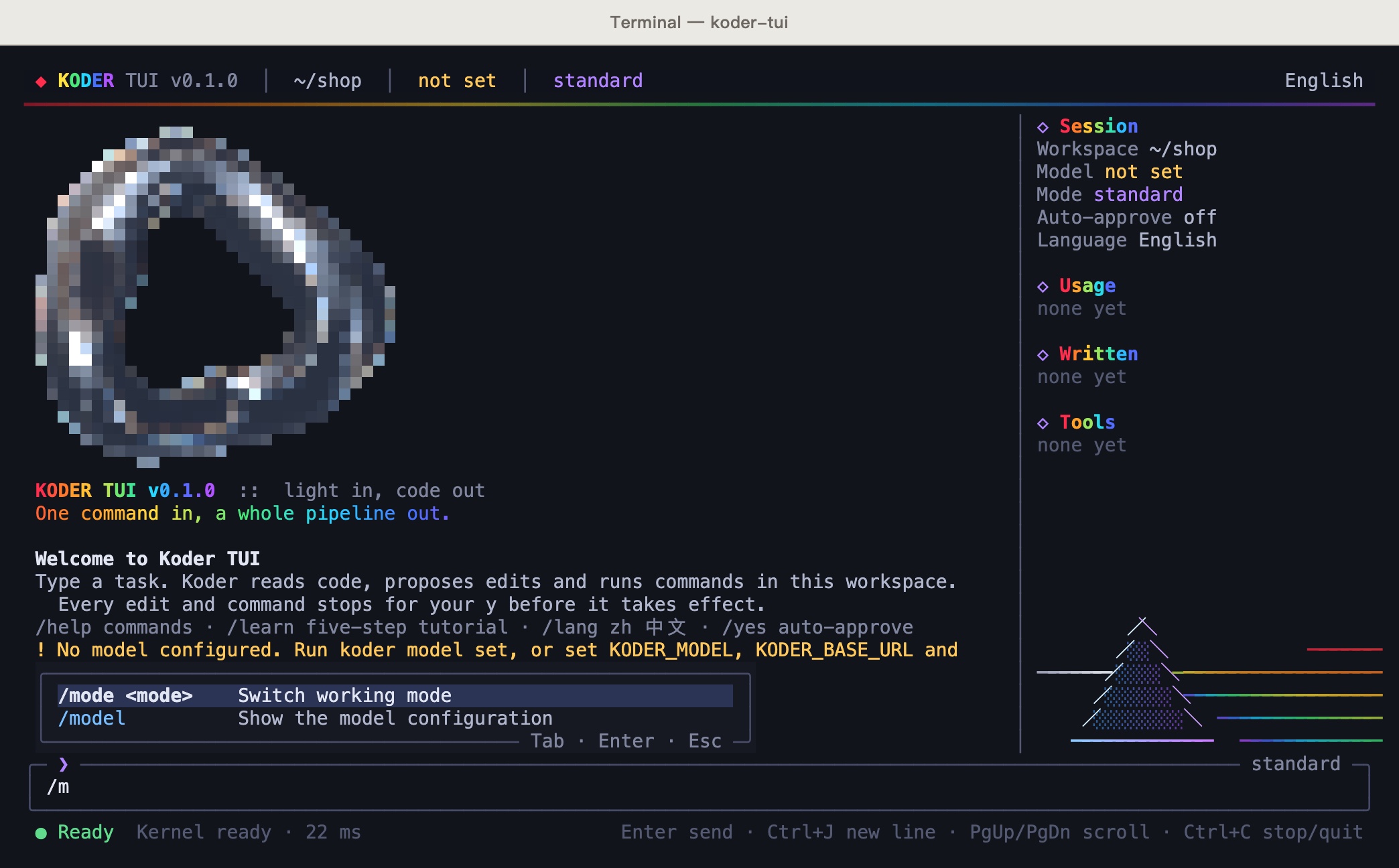
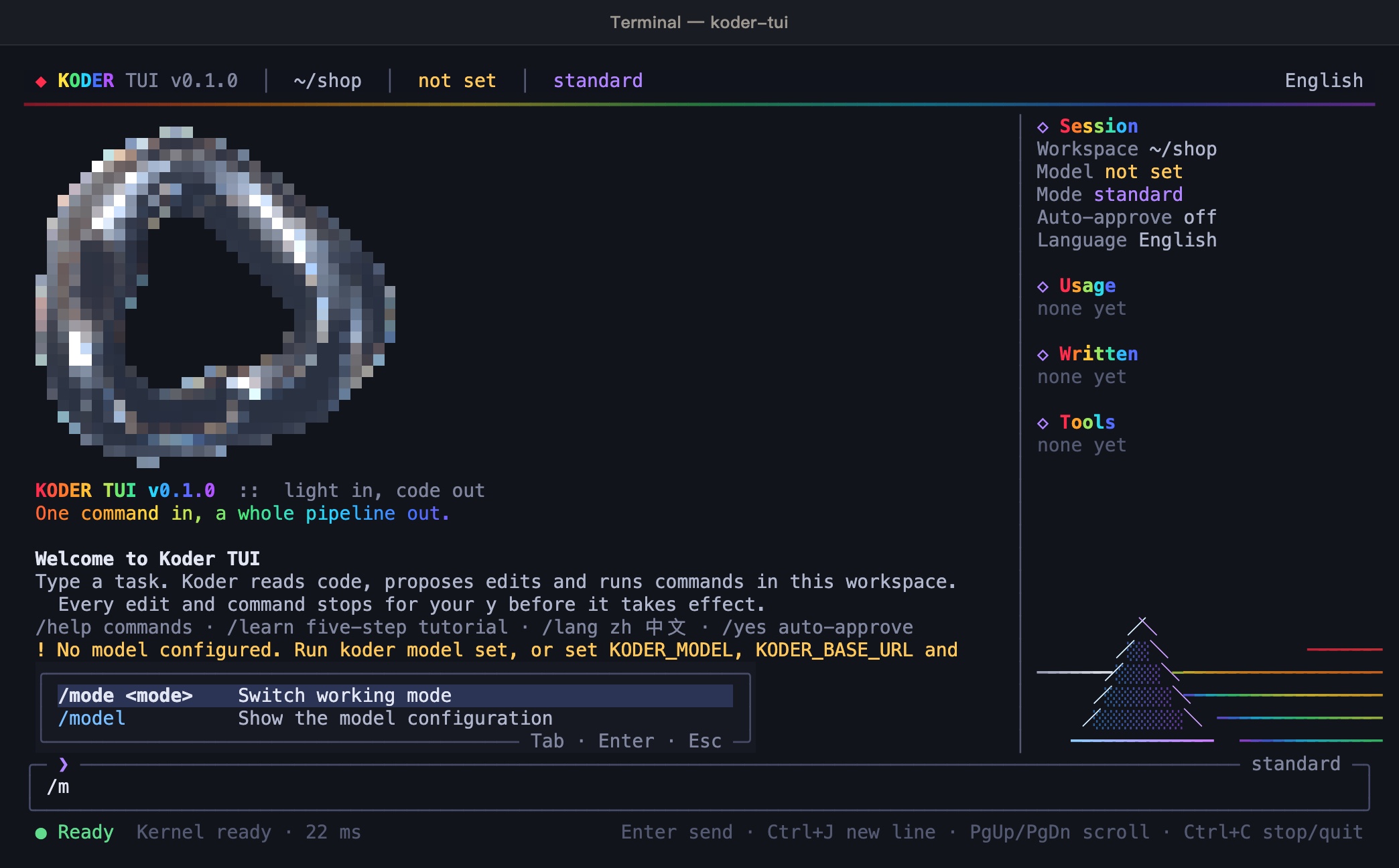
Screenshots: after typing /m, the list shows /mode and /model. This is a real Koder TUI 0.1.0 screen. /help List commands and keys /learn Five-step tutorial /lang /lang zh or /lang en /mode Switch working mode /yes Toggle auto-approve for file edits and commands only /new Start a new session /clear Clear the screen log /model Show the model configuration /sidebar Show or hide the sidebar. The sidebar appears when the terminal is at least 110 columns wide /exit Quit
Use this page with the tutorial center
This site goes install, connect a model, learn the window, first task, approvals, workbench, computer use. The question mark in the app opens the tutorial center, grouped into Getting started, Tasks, Workbench, Computer use, and Settings. A lesson marked “I’ll walk you through it” moves the pointer onto the real buttons. Esc during that lesson only leaves the lesson. It does not stop a task that is running.
When you connect a model, the lesson opens Settings → Models. Until you pick one on the left, the right side says: pick a provider on the left. The address and the protocol fill in. You only enter the API key. Open the provider’s site for a key goes to that company’s site. After you paste it, click Add model. The first one you add becomes the current model, and Choose a model on the input changes to it.
- For the first change, use a folder of your own. notes/plan.md on the card is an example in the interface. It is not a file we prepared for you.
- The computer-use lesson walks you to Start setup. Until Accessibility and Screen Recording are on, the switch stays off.
- A lesson does not accept a change for you, and it does not allow a command for you.
Desktop tutorial library · 75 topics
Updated 2026-10-22. These 75 topics follow the 0.4.53 Beta tutorial center, including the tool store and current privacy and shared-memory guidance. Mac and Windows Beta installers are available; Windows testing is in progress. Actual controls, account connections and permissions determine availability.
Expand a topic to read its steps. Reading does not authorize tools, connect accounts or start a task.
Getting started
Connect a model
Use your own provider and API key.
- Open Settings → Models and select a provider.
- Open its official key page, sign in and create an API key.
- Return to Koder, paste the key and choose Add model.
- The first added model becomes current; switch from the composer model menu.
Start a task
Choose a project, describe the work and review changes.
- Click + or the New task shortcut, write your task and send.
- Use @ to reference files and select the folder, model and thinking level below the composer.
- Review edit and command requests under your selected approval policy.
- Inspect changed files and executed commands in the review panel.
Learn the window
The activity bar, sidebar, chat or editor, review panel and top search each have a role.
- Use the activity bar for New task, KARMEN bot, Workbench, Tasks, Files, Search and Changes.
- The sidebar follows the active item; use its shortcut to hide it.
- Top search finds files, tasks and commands.
- Open the bottom terminal to run your own commands.
Command palette and shortcuts
Find files, tasks and commands from one search.
- Open the top search box or use the palette shortcut.
- Type a file, task or command such as Terminal, Settings or Light.
- Enter runs the selected item; Esc closes the palette.
Tutorial center
Find every topic and optional pointer walkthroughs.
- Open the question mark at the bottom of the activity bar.
- New features shows topics added since your last visit.
- Read the steps or choose a tutorial marked Take me through it.
- Settings and Workbench page titles also link to the relevant tutorial.
Karmen browser
Use a conversation-owned Chromium browser and inspect each action.
- Open the globe beside the chat title or request an HTTPS page or local preview. Use zoom controls as needed.
- AI observes current controls, acts on the selected page, then observes again. Password entry is separate.
- Tabs and logins are isolated per conversation. Page content does not grant new permissions.
Tasks
Approve edits and commands
Choose Careful, Balanced or Automatic and keep protected operations separate.
- Open Settings → Tools → Approval mode. Careful asks for both; Balanced writes ordinary task-folder edits and asks for commands; Automatic handles both.
- An approval card shows edits or commands. The Accept menu can also enable future automatic edits.
- Automatically written changes remain visible in review.
- Secrets, .env, .git and dangerous operations such as deletes, privilege changes, force-push and disk formatting still ask.
Queue messages or interrupt
Choose whether new messages wait or become available at the next step.
- Messages sent during a run are queued above the composer by default.
- Send one or all immediately, or clear the queue.
- For immediate delivery by default, change Settings → General → Send while running.
Independent code review
An optional read-only reviewer examines changes separately from the writing agent.
- Enable Settings → Tools → Code review and optionally choose another model.
- After a round writes files, open the review card for locations, evidence and suggested fixes.
- Send findings back to the original task for verification and repair, or inspect the reviewer process.
Check claims against evidence
Compare completion and performance claims with actual commands and measurements.
- Open unsupported-claim feedback after a reply and ask the task to supply evidence.
- Benchmark commands, inspect code quality or run type checks to obtain actual results.
- Workbench → Development lab → Code quality can inspect projects or compare versions.
Exit reminders and task continuation
Review interrupted work before continuing it.
- Closing Koder with running tasks shows which tasks will stop.
- On the next launch, continue all or open one task and choose Continue.
- Dismiss work you no longer need. Automatic continuation is optional under Settings → General → Startup.
Set a task goal
Define completion criteria and select how they will be checked.
- Choose Set goal from the composer + menu or task menu.
- Write one criterion per line and choose a check command, human confirmation or AI judgment.
- Command checks need exit code 0. Human confirmation waits for your decision; failed checks return output to the task.
- Inspect the goal bar to pause, continue or edit. Stop and errors pause the goal.
Development view
Use the file tree, editor, chat and bottom terminal.
- Switch to Development at the top and back to Work when needed.
- Open a file from the tree and use Save.
- Review proposed diffs under your approval settings.
- Open the terminal with its displayed shortcut.
KARMEN bot
Use the current development interface to add calendar entries, todos, memos and goals.
- Open the KARMEN activity-bar item.
- Ask it to add a calendar entry or todo.
- Check the actual result in the corresponding Workbench tool. It does not edit your project files.
Folders and workspaces
Each task has a chosen working folder.
- Create tasks beside their folder in the sidebar.
- Use the folder control below the composer for a new task.
- Add an existing project folder using New or add folder.
Ask AI about a screen recording
Select key frames locally before sending a task.
- Use composer + → Add recording or drop MP4, MOV or WebM.
- Koder samples changes and retains start/end plus spaced frames, up to 24 images.
- Review the frame count, add a question and send. Frames and timestamps are saved under the task recording folder.
Annotate images, time and pages
Number locations and timestamps to explain a problem.
- Choose composer + → Annotate issue.
- Add an image, video or HTTP/HTTPS page preview and number relevant points.
- Describe each point. Audio detection helps locate louder moments in media.
- Send includes the numbers, positions, times and selected visual files in the task.
Composer plugins and external MCP tools
Attach reviewed tools and choose which tasks may use them.
- Open Plugins below the composer. The built-in calculator verifies its source, handshake and 19+23 result before configuration.
- For external tools, supply a reviewed command or HTTPS endpoint. Do not run arbitrary suggested package commands.
- Inspect discovered tools and edit their explanation before enabling.
- Tool requests present approval choices. Tokens are stored locally under the desktop credential protection.
Workbench
Tool store: find and connect capabilities
Find built-in capabilities, registered tools and Skills, then connect external tools for the task.
- Open Tool store in the activity bar. Browse categories or search in Discover, then choose Learn more. Built-in capabilities ship with the app and do not need another installation.
- Open My tools to inspect registered tools and Skills. If connection status fails to load, choose Refresh. Use Manage connected tools to adjust configuration or permissions.
- For an external capability, open the MCP catalog. Review service details, installed components and permissions before connecting. A catalog entry or successful installation does not establish sign-in or readiness; configure and test it.
- Plugin recommendations in chat are suggestions. Check their value for the task, then install or choose Later. A recommendation never authorizes an external service.
External services may require a separate account or payment. Check data handling and permissions before use.
Koder Work: employees, delivery and review
Configure office roles, review real deliverables and manage their working memory.
- Open Workbench → Koder Work, create an employee and choose a role, methods, permissions and skills. Saving configuration does not call a model.
- Select an employee under Work in progress, enter a task and its acceptance criteria, then start. Check the environment before installing any component.
- Inspect actual files, steps and receipts. Approve external actions separately; accept a deliverable or return it for revision.
- Edit employee memory and connect permitted chat or email accounts under Connections and workflows. Credentials or a real QR authorization must succeed before a connection is ready.
- Arrange role steps and dependencies. Later steps wait for accepted deliverables. Pause and resume the original workflow; accepted steps are retained. The app must remain running.
KARMEN Office: files, organization and full screen
Edit documents, sheets, presentations and PDFs with the model configured in Koder.
- Open Workbench → KARMEN Office. Create a file or select local DOCX, XLSX, PPTX and PDF files. Imports are workspace copies; originals remain.
- Inspect recent files and save times. Select files for AI organization or create folders yourself.
- Use Full screen, then Exit full screen or Esc; edits remain.
- PDF conversion can produce editable documents, sheets or presentations. Scanned PDFs need OCR; review complex conversions.
- Use AI Office for generation or edits. Shared viewing or editing links need a deployed collaboration service.
Personal workbench
See projects, deliverables, libraries, automations and goals.
- Open Workbench from the activity bar.
- Review current projects, recent work, upcoming automations and goal progress.
- Select a card to open its corresponding tool.
Projects, boards and token usage
A project combines a folder, description, state and board.
- Create a project in Workbench → Projects and choose its folder.
- Add and move board cards. Hand to AI creates a task inside that project.
- Token usage shows today, seven days, all time, daily input/output and per-model totals.
AI project lead
Define a project goal and inspect delegated work and real acceptance results.
- Creating a project establishes its lead conversation. Ordinary message synchronization does not itself call a model.
- Set the goal and criteria, then choose Start. Subtasks stay within this project and report back.
- The lead must read actual results and state acceptance evidence. Failure, cancellation and unknown results are not completion.
- Open child conversations for details and approvals. Pause lead and subtasks affects this goal; unrelated tasks continue.
- Project rules and logs persist. Reopening the app retains goals and assignments; explicitly continue before execution resumes.
Works
Browse project images, pages, documents and code.
- Open Workbench → Works.
- Filter by type or project and open details or preview.
- Favorite frequently used items.
Knowledge bases
Make selected reference material searchable by tasks.
- Create a knowledge base and import supported text, code, pages, documents, PDFs or image text.
- Enable AI can search for the library you want used.
- Ask a task to search that knowledge base.
Reference library
Collect files and links, then choose where to use them.
- Upload a file or add a link under Workbench → Library.
- Tag and preview entries.
- Choose Add to knowledge base or Copy to project folder when needed.
Workflow canvas
Connect prompt, condition, hourglass and end nodes.
- Create a workflow or open its canvas; Full screen expands it.
- Drag nodes from the left and connect their ports.
- Edit prompt variables and yes/no conditions on the right.
- Use Check to find incomplete nodes or links; a No branch can return to a previous step.
- Run executes the flow in one task and highlights the path.
Automations
Schedule a prompt or workflow while the host is running.
- Create an automation and choose daily, weekly, hourly or one-time timing.
- Koder creates a task when due; configure missed-run behavior.
- Run once immediately or inspect history. Koder must remain open.
Goals and key results
Track results and choose command or human acceptance.
- Create a personal or project goal with specific key results.
- Check completed results and optionally add an acceptance command.
- Let AI advance creates a task; Run acceptance actually runs the specified check.
Development lab
Compare models and inspect retrieval or command-rule behavior.
- Open Workbench → Development lab.
- Choose configured models and ask the same question.
- Use retrieval and command-rule tests to inspect actual decisions.
Infinite canvas
Arrange notes, images, charts and creative work.
- Open Workbench → Infinite canvas and create a canvas.
- Add items from the toolbar; drag empty space to pan and scroll to zoom.
- Double-click to add a note, edit its text or color, or enter labeled values to form a chart.
Teaching mode
Turn a learning request into a guided practice canvas.
- Open Workbench → Teaching mode, enter a topic and generate.
- Read the practice area and the instruction beside it.
- Follow the highlighted action and advance when ready. Model generation needs your configured provider.
Long-term memory
Save facts and retrieve relevant entries for later tasks.
- Open Workbench → Long-term memory, enter a fact and optional tags, then save.
- Search, edit or forget entries.
- Start with memory previews matching facts and attaches them to the new task.
Local team collaboration
Manage members, local invitations and comments.
- Add members in Workbench → Team.
- Generate an invitation for people using this local workbench.
- Comment on a canvas or board. Cross-device synchronization needs its service; a local invite does not establish it.
Workbench settings
Control knowledge search, scheduled automations and goal limits.
- Open Settings → Workbench.
- Disable AI knowledge search to prevent all library searches.
- Pause scheduled automations to stop due runs; manual Run now remains separate.
Todos
Keep a checklist separate from task goals.
- Open Workbench → Todos.
- Add an item and an optional due date.
- Check it off when complete.
Meeting notes
Record, paste or import meeting audio and text.
- Create a meeting in Workbench → Meeting notes.
- Choose recording, text, or an audio/video file. Video uses audio for transcription, not visual frames.
- Review transcription before generating notes; retry incomplete segments.
Prompt enhancement
Turn an image or situation into an editable prompt.
- Open Workbench → Prompt enhancement.
- Add media and a description, then generate with your configured model.
- Edit the result and send it to the intended conversation.
Memos
Keep notes, evidence and current progress together.
- Open Workbench → Memos.
- Create a memo or select one in the list.
- Edit the title and body; changes save automatically.
Calendar
Review a month, week or day and edit events.
- Open Calendar from Workbench and choose a view.
- Select an hour in the week or add an entry in the day.
- Fill the title, time and notes; open an event to edit or delete it.
Periodic notes
Review inputs, projects, tasks and outputs by period.
- Open Workbench → Periodic notes.
- Choose day, week or month and move between periods.
- Copy Markdown or save the period as a memo. Data comes from existing workbench records.
Store authorization
Connect an account through its configured application callback.
- Open Workbench → Authorization.
- Copy the callback URL into your store application.
- Save its Client ID and secret, then explicitly start authorization.
Computer use
Set up computer use
Check actual host capabilities and approve required OS permissions.
- Open Settings → Computer use and choose Start setup.
- On macOS, follow Accessibility and Screen Recording in system settings.
- Full Disk Access and browser automation are optional when needed.
- Choose whether every action, risky actions or all permitted actions require approval.
Emergency stop
Stop computer actions from the overlay or the configured shortcut.
- Use the emergency-stop shortcut shown in Settings, including while another app is active.
- Or press Stop in the AI is using this computer overlay or menu-bar menu.
- Tasks stop, queued messages clear and computer use turns off; enable again only when needed.
Computer and files: grant or revoke
Inspect capabilities before approving directory access.
- Open Settings → Computer use and inspect current capability and OS permissions.
- Provide full paths, preserving spaces. On Windows use a full drive path such as D:\folder\file.txt.
- Revocation blocks future Koder computer actions. It does not unsend files, reverse writes or revoke OS permissions.
Settings
Input prediction and expression preferences
Gray text is an optional model suggestion; you decide whether to use and send it.
- Open Settings → Personalization to toggle Input prediction; the General setting is linked.
- Press Tab to accept a suggestion, edit it and send it yourself. Ignoring it sends nothing.
- Changing chats, typing more or disabling prediction cancels stale suggestions. Expression learning is separate; prediction may use extra model tokens.
Notifications and reminders
Choose in-app reminders, system notifications, sound and model summaries separately.
- Open Settings → Notifications and choose your task reminders.
- System notifications need OS permission; use Open system settings if previously denied. Sounds and warnings depend on system notifications.
- AI summaries call a smaller model. Disable them to show the reply opening instead. The menu-bar icon requires the installed desktop app.
Customize keyboard shortcuts
Change task, chat and file shortcuts, with conflict feedback.
- Open Settings → Shortcuts, choose a command and record a new key combination; save or restore defaults.
- Use the combinations shown in your app for side chat, accepting a prediction and new lines.
- Esc exits an active pointer tutorial first; it does not stop a task while that tutorial is open.
Import and export conversations
Preview local records or select an exported conversation package.
- Open Settings → Import and export, scan and inspect available records.
- Select records before importing, or select a conversation package. A scan does not import anything.
- Choose what to export. Imported history does not restore external-service authorization.
Connect plugins and MCP
Install, authorize, test and disable external tools.
- Open Settings → Plugins and MCP → Open plugin manager.
- For OAuth, follow the service login and scope prompts, then inspect connection status. Configure required service-app information first.
- Run a self-test. Retry or disconnect failed connections. Removing local login does not revoke access at the provider.
Passwords and saved logins
Inspect the local data lock and saved login names.
- Open Settings → Passwords and credentials and inspect the lock and login list.
- Remove unused logins. Passwords and model keys are not shown here.
- Browser logins use the built-in browser password lock; retry reading the lock if status cannot load.
Usage and estimated costs
Review provider-reported tokens and estimated spending.
- Open Settings → Usage and costs.
- Filter by date and model. Estimates are separate from your provider bill.
- If reading fails, the previous result remains with a retry message; missing data is not counted as zero.
Diagnose the runtime
Inspect Python and installed packages before rebuilding.
- Open Settings → Runtime and read the Python path, version and package list.
- Only choose Rebuild when necessary, after reviewing the confirmation. Opening this page installs nothing.
- If rebuilding fails, retain the error and check network and disk before retrying.
File types and Office
Choose how documents, spreadsheets, presentations and PDFs open.
- Open Settings → File types to inspect the editor for each extension.
- Open a supported local file in Workbench → KARMEN Office or from project files.
- The installed app can open the system default-app chooser. Review imported legacy files and complex layouts.
Connect GitHub and choose a project
Search public projects and keep access tokens in Settings.
- Open Settings → GitHub and connect your token. If browser authorization is configured, complete its GitHub flow.
- Describe requirements, stack and destination. Review candidate activity, license and adaptation cost before importing a fixed version.
- Keep the imported architecture. Installation and writes follow existing permissions; disconnect GitHub in the same page.
Hourglass model routing
Optionally let a fast model classify difficulty before selecting a task model.
- Enable Hourglass in Settings → Models.
- Choose a classifier and models/thinking levels for small, medium and large tasks.
- A new task is classified before its first request; brief greetings can use the small model directly.
- Review the selected level and reason. Classification itself may use model tokens.
General: startup, chat and reminders
Choose startup recovery, conversation defaults and notifications.
- Review startup notices, window restoration and interrupted-task continuation.
- Choose the default view, mode, tool set, context and queue behavior.
- Configure permitted system notifications, sounds and approval reminders.
Appearance, wallpaper and colors
Adjust presentation without obscuring text.
- Choose light, dark or system theme, accent, tint and font.
- Drop wallpaper into global, chat or terminal areas and adjust blur, brightness and overlay.
- Contrast protection adds a background when needed; changing theme recalculates it.
- Choose terminal colors and place or hide interface panels under Layout.
Memory usage and task swapping
Keep idle tasks on disk while preserving history and drafts.
- Inspect memory in Settings → System → Status.
- Choose Automatic, Save memory or Never release; inspect the displayed idle timing.
- Reopening a swapped task restores its state; Release idle tasks frees memory now.
- Unsent drafts remain saved across task switches and restart.
Download diagnostic logs
Export a selected time range for troubleshooting.
- Open Settings → System → Status → Diagnostic logs and select a period.
- Download the log to your Downloads folder.
- Logs retain diagnostic state and version with credentials and personal directories removed. Inspect before sharing; retention is 14 days.
Store identical files once
Reuse content shared by the library, knowledge base and wallpaper.
- Adding the same content in several places reuses one stored object.
- Existing duplicates can be consolidated in the background.
- Storage is reclaimed only when no feature references the content.
Data lock and erasing local data
Inspect encrypted records and understand irreversible erasure.
- Open Settings → Privacy → Data lock to inspect protection and key locations.
- Installed Mac builds use a split key tied to the machine; inspect actual encrypted and unencrypted areas.
- Erase all data requires a separate typed confirmation. Destroying keys makes protected records unreadable and cannot be undone.
- Moving the app to Trash does not perform this cleanup.
Skills
Save reusable instructions for writing, coding or other work.
- Open Settings → Skills and add a skill.
- Write its name and instructions, then save.
- Use its switch to decide whether it applies to tasks.
Privacy
Tasks, keys and saved sign-ins stay on this computer and are not uploaded.
- Open Settings → Privacy to see where local data is stored.
- Model keys are encrypted on this computer and are not displayed in the interface.
- Inspect or delete saved sign-in credentials here.
KARMEN account and local profile
Manage a local profile and inspect configured web sign-in.
- Open Settings → Account and profile. Edit locally or use web sign-in if configured.
- Review trusted contacts before sending messages; an empty list does not itself restrict recipients.
- Local parental controls use a 4–8 digit PIN and can guard computer use and data erasure.
System and updates
Inspect the installed version, patch level and kernel state.
- Open Settings → System for version and diagnostic details.
- Check the signed update feed when configured. Otherwise use the website installer matching your platform.
- Open license and support details from the related tabs.
License and optional permissions
Reading or accepting the license does not enable optional services.
- Read help before accepting; reading grants no execution permission.
- Your selected provider determines model costs; keys remain in local configuration.
- Learning, daily state, evolution, reminders, memory sharing, apps and computer scope have separate switches.
Habits, style, reflection and proactive reminders
Four optional features start disabled and require their own choices.
- Learning, daily state, skill improvement and reminders do not enable one another.
- Inspect, correct or delete records. Disabling learning retains previous records.
- Style and nicknames grant no tool permissions. Proactive reminders use local quiet hours of 22:00–08:00; missing hosts remain waiting.
Apps, Gamma and MCP
Use your service credentials or browser authorization and inspect actual connection state.
- Review the provider scope and costs. Conversations using the same configuration can reuse a connection; external writes still need approval.
- Enabling or testing MCP can start a local program. Disabling locally does not revoke a remote token.
- A successful connection does not prove that the external task was delivered.
API, context and update recovery
Use actual provider limits and preserve diagnostic evidence.
- Retain API codes: check credentials for 401/403, limits for 429 and service status for 5xx or timeouts.
- Output shares the context window. Increasing a client value cannot expand the provider limit; retain full local tool output without replay.
- Check the signed update manifest. Equal-date builds are not reinstalled; changed license text needs explicit acceptance.
Task diagnostics and improvement
Read local execution traces without uploading logs or calling a model.
- Open Settings → Task diagnostics for recorded success, tokens and pending acceptance.
- Saved adjustment settings take effect at the next complete execution step; failed adjustments can be rolled back.
- Diagnostic upload starts off. Set your own recipient and explicitly enable sending a summary; conversation bodies are excluded.
Multi-computer collaboration
Pair explicitly and inspect the files handed over.
- Name the computer and enable its authenticated LAN channel; receiving tasks still need confirmation.
- Generate a five-minute invite, compare its fingerprint and exchange it with the other computer.
- Bluetooth, automatic discovery and a public relay are not connected. A transfer is not a completed merge.
Recycle bin
Review deleted conversations, works and references retained for 30 days.
- Open Settings → Recycle bin to read types, deletion dates and cleanup dates.
- Restored conversations keep their goals paused; old approvals require confirmation again.
- Permanent deletion needs a second confirmation. Refresh only reads the list.
Complete CLI tutorial · 30 lessons
Matches the text tutorial in published 0.4.0-preview.22. Choose your shell, then expand a lesson. Chinese and English each include PowerShell, CMD, macOS and Linux editions. This page only displays text; run koder learn in your terminal for interactive practice.
Windows PowerShell · 30 lessons
Download the full manual for this shell (text)
1. Welcome to Koder boot camp
This edition is written for Windows PowerShell; for another system: koder learn --print --os powershell|cmd|mac|linux

━━ Lesson 1 of 30 · Welcome to Koder boot camp ━━
Coach › Hi, I'm the Koder coach. Across 30 lessons we'll take Koder from first launch to graduation, inside a throwaway practice project.
  · The tutorial creates a practice project in your temp folder: a small cart app with a planted bug, deleted when you finish.
  · Lesson 1 detects PowerShell, CMD, macOS or Linux and writes every command for it; you can switch with a number.
Coach › No model setup and no cost: the one doing the work is me, the 'coach model', with a pre-written script and limited acting talent. The edits and commands are real though, through the same kernel Koder always uses.
  Tip · Controls: Enter = next; b = previous lesson; q = quit any time (progress is saved); a number = jump to that lesson.
  Tip · Copy and paste: in Windows Terminal select text, then Ctrl+C copies and Ctrl+V pastes (with nothing selected, Ctrl+C means cancel); in the classic console a right-click pastes.
  Tip · Commands hard to remember? Run koder setup (or /setup in a chat) any time and set language, model and colours with the arrow keys or the mouse.
  (whispering) Relax. There are no exams here, only Easter eggs.
2. The banner and the prompt
This edition is written for Windows PowerShell; for another system: koder learn --print --os powershell|cmd|mac|linux

━━ Lesson 2 of 30 · The banner and the prompt ━━
  · (The banner appears here: the KARMEN refractor on the left, KODER and KARMEN LOOP on the right.)
Coach › On the left is the KARMEN refractor, the mascot from our website, drawn from the very same surface; on the right, KODER and KARMEN LOOP, then the current model, engine, folder and common commands. It isn't decoration. Fine, it's mostly decoration, but it is pretty.
  Tip · Box lines or the refractor scrambled? A CJK font in the classic console draws block characters two columns wide. Koder switches to plain characters by itself, or set Banner style to plain in koder setup. Better still, use Windows Terminal: built into Windows 11, free from the Microsoft Store on Windows 10.
    $env:KODER_ASCII = "1"; koder
        plain-character banner for this window only
Coach › Below the banner is the prompt, which tells you the current state:
    koder ›
        type a task here, e.g. fix the typos in README
    koder[code] ›
        the brackets show the current mode
    koder! ›
        the exclamation mark means auto-approve is on; be careful
Coach › The prompt reads koder[plan]! ›. Which statement is right?
    1. Plan mode, with auto-approve on
    2. Plan mode, and something just failed
    3. Code mode, and it's excited
  Answer: 1。Full marks. Brackets are the mode, the exclamation mark is auto-approve.
3. Configure a model: give Koder a brain
This edition is written for Windows PowerShell; for another system: koder learn --print --os powershell|cmd|mac|linux

━━ Lesson 3 of 30 · Configure a model: give Koder a brain ━━
Coach › Koder can't think on its own; it needs a model. The easiest way is the settings screen:
    koder setup
        pick a provider and model with the arrow keys or mouse, paste the key; it can even open the key page
Coach › Prefer commands? Put the key in an environment variable and save only its name:
    setx OPENAI_API_KEY "sk-your-key"
        saved to your account; new windows see it
    $env:OPENAI_API_KEY = "sk-your-key"
        this window only
    koder model set --preset chatgpt --key-env OPENAI_API_KEY
        a preset; only the variable name is saved
    koder model set --preset local --model qwen3:8b
        local Ollama, no key
    $env:KODER_MODEL = "gpt-6.1-sol"; $env:KODER_BASE_URL = "https://api.openai.com/v1"; $env:KODER_API_KEY = "sk-…"; koder review
        environment variables, handy in CI
  Tip · koder model presets lists the available presets; koder model show prints the current setup with only the last four characters of the key.
  (whispering) Careful typing keys into commands: PowerShell saves every line in PSReadLine's history file and remembers better than your ex. Paste it in koder setup instead: only the last four show, and it skips shell history, but the key is stored in plaintext in local configuration. Environment-setting commands may enter history too; redact keys before sharing.
Coach › Today the practice project uses the coach model, so this lesson is look-only. Set up a real one after you graduate.
  · You can run koder model presets right there to list them.
4. First task: read the diff, decide
This edition is written for Windows PowerShell; for another system: koder learn --print --os powershell|cmd|mac|linux

━━ Lesson 4 of 30 · First task: read the diff, decide ━━
Coach › cart.mjs forgets to multiply by quantity, so the test keeps failing. Let's have Koder fix it.
Coach › In the default interactive mode Koder shows the diff before editing: red lines starting with - go away, green lines starting with + come in. In this lesson it writes only after y; other answers cancel. --yes auto-approves ordinary edits.
  (whispering) Reading a diff is like reading a check-up report: green is new muscle, red is trimmed fat. Make sure nothing vital got cut before you sign.
  Tip · When Koder asks 'Accept this edit?', try typing n first to enjoy changing your mind; it will propose again, and then type y.
  · Hands-on: type a task, the coach proposes an edit; reject once with n, accept with y, then see the file change.
Coach › Practice asks at each step so you can see the controls. Normal use defaults to smart approval: low-risk commands and ordinary project edits run automatically. Sensitive prompts offer Always allow. Use /permissions execution status to inspect, ask for ask mode, or reset to revoke all settings.
5. Command approval: run tests, stop shady ones
This edition is written for Windows PowerShell; for another system: koder learn --print --os powershell|cmd|mac|linux

━━ Lesson 5 of 30 · Command approval: run tests, stop shady ones ━━
Coach › After editing you'll want to run the tests. Running project code asks by default; low-risk checks such as node --version run automatically.
  Tip · Rule of thumb: allow it if you understand it, it stays inside the project and it can be undone. Remove-Item -Recurse -Force, rd /s /q, del /s /q, irm … | iex, git push --force: verify the source and exact effects before allowing them. Reject unknown scripts. Check official installers, licenses and verification information too.
  Tip · On Windows, commands Koder runs for you go through CMD, not PowerShell. For PowerShell syntax, wrap it as powershell -NoProfile -Command "…".
  (whispering) Approve commands with the same care you give a food-delivery bill.
  · Hands-on: the coach asks to run node test.mjs (allow it), then an irm … | iex (reject it; even if you slip, the coach blocks it).
Coach › Command output goes back to the model as is, so it sees the test results and decides what to do next.
6. Choices: Koder asks you too
This edition is written for Windows PowerShell; for another system: koder learn --print --os powershell|cmd|mac|linux

━━ Lesson 6 of 30 · Choices: Koder asks you too ━━
Coach › When a decision is yours, Koder stops and asks a multiple-choice question. Type the number and press Enter; a bare Enter cancels the turn.
  (whispering) Never answer 'whatever'. 'Whatever' is the hardest dish to cook.
  · Hands-on: the coach asks about a service fee with three options; answer with a number, or press Enter to cancel.
7. Slash commands: gears, brakes and undo
This edition is written for Windows PowerShell; for another system: koder learn --print --os powershell|cmd|mac|linux

━━ Lesson 7 of 30 · Slash commands: gears, brakes and undo ━━
Coach › Lines starting with / are slash commands. They control Koder itself and never reach the model.
    /mode plan
        plan mode: read-only, proposes a plan
    /mode code
        code mode: states a plan, then edits
    /yes
        toggles auto-approve; the prompt gains a !
    /new
        starts a fresh session
    /lang zh
        switches to Chinese, /lang en switches back
    /review  /fix  /test  /scan
        run those commands inside the chat
    /help  /learn  /exit
        commands, this tutorial, quit (Ctrl+D works too)
  Try it · Type /mode plan to switch to plan mode  →  /mode plan
  Try it · Now type /yes to turn on auto-approve  →  /yes
  Try it · Good. Type /yes again to turn it off  →  /yes
  Tip · Used to Ctrl+Z on Windows? It does nothing in Koder; use /exit or Ctrl+D.
Coach › Koder is running a command you regret. Fastest fix?
    1. Press Ctrl+C to cancel the turn
    2. Unplug the network cable
    3. Shout 'stop' at the screen
  Answer: 1。Right. Ctrl+C is the emergency brake; Ctrl+D is a polite goodbye.
8. Read-only questions, pipes and scripts
This edition is written for Windows PowerShell; for another system: koder learn --print --os powershell|cmd|mac|linux

━━ Lesson 8 of 30 · Read-only questions, pipes and scripts ━━
Coach › Just want answers without anything being touched? Use ask. It can list, read and search, but cannot edit or run commands.
  · Hands-on: ask anything; the coach reads package.json with read-only tools and answers. No approvals needed, since nothing can change.
Coach › In scripts, Koder behaves like any other command-line tool:
    git diff | koder ask "summarise this change"
        piped input is attached as extra material
    Get-Content error.log | koder ask "what does this error mean"
        feed it a file (PowerShell's cat is this)
    koder run --yes --json "fix the lint errors" | ForEach-Object { ($_ | ConvertFrom-Json).type }
        --json prints one event per line; PowerShell's ConvertFrom-Json parses it
    $LASTEXITCODE
        the exit code of the last command
  Tip · Windows PowerShell 5.1 turns non-ASCII text in pipes into question marks. Run $OutputEncoding = [Text.UTF8Encoding]::new() once; PowerShell 7 doesn't have this problem.
Coach › Exit codes: 0 done; 1 cancelled or a check failed; 2 a usage or model configuration problem.
  (whispering) Exit code 2 means 'check your setup', not 'it didn't try hard enough'.
9. Code review with context
This edition is written for Windows PowerShell; for another system: koder learn --print --os powershell|cmd|mac|linux

━━ Lesson 9 of 30 · Code review with context ━━
Coach › review looks beyond the diff: it reads rule files such as AGENTS.md, recent commits and where changed functions are called, then lets the model verify with read-only tools.
  · Demo: the coach adds a discount function that yields fractional cents, then runs the real review pipeline, printing severity, file, line and a suggestion.
Coach › Each finding has a severity (high, medium, low), file, line and suggestion. Common forms:
    koder review
        review uncommitted changes, else the current branch
    koder review --base main
        compare with main
    koder review --format markdown --out review.md
        a comment ready for the PR
    koder review --fail-on high
        exit 1 on high findings, for CI
    koder review --fix --check "npm test"
        review, fix and test in one go
  · You can let Koder apply the fix, again with a diff and a y.
  (whispering) Being caught by Koder is fine. Being caught by your users in production is not.
10. Fix until green: fix --check
This edition is written for Windows PowerShell; for another system: koder learn --print --os powershell|cmd|mac|linux

━━ Lesson 10 of 30 · Fix until green: fix --check ━━
Coach › fix is a loop: run the check, hand failures to Koder, re-run, until it passes or attempts run out (3 by default).
  Tip · This time I'll press y for you; just watch it go round by round.
  · Demo: a check.mjs tests a count function; Koder gets it wrong once and right the second time, showing 'attempt 1/3' and finally 'Check passed'.
  (whispering) It missed the first time. Don't laugh; have you ever got it right first time?
    koder fix --check "npm test"
        fix until the tests pass
    koder fix "the home button does nothing"
        no check command: fix once from the description
    npm test 2>&1 | koder fix
        feed the failure straight in
11. Flows and CI: agents in formation
This edition is written for Windows PowerShell; for another system: koder learn --print --os powershell|cmd|mac|linux

━━ Lesson 11 of 30 · Flows and CI: agents in formation ━━
Coach › Put review, tests and fixes into one flow file and run the same thing locally and in CI. Here's a small one; let's run it:
  · Demo: a four-step flow: tests, a check, an ask step summarising them with {{step.output}}, and a celebration that runs only when the check passed.
    type
        shell, run, ask, review, fix or test
    when
        unit.failed, count.passed, always, failure
    {{step.output}}
        reuse an earlier step's output
    parallel
        run read-only steps side by side (shell, ask, review)
    approve: auto
        auto-approve, for CI
  Tip · On Windows, shell steps run through CMD (not PowerShell); wrap PowerShell syntax as powershell -NoProfile -Command "…". For a flow that runs anywhere, stick to node, npm and git, like the node -e celebration above.
Coach › koder ci init writes a GitHub Actions workflow: every PR gets reviewed and commented on; comment /koder fix and it fixes and pushes back. Only repository members count; strangers can shout all they like.
12. MoA: several models think together
This edition is written for Windows PowerShell; for another system: koder learn --print --os powershell|cmd|mac|linux

━━ Lesson 12 of 30 · MoA: several models think together ━━
Coach › On hard problems one model can get stuck. MoA (Mixture of Agents) lets a few reference models advise first; the current model reads their advice privately, then acts.
    koder model add reference --preset custom --base-url https://your-provider.example/v1 --model YOUR_MODEL --key-env MODEL_API_KEY
        register reference models; as many as you like
    koder moa set --refs reference
        create a MoA preset
    koder --moa "refactor payments and add tests"
        run a task with MoA; /moa toggles it in a chat
    koder moa set --fanout every_step
        references are asked once per user turn by default; every_step asks each step, sharper and pricier
Coach › Can MoA reference models edit your files directly?
    1. No. They only advise; the aggregator acts, with your approval as usual
    2. Yes, the more the merrier
    3. Only the README
  Answer: 1。Right. References hold no tools at all; they can't even read a file.
  (whispering) MoA is like a meeting: everyone may speak, one person decides, and that person still has to ask you.
13. Chat apps: command Koder from your phone
This edition is written for Windows PowerShell; for another system: koder learn --print --os powershell|cmd|mac|linux

━━ Lesson 13 of 30 · Chat apps: command Koder from your phone ━━
Coach › Koder connects to Feishu, WeCom, WeChat, DingTalk, Telegram, Slack, Discord and WhatsApp. Each adapter needs the platform account and authorization. Follow setup and inspect its actual state; the WeChat flow depends on the service. Live-account acceptance remains pending for this preview; this tutorial does not connect.
    koder gateway setup feishu
        connect Feishu (wecom, dingtalk work the same way)
    koder gateway setup weixin
        configure WeChat through the available account flow
    koder gateway start --background
        receive messages in the background
    koder gateway status
        which platforms are online
    koder gateway pair K7Q2MX
        approve a new user
  Tip · Feishu, WeCom, DingTalk, Slack and Discord use long connections and need no public URL; the WhatsApp Cloud API needs the local port exposed through a tunnel.
  Tip · koder gateway start --background runs quietly with no window; sleep, sign-out or a restart stops it, so run it again after logging in.
Coach › A stranger messages your bot on WeChat. What happens?
    1. They get a pairing code; only after you run koder gateway pair can they use it
    2. The bot starts editing code for them
    3. The bot cheerfully sends them your keys
  Answer: 1。Right. Direct messages need pairing by default and groups are off; before edits or commands it still asks in the chat and waits for a 'yes'.
  (whispering) Now you can fix bugs from the sofa. Whether that counts as overtime is up to you.
14. Editors: Zed, Neovim, Emacs
This edition is written for Windows PowerShell; for another system: koder learn --print --os powershell|cmd|mac|linux

━━ Lesson 14 of 30 · Editors: Zed, Neovim, Emacs ━━
Coach › Prefer your editor? Zed, Neovim and Emacs launch koder acp over ACP to chat, see diffs and approve edits. Zed needs just this:
  · (The koder editor zed snippet is shown here.)
    koder editor nvim
        Neovim (CodeCompanion), config at %LOCALAPPDATA%\nvim\lua\plugins\codecompanion.lua
    koder editor emacs
        Emacs (agent-shell), config at %APPDATA%\.emacs.d\init.el
  Tip · On Windows editors only add .exe when starting programs, so the snippet says koder.cmd; keep it. Zed's settings live in %APPDATA%\Zed\settings.json. Too lazy to copy? The Editors item in koder setup copies it for you.
  (whispering) Vim users, relax: quitting Koder is far easier than quitting Vim. Ctrl+D.
15. Scan your projects, decide what's next
This edition is written for Windows PowerShell; for another system: koder learn --print --os powershell|cmd|mac|linux

━━ Lesson 15 of 30 · Scan your projects, decide what's next ━━
Coach › koder scan gathers recent projects and tasks from Koder, Codex, Claude Code and Cursor. It reads only folders, times and titles; this listing step does not request a model. Choosing a subsequent model task includes relevant project and task material in your configured model request.
Coach › Once the list appears, choose like this:
    the number in front of a project
        selects it; Enter skips
    1  review the changes
        same as koder review
    2  run checks and fix
        guesses a check such as npm test; Enter accepts it
    3  ask Koder what's most worth doing now
        your recent tasks from other tools are included
    4  type your own task
  · You can run a scan on the spot; it only lists projects.
  (whispering) Found a dozen projects on the go? Totally normal. We're all like that.
16. Install, update and switch engines
This edition is written for Windows PowerShell; for another system: koder learn --print --os powershell|cmd|mac|linux

━━ Lesson 16 of 30 · Install, update and switch engines ━━
Coach › Want Koder on another machine? Read the license and consent guide, then use your shell’s installer. Missing Node.js is downloaded and the package is checked with SHA-256. Run setup and learn afterwards.
    Read in your browser first:
    https://github.com/KarmenLoop/koder-cli/blob/main/EULA.md
    https://github.com/KarmenLoop/koder-cli/blob/main/ACCEPTANCE.md
    https://github.com/KarmenLoop/koder-cli/blob/main/LEGAL-NOTICE.md
        Official team: KARMENLOOP Official Team, Shanghai, China. Website: https://karmenloop.com. Email: info@karmenloop.com.
        A normal install asks you to type accept and press Enter. decline or Ctrl+C cancels; an empty Enter asks again without installing. Type the full word accept, then press Enter.
    $ErrorActionPreference='Stop'; $ProgressPreference='SilentlyContinue'; [Net.ServicePointManager]::SecurityProtocol=[Net.ServicePointManager]::SecurityProtocol -bor [Net.SecurityProtocolType]::Tls12; $u='https://karmenloop.com/install/koder-cli.ps1'; Write-Host ('Koder: loading installer from '+([Uri]$u).Host+'...'); $limit=100000000; if($env:KODER_DOWNLOAD_TIMEOUT_SECONDS){$v=0; if([int]::TryParse($env:KODER_DOWNLOAD_TIMEOUT_SECONDS,[ref]$v) -and $v -ge 1 -and $v -le 100000000){$limit=$v}else{throw 'KODER_DOWNLOAD_TIMEOUT_SECONDS must be 1..100000000'}}; $client=New-Object Net.WebClient; $client.Encoding=[Text.Encoding]::UTF8; $clock=[Diagnostics.Stopwatch]::StartNew(); $next=5; try{$task=$client.DownloadStringTaskAsync([Uri]$u); $wait=([IAsyncResult]$task).AsyncWaitHandle; while(-not $wait.WaitOne(200)){if($clock.Elapsed.TotalSeconds -ge $limit){throw ('Installer download timed out after '+$limit+'s')}; if($clock.Elapsed.TotalSeconds -ge $next){Write-Host ('Still loading installer: '+[int]$clock.Elapsed.TotalSeconds+'s elapsed. Ctrl+C cancels.'); $next+=5}}; $script=$task.GetAwaiter().GetResult()}finally{$client.CancelAsync(); $client.Dispose()}; Invoke-Expression $script
        Unattended deployment after you have read and agreed (do not prefill this for someone else; KODER_EULA_ACCEPT=1 accepts only the software license):
    $env:KODER_EULA_ACCEPT = "1"
    $ErrorActionPreference='Stop'; $ProgressPreference='SilentlyContinue'; [Net.ServicePointManager]::SecurityProtocol=[Net.ServicePointManager]::SecurityProtocol -bor [Net.SecurityProtocolType]::Tls12; $u='https://karmenloop.com/install/koder-cli.ps1'; Write-Host ('Koder: loading installer from '+([Uri]$u).Host+'...'); $limit=100000000; if($env:KODER_DOWNLOAD_TIMEOUT_SECONDS){$v=0; if([int]::TryParse($env:KODER_DOWNLOAD_TIMEOUT_SECONDS,[ref]$v) -and $v -ge 1 -and $v -le 100000000){$limit=$v}else{throw 'KODER_DOWNLOAD_TIMEOUT_SECONDS must be 1..100000000'}}; $client=New-Object Net.WebClient; $client.Encoding=[Text.Encoding]::UTF8; $clock=[Diagnostics.Stopwatch]::StartNew(); $next=5; try{$task=$client.DownloadStringTaskAsync([Uri]$u); $wait=([IAsyncResult]$task).AsyncWaitHandle; while(-not $wait.WaitOne(200)){if($clock.Elapsed.TotalSeconds -ge $limit){throw ('Installer download timed out after '+$limit+'s')}; if($clock.Elapsed.TotalSeconds -ge $next){Write-Host ('Still loading installer: '+[int]$clock.Elapsed.TotalSeconds+'s elapsed. Ctrl+C cancels.'); $next+=5}}; $script=$task.GetAwaiter().GetResult()}finally{$client.CancelAsync(); $client.Dispose()}; Invoke-Expression $script
    Remove-Item Env:KODER_EULA_ACCEPT
        Windows 10 / 11: reopen Command Prompt or PowerShell; this window does not refresh PATH.
    koder version
    koder setup
    koder learn
    koder update --check
        Check GitHub without installing
    koder update
        Verify and install a newer release; preview.6+ sessions restart and resume with config, memory and bindings retained
        To move to preview.7, run the normal install command above and type accept after reading. The preview.6 updater stops before downloading the installer when the license checksum changes, and KODER_EULA_ACCEPT does not bypass that check. Configuration, memory and bindings are kept
    koder uninstall
        Remove the app, keep config; choose --purge separately to delete config
  Tip · It lives in %LOCALAPPDATA%\koder-cli with settings in %USERPROFILE%\.koder-cli; no administrator rights. If the execution policy complains, use the CMD line (it passes -ExecutionPolicy Bypass).
Coach › Windows XP, 7 and 8 can't install it: Node.js 22 needs Windows 10, and XP can't even speak the TLS 1.2 that model APIs require. On an old PC, SSH into another machine running Koder with a tool like PuTTY, or send tasks from your phone through the chat gateway.
  Tip · Installing on another system? koder learn 16 --os powershell (or cmd, mac, linux) shows that edition.
Coach › Installed copies check for updates in the background during interactive chats, at most once every six hours. Installation waits until tasks, queued input and drafts are clear, then verifies the new entry and resumes the conversation. A changed license requires your attention first. Prefer your own timing? Use /update auto off, or /update auto on to re-enable it. Even updates can wait their turn.
    koder update auto status
    koder update auto off
    koder update --check
    koder update
Coach › Koder uses its built-in native adapters. The internal fallback is disabled and gray by default; ordinary use needs no extra engine. Check the selected model and protocol first. A network error never silently changes the engine, key, or billing endpoint.
    koder engine list
    koder model show
    koder engine use koder
  (whispering) The uninstall command is here not because we want you to use it, but because we trust you won't.
17. License and optional consent
This edition is written for Windows PowerShell; for another system: koder learn --print --os powershell|cmd|mac|linux

━━ Lesson 17 of 30 · License and optional consent ━━
Coach › Before acceptance you can read help and this text tutorial. License acceptance enables no learning, synchronization, app connections or computer grants. Each is your choice; the tutorial enables none.
    koder eula
    koder eula accept
    koder help permissions
    koder learn --print
Coach › Permissions and data guide

        License: personal, noncommercial local use is free; commercial use and organizational deployment require separate written authorization, and the personal license grants no proprietary development or code-modification rights. New Koder-owned distributions use proprietary Koder-EULA-1.1; third-party and legacy GPL rights remain intact. Acceptance licenses the software and enables none of the optional capabilities below. Read: koder eula. Explicitly accept: koder eula accept.

        Model and network: tasks, selected file contents, retrieved memories and tool results may be sent to your configured model/API. Provider charges apply. A local model must actually be installed and running; selecting a preset does not make offline inference available. Use --key-env for a variable reference. A key pasted into provider configuration is stored locally in plaintext even when the display masks it.

        Computer scope: file read/write/search, network, browser, desktop, channel attachments and skill updates are checked separately. Full work mode selects visible disk roots, subject to actual operating-system permissions and capabilities. Review the executable, roots and remote actors before typing GRANT. Agreement acceptance or --yes grants no computer authority. koder permissions revoke withdraws future Koder computer-tool grants on this device; revoke OS permissions in system settings separately. Completed writes or sends are not automatically undone.

        Cross-device memory service: your configured Core endpoint
        After login, this account’s default shared space can synchronize conversations and memory across linked terminals, channels and devices. All members of a linked group can use linked private-chat memory; replies posted to the group are visible to its members. Link only conversations intended for sharing. Model API keys and computer grants are not memory-sync data. Sign out here: koder account logout. Forget the shared space: koder memory forget. Sign-out does not delete server copies; offline devices apply deletion after reconnecting.

        Preference learning
        Off by default. Extract communication preferences, explicit likes and work background from authorized conversations, retain their sources, and use them in later answers. A drink wanted today should not automatically become a permanent preference; inspect, correct or remove records.
        Turn off: koder memory learning off

        Daily state
        Off by default. Separately allow summaries of today’s mood, temporary needs and circumstances as short-term context. This is independent of lasting preference learning and does not diagnose a condition.
        Turn off: koder memory daily-state off

        Skill evolution
        Off by default. Allow skill-improvement candidates from authorized tasks and feedback, retaining provenance, checks and rollback records. This does not permit self-elevation, arbitrary software installation, changes to system security or bypassing tool approvals.
        Turn off: koder memory evolution off

        Proactive service and reminders
        Off by default. Allow greetings, work questions and reminders based on confirmed background, and associate your reply with the original question. Default quiet hours are 22:00–08:00 local time. Current terminal reminders need a running process and a compatible Core service. This does not authorize automatic messages to contacts or groups.
        Turn off: koder memory proactive off

        Daily reflection needs authorized sources, the relevant opt-ins, a valid account and a compatible Core host. The default model-call budget is four per day, using your configured API or local model and potentially incurring charges. A waiting-host or credential state means reflection has not completed. Turning learning off stops the corresponding future use; it does not erase history. Manage records with profile forget or memory forget.

        Local storage: new Windows memory prefers a writable D drive, falling back to a writable per-user location on C. Existing and explicitly configured locations are retained. Memory, installation and credential locations differ; inspect memory status / memory personalization status. Manually edit or roll back the assistant style without granting authority. Normal uninstall keeps configuration; --purge separately removes configuration. External memory and server copies need separate handling.

        Applications and MCP use the selected service’s API key or browser authorization. That service receives data submitted through the connection and sets its own fees and terms. Chats and agents in the same configured profile can reuse a connection; external writes still require tool approval. A stdio MCP server starts a local program. Imports are disabled by default; enable or test starts a connection. Use koder apps disconnect <id> or koder mcp disable <id> to stop use; revoke access with the provider to invalidate its tokens.

        Changing choices: the four optional features do not enable one another. Type ENABLE to turn one on, DISABLE to turn it off, and SAVE for a manual style edit. Read-only help and koder learn --print are available before agreement acceptance. Native Windows, live channels and multiple physical devices remain unverified for this preview; rely on observed connection states and results.
18. Computer and files: inspect, grant, revoke
This edition is written for Windows PowerShell; for another system: koder learn --print --os powershell|cmd|mac|linux

━━ Lesson 18 of 30 · Computer and files: inspect, grant, revoke ━━
Coach › Inspect capabilities, then choose the needed folders and capabilities. Home mode is for personal files; full work mode selects visible disk roots. Review the executable, roots and remote actors before typing GRANT. OS privacy access, administrator permissions and missing drivers still need their system procedures.
    koder permissions status
    koder permissions request --home
    koder permissions request --mode full
    koder permissions revoke
  Tip · Grant commands change local permission records: choose one, do not paste the entire block. Revocation blocks future computer-tool calls; it does not unsend files or restore overwritten contents. Manage OS permissions in system settings separately.
Coach › Use a full path, quoted when it contains spaces. On Windows, D: is drive-relative; use D:\folder\file.txt explicitly. If a path leaves its directory, check the workspace, allowed roots, network drives and link targets, then permissions status. Keep directory checks enabled. Before sending a file, confirm the recipient, group and attachment scope.20. Learning, soul, reflection and proactive service
This edition is written for Windows PowerShell; for another system: koder learn --print --os powershell|cmd|mac|linux

━━ Lesson 20 of 30 · Learning, soul, reflection and proactive service ━━
Coach › All four switches default off and remain independent. Open koder setup → Memory and soul and read each description before choosing. Command-line prompts also explain purpose and cost; type ENABLE to turn on or DISABLE to turn off.
Coach › The bundled personal-agent-growth 0.3.2 method helps relevant tasks prepare, investigate failures and review results. Use koder growth status, show, off or on; changes apply to the next session. Think of it as a task notebook: it does not start a background class, enable profile learning or turn on sync.
Coach › Preference learning
        Off by default. Extract communication preferences, explicit likes and work background from authorized conversations, retain their sources, and use them in later answers. A drink wanted today should not automatically become a permanent preference; inspect, correct or remove records.
        Turn off: koder memory learning off
Coach › Daily state
        Off by default. Separately allow summaries of today’s mood, temporary needs and circumstances as short-term context. This is independent of lasting preference learning and does not diagnose a condition.
        Turn off: koder memory daily-state off
Coach › Skill evolution
        Off by default. Allow skill-improvement candidates from authorized tasks and feedback, retaining provenance, checks and rollback records. This does not permit self-elevation, arbitrary software installation, changes to system security or bypassing tool approvals.
        Turn off: koder memory evolution off
Coach › Proactive service and reminders
        Off by default. Allow greetings, work questions and reminders based on confirmed background, and associate your reply with the original question. Default quiet hours are 22:00–08:00 local time. Current terminal reminders need a running process and a compatible Core service. This does not authorize automatic messages to contacts or groups.
        Turn off: koder memory proactive off
    koder memory learning status
    koder memory daily-state status
    koder memory evolution status
    koder memory proactive status
    koder memory profile show
    koder memory soul show
    koder memory reflection run
  Tip · reflection run attempts to use authorized conversations and your configured model and may incur charges. It needs a valid account, compatible Core host and relevant opt-ins. The default is at most four model calls per day. waiting-account-host means a prerequisite is missing, not a completed summary. Proactive service needs a running host and defaults to quiet hours 22:00–08:00; closing the terminal or computer does not keep it running.
Coach › Review, correct and delete learned records. A daily mood or temporary request is not a permanent identity; skill-improvement candidates still need approval. Soul settings control name, tone and style with versioned save and rollback, without adding tool authority. Disabling learning retains prior records; delete with profile forget <recordID> or memory forget.
21. Gamma, applications and MCP
This edition is written for Windows PowerShell; for another system: koder learn --print --os powershell|cmd|mac|linux

━━ Lesson 21 of 30 · Gamma, applications and MCP ━━
Coach › Applications and MCP use the selected service’s API key or browser authorization. That service receives data submitted through the connection and sets its own fees and terms. Chats and agents in the same configured profile can reuse a connection; external writes still require tool approval. A stdio MCP server starts a local program. Imports are disabled by default; enable or test starts a connection. Use koder apps disconnect <id> or koder mcp disable <id> to stop use; revoke access with the provider to invalidate its tokens.
    koder apps
    koder apps connect gamma --key-env GAMMA_API_KEY
    koder apps status
    koder mcp import "mcp-config.json"
    koder mcp list
    koder mcp enable my-server
    koder mcp test my-server
    koder mcp disable my-server
    koder apps disconnect gamma
  Tip · Choose individual commands as needed; do not run the entire block. Set the environment variable for your shell as shown in lesson 3. For browser authorization, follow service configuration in koder help apps / koder help mcp. Inspect the MCP executable, arguments, endpoint and permissions before enabling; test makes a real connection.
Coach › Use connection diagnostics to distinguish expired tokens, rate limits, network failures and model tool-call errors. Chats and agents in the same profile reuse connections; this does not synchronize credentials across devices. Large tool results are bounded or excerpted. A connected service is not evidence of a completed external task.
22. API, context and update troubleshooting
This edition is written for Windows PowerShell; for another system: koder learn --print --os powershell|cmd|mac|linux

━━ Lesson 22 of 30 · API, context and update troubleshooting ━━
Coach › Development tasks research public GitHub candidates and fixed-version licenses, clarify requirements and record architecture, tasks and tools. Existing projects are reused; installation retains current approvals. Say “update Koder CLI” or use /update for version comparison, verified installation and installed-entry readback; Ask/plan mode only checks.
    koder version
    koder doctor
    koder model show
    koder setup
    koder update --check
    koder update
Coach › API unavailable: check endpoint, protocol, model, environment variable and network. For 401/403 check credentials or access; for 429 check quota and rate limits; for 5xx or timeout check the provider. Keep the actual error code and redact keys and conversation content before sharing logs.
Coach › Use setup → Context and output. Enter the real window supported by this model and endpoint; output capacity shares it. Koder compacts history, bounds tool results and retains relevant memory, but a larger number cannot enlarge a provider hard limit. Read oversized files in chunks or retrieve relevant portions, or configure a genuinely larger-context model.
Coach › update --check only checks the official GitHub feed; update downloads, verifies and installs a newer channel release. Equal versions are not reinstalled and older ones are not selected. Configuration, memory and channel bindings are retained. Sessions started with preview.6 or later restart automatically after saving work and restore the conversation and buffered input. Gateways finish work and replies before reconnecting. Start the new version once when migrating an older process. Updates never replace pending approval or replay completed actions. Review and explicitly accept any changed license before upgrading. Verify with version; old tutorial graduates resume at new lesson 17.
  Tip · Normal koder uninstall retains configuration. --purge removes configuration; back up first, and manage external memory and server copies separately. Tutorials and help can be read offline; remote models, updates, cloud sync and online apps require network.
23. Keep the right door open: Alibaba and Volcano plans
This edition is written for Windows PowerShell; for another system: koder learn --print --os powershell|cmd|mac|linux

━━ Lesson 23 of 30 · Keep the right door open: Alibaba and Volcano plans ━━
Coach › Read the sign on the door first: MiMo Token Plan, Kimi, DeepSeek, Alibaba Token Plan, and Volcano integrations have known bugs and are temporarily unavailable. Their entries are gray. Settings stay saved, but no requests or backup-engine switches are made.
Coach › A subscription key is not an all-access pass. Alibaba Token Plan, Coding Plan, and metered APIs are separate routes. Volcano Coding Plan has its own endpoint too. Koder lists them separately and never quietly changes the billing route.
    koder model presets
    koder model models aliyun-token-plan
    koder model models aliyun-coding-plan
    koder model models volcano-coding-plan
    koder model models kimi-code
  Tip · In setup, choose the exact plan, then a model, then that plan’s key. Your console decides model access, region, and seat availability. A listing is not free credit.
  (whispering) The right address works better than asking a 401 to open up.
24. MiMo checkup: a reply is only the first step
This edition is written for Windows PowerShell; for another system: koder learn --print --os powershell|cmd|mac|linux

━━ Lesson 24 of 30 · MiMo checkup: a reply is only the first step ━━
Coach › MiMo Token Plan is temporarily closed for repairs; please do not keep retrying a key. The checks below apply only to available endpoints. Gray entries report that they are temporarily unavailable.
Coach › MiMo metered and Token Plan credentials are separate too. Once configured, check text, then explicitly choose a tool round trip. The commands below make real requests to your API and may cost money. This lesson displays them without running them.
    koder model show
    koder model test
    koder model test --tools
  Tip · A hello in an old session should be a hello, not a restart of a task buried in hundreds of messages. Use /new for a new topic, or name the task you want to resume. A greeting does not erase saved history.
25. Privacy paperwork, even with the Wi-Fi off
This edition is written for Windows PowerShell; for another system: koder learn --print --os powershell|cmd|mac|linux

━━ Lesson 25 of 30 · Privacy paperwork, even with the Wi-Fi off ━━
Coach › Privacy should be more than a link that will not load. Full CLI terms, a plain-language statement, and the complete official consumer originals ship with the package. CLI configuration files and the desktop encrypted key store are explained separately.
    koder privacy consumer
    koder privacy statement
    koder privacy desktop
    koder privacy agreement
    koder privacy sources
  Tip · These commands read local files and need no API key. Accepting the license does not turn on learning, sync, music, IP lookup, or computer grants.
26. A real feedback address, without the secrets
This edition is written for Windows PowerShell; for another system: koder learn --print --os powershell|cmd|mac|linux

━━ Lesson 26 of 30 · A real feedback address, without the secrets ━━
Coach › Say “I want to give feedback” or “How do I contact support?” and Koder provides an email address and blank template. It does not send the email or attach chat history, keys, or private paths.
    koder feedback
  (whispering) Complaints are welcome. Reproduction steps are even better. Please keep the keys.
27. Six seconds of fun, with an exit right there
This edition is written for Windows PowerShell; for another system: koder learn --print --os powershell|cmd|mac|linux

━━ Lesson 27 of 30 · Six seconds of fun, with an exit right there ━━
Coach › Code rain, confetti, fireworks, a Christmas tree, Halloween pumpkins, National Day lanterns, New Year, and birthdays live in one optional menu. Effects last about six seconds; any key skips. Terminals without animation support get text. Ordinary commands, JSON, and scripts stay clean.
    koder celebrate
    koder celebrate fireworks
    koder celebrate auto notice
    koder celebrate auto off
  Tip · By default, a supported holiday gets one greeting. Choose auto on for automatic effects. Regional and lunar holidays follow the local date; add your own annual occasion when it is not on the calendar.
    koder celebrate custom --date 03-14 --name "Our day"
28. Remember a birthday, not a dossier
This edition is written for Windows PowerShell; for another system: koder learn --print --os powershell|cmd|mac|linux

━━ Lesson 28 of 30 · Remember a birthday, not a dossier ━━
Coach › You can explicitly ask Koder to remember your birthday, or use a month and day below. It does not ask for a birth year or age. A casual mention offers a choice; someone else’s birthday never becomes yours. The tutorial does not save the example date.
    koder celebrate birthday --date 03-14
    koder celebrate birthday forget
  Tip · Birthday settings are not automatically included in model requests or sync. Information you type in an ordinary message still follows that model conversation’s normal data rules.
29. A birthday song, and a language you choose
This edition is written for Windows PowerShell; for another system: koder learn --print --os powershell|cmd|mac|linux

━━ Lesson 29 of 30 · A birthday song, and a language you choose ━━
Coach › Music and IP country lookup are off by default and confirmed separately. Enabled birthday music opens at most one automatic browser tab when you use chat that day. The local melody needs no sign-in. If autoplay is blocked, press Play. Closing the page does not affect work.
    koder celebrate music on
    koder celebrate music off
    koder celebrate locale --language en
    koder celebrate locale --language auto
    koder celebrate locale --ip
  Tip · Your chosen language comes first, then explicitly enabled local language counts. IP is only a weak hint. Country lookup exposes your public address to ipapi.co; an external music service receives its own visit data. Enter skips each choice.
  (whispering) A second slice of cake is fine. Permissions can stay small.
30. Graduation
This edition is written for Windows PowerShell; for another system: koder learn --print --os powershell|cmd|mac|linux

━━ Lesson 30 of 30 · Graduation ━━
Coach › Congratulations, you've graduated! A cheat sheet for the road:
    koder setup
        the settings screen, arrow keys or mouse
    koder
        start a chat
    koder "task"
        get to work
    koder ask "question"
        read-only question
    koder review
        code review
    koder fix --check "cmd"
        fix until green
    koder test file
        add tests
    koder flow run flow
        run a flow
    koder --moa "task"
        several models think together
    koder gateway setup platform
        connect a chat app
    koder scan
        scan local projects
    koder help command
        details for any command
    koder learn number
        revisit a lesson
Coach › Next: set up a model with koder setup, then type koder in your own project.
  Tip · Go to your project: cd D:\code\my-app, then type koder.
  (whispering) The coach is off duty. Remember: Koder proposes, you decide, and the blame… we share.
  · At the end you can keep the practice project or delete it.
Windows CMD · 30 lessons
Download the full manual for this shell (text)
1. Welcome to Koder boot camp
This edition is written for Windows Command Prompt (CMD); for another system: koder learn --print --os powershell|cmd|mac|linux

━━ Lesson 1 of 30 · Welcome to Koder boot camp ━━
Coach › Hi, I'm the Koder coach. Across 30 lessons we'll take Koder from first launch to graduation, inside a throwaway practice project.
  · The tutorial creates a practice project in your temp folder: a small cart app with a planted bug, deleted when you finish.
  · Lesson 1 detects PowerShell, CMD, macOS or Linux and writes every command for it; you can switch with a number.
Coach › No model setup and no cost: the one doing the work is me, the 'coach model', with a pre-written script and limited acting talent. The edits and commands are real though, through the same kernel Koder always uses.
  Tip · Controls: Enter = next; b = previous lesson; q = quit any time (progress is saved); a number = jump to that lesson.
  Tip · Copy and paste: in Windows Terminal select text, then Ctrl+C copies and Ctrl+V pastes (with nothing selected, Ctrl+C means cancel); in the classic console a right-click pastes.
  Tip · Commands hard to remember? Run koder setup (or /setup in a chat) any time and set language, model and colours with the arrow keys or the mouse.
  (whispering) Relax. There are no exams here, only Easter eggs.
2. The banner and the prompt
This edition is written for Windows Command Prompt (CMD); for another system: koder learn --print --os powershell|cmd|mac|linux

━━ Lesson 2 of 30 · The banner and the prompt ━━
  · (The banner appears here: the KARMEN refractor on the left, KODER and KARMEN LOOP on the right.)
Coach › On the left is the KARMEN refractor, the mascot from our website, drawn from the very same surface; on the right, KODER and KARMEN LOOP, then the current model, engine, folder and common commands. It isn't decoration. Fine, it's mostly decoration, but it is pretty.
  Tip · Box lines or the refractor scrambled? A CJK font in the classic console draws block characters two columns wide. Koder switches to plain characters by itself, or set Banner style to plain in koder setup. Better still, use Windows Terminal: built into Windows 11, free from the Microsoft Store on Windows 10.
    set "KODER_ASCII=1" && koder
        plain-character banner for this window; quote the whole set, or CMD keeps the space before && in the value
Coach › Below the banner is the prompt, which tells you the current state:
    koder ›
        type a task here, e.g. fix the typos in README
    koder[code] ›
        the brackets show the current mode
    koder! ›
        the exclamation mark means auto-approve is on; be careful
Coach › The prompt reads koder[plan]! ›. Which statement is right?
    1. Plan mode, with auto-approve on
    2. Plan mode, and something just failed
    3. Code mode, and it's excited
  Answer: 1。Full marks. Brackets are the mode, the exclamation mark is auto-approve.
3. Configure a model: give Koder a brain
This edition is written for Windows Command Prompt (CMD); for another system: koder learn --print --os powershell|cmd|mac|linux

━━ Lesson 3 of 30 · Configure a model: give Koder a brain ━━
Coach › Koder can't think on its own; it needs a model. The easiest way is the settings screen:
    koder setup
        pick a provider and model with the arrow keys or mouse, paste the key; it can even open the key page
Coach › Prefer commands? Put the key in an environment variable and save only its name:
    setx OPENAI_API_KEY "sk-your-key"
        saved to your account; new windows see it
    set "OPENAI_API_KEY=sk-your-key"
        this window only; quote the whole assignment
    koder model set --preset chatgpt --key-env OPENAI_API_KEY
        a preset; only the variable name is saved
    koder model set --preset local --model qwen3:8b
        local Ollama, no key
    set "KODER_MODEL=gpt-6.1-sol" && set "KODER_BASE_URL=https://api.openai.com/v1" && set "KODER_API_KEY=sk-…" && koder review
        environment variables, handy in CI
  Tip · koder model presets lists the available presets; koder model show prints the current setup with only the last four characters of the key.
  (whispering) CMD forgets your commands when the window closes; the colleague behind you does not. Paste keys in koder setup: only the last four show, but the stored key is plaintext.
Coach › Today the practice project uses the coach model, so this lesson is look-only. Set up a real one after you graduate.
  · You can run koder model presets right there to list them.
4. First task: read the diff, decide
This edition is written for Windows Command Prompt (CMD); for another system: koder learn --print --os powershell|cmd|mac|linux

━━ Lesson 4 of 30 · First task: read the diff, decide ━━
Coach › cart.mjs forgets to multiply by quantity, so the test keeps failing. Let's have Koder fix it.
Coach › In the default interactive mode Koder shows the diff before editing: red lines starting with - go away, green lines starting with + come in. In this lesson it writes only after y; other answers cancel. --yes auto-approves ordinary edits.
  (whispering) Reading a diff is like reading a check-up report: green is new muscle, red is trimmed fat. Make sure nothing vital got cut before you sign.
  Tip · When Koder asks 'Accept this edit?', try typing n first to enjoy changing your mind; it will propose again, and then type y.
  · Hands-on: type a task, the coach proposes an edit; reject once with n, accept with y, then see the file change.
Coach › Practice asks at each step so you can see the controls. Normal use defaults to smart approval: low-risk commands and ordinary project edits run automatically. Sensitive prompts offer Always allow. Use /permissions execution status to inspect, ask for ask mode, or reset to revoke all settings.
5. Command approval: run tests, stop shady ones
This edition is written for Windows Command Prompt (CMD); for another system: koder learn --print --os powershell|cmd|mac|linux

━━ Lesson 5 of 30 · Command approval: run tests, stop shady ones ━━
Coach › After editing you'll want to run the tests. Running project code asks by default; low-risk checks such as node --version run automatically.
  Tip · Rule of thumb: allow it if you understand it, it stays inside the project and it can be undone. Remove-Item -Recurse -Force, rd /s /q, del /s /q, irm … | iex, git push --force: verify the source and exact effects before allowing them. Reject unknown scripts. Check official installers, licenses and verification information too.
  Tip · On Windows, commands Koder runs for you go through CMD, not PowerShell. For PowerShell syntax, wrap it as powershell -NoProfile -Command "…".
  (whispering) Approve commands with the same care you give a food-delivery bill.
  · Hands-on: the coach asks to run node test.mjs (allow it), then an irm … | iex (reject it; even if you slip, the coach blocks it).
Coach › Command output goes back to the model as is, so it sees the test results and decides what to do next.
6. Choices: Koder asks you too
This edition is written for Windows Command Prompt (CMD); for another system: koder learn --print --os powershell|cmd|mac|linux

━━ Lesson 6 of 30 · Choices: Koder asks you too ━━
Coach › When a decision is yours, Koder stops and asks a multiple-choice question. Type the number and press Enter; a bare Enter cancels the turn.
  (whispering) Never answer 'whatever'. 'Whatever' is the hardest dish to cook.
  · Hands-on: the coach asks about a service fee with three options; answer with a number, or press Enter to cancel.
7. Slash commands: gears, brakes and undo
This edition is written for Windows Command Prompt (CMD); for another system: koder learn --print --os powershell|cmd|mac|linux

━━ Lesson 7 of 30 · Slash commands: gears, brakes and undo ━━
Coach › Lines starting with / are slash commands. They control Koder itself and never reach the model.
    /mode plan
        plan mode: read-only, proposes a plan
    /mode code
        code mode: states a plan, then edits
    /yes
        toggles auto-approve; the prompt gains a !
    /new
        starts a fresh session
    /lang zh
        switches to Chinese, /lang en switches back
    /review  /fix  /test  /scan
        run those commands inside the chat
    /help  /learn  /exit
        commands, this tutorial, quit (Ctrl+D works too)
  Try it · Type /mode plan to switch to plan mode  →  /mode plan
  Try it · Now type /yes to turn on auto-approve  →  /yes
  Try it · Good. Type /yes again to turn it off  →  /yes
  Tip · Used to Ctrl+Z on Windows? It does nothing in Koder; use /exit or Ctrl+D.
Coach › Koder is running a command you regret. Fastest fix?
    1. Press Ctrl+C to cancel the turn
    2. Unplug the network cable
    3. Shout 'stop' at the screen
  Answer: 1。Right. Ctrl+C is the emergency brake; Ctrl+D is a polite goodbye.
8. Read-only questions, pipes and scripts
This edition is written for Windows Command Prompt (CMD); for another system: koder learn --print --os powershell|cmd|mac|linux

━━ Lesson 8 of 30 · Read-only questions, pipes and scripts ━━
Coach › Just want answers without anything being touched? Use ask. It can list, read and search, but cannot edit or run commands.
  · Hands-on: ask anything; the coach reads package.json with read-only tools and answers. No approvals needed, since nothing can change.
Coach › In scripts, Koder behaves like any other command-line tool:
    git diff | koder ask "summarise this change"
        piped input is attached as extra material
    type error.log | koder ask "what does this error mean"
        feed it a file
    koder run --yes --json "fix the lint errors" > events.jsonl
        --json prints one event per line; CMD has no JSON tool, so save it for another program
    echo %ERRORLEVEL%
        the exit code of the last command
  Tip · CMD only understands double quotes: koder ask "what is this" works; single quotes become part of the question.
Coach › Exit codes: 0 done; 1 cancelled or a check failed; 2 a usage or model configuration problem.
  (whispering) Exit code 2 means 'check your setup', not 'it didn't try hard enough'.
9. Code review with context
This edition is written for Windows Command Prompt (CMD); for another system: koder learn --print --os powershell|cmd|mac|linux

━━ Lesson 9 of 30 · Code review with context ━━
Coach › review looks beyond the diff: it reads rule files such as AGENTS.md, recent commits and where changed functions are called, then lets the model verify with read-only tools.
  · Demo: the coach adds a discount function that yields fractional cents, then runs the real review pipeline, printing severity, file, line and a suggestion.
Coach › Each finding has a severity (high, medium, low), file, line and suggestion. Common forms:
    koder review
        review uncommitted changes, else the current branch
    koder review --base main
        compare with main
    koder review --format markdown --out review.md
        a comment ready for the PR
    koder review --fail-on high
        exit 1 on high findings, for CI
    koder review --fix --check "npm test"
        review, fix and test in one go
  · You can let Koder apply the fix, again with a diff and a y.
  (whispering) Being caught by Koder is fine. Being caught by your users in production is not.
10. Fix until green: fix --check
This edition is written for Windows Command Prompt (CMD); for another system: koder learn --print --os powershell|cmd|mac|linux

━━ Lesson 10 of 30 · Fix until green: fix --check ━━
Coach › fix is a loop: run the check, hand failures to Koder, re-run, until it passes or attempts run out (3 by default).
  Tip · This time I'll press y for you; just watch it go round by round.
  · Demo: a check.mjs tests a count function; Koder gets it wrong once and right the second time, showing 'attempt 1/3' and finally 'Check passed'.
  (whispering) It missed the first time. Don't laugh; have you ever got it right first time?
    koder fix --check "npm test"
        fix until the tests pass
    koder fix "the home button does nothing"
        no check command: fix once from the description
    npm test 2>&1 | koder fix
        feed the failure straight in
11. Flows and CI: agents in formation
This edition is written for Windows Command Prompt (CMD); for another system: koder learn --print --os powershell|cmd|mac|linux

━━ Lesson 11 of 30 · Flows and CI: agents in formation ━━
Coach › Put review, tests and fixes into one flow file and run the same thing locally and in CI. Here's a small one; let's run it:
  · Demo: a four-step flow: tests, a check, an ask step summarising them with {{step.output}}, and a celebration that runs only when the check passed.
    type
        shell, run, ask, review, fix or test
    when
        unit.failed, count.passed, always, failure
    {{step.output}}
        reuse an earlier step's output
    parallel
        run read-only steps side by side (shell, ask, review)
    approve: auto
        auto-approve, for CI
  Tip · On Windows, shell steps run through CMD (not PowerShell); wrap PowerShell syntax as powershell -NoProfile -Command "…". For a flow that runs anywhere, stick to node, npm and git, like the node -e celebration above.
Coach › koder ci init writes a GitHub Actions workflow: every PR gets reviewed and commented on; comment /koder fix and it fixes and pushes back. Only repository members count; strangers can shout all they like.
12. MoA: several models think together
This edition is written for Windows Command Prompt (CMD); for another system: koder learn --print --os powershell|cmd|mac|linux

━━ Lesson 12 of 30 · MoA: several models think together ━━
Coach › On hard problems one model can get stuck. MoA (Mixture of Agents) lets a few reference models advise first; the current model reads their advice privately, then acts.
    koder model add reference --preset custom --base-url https://your-provider.example/v1 --model YOUR_MODEL --key-env MODEL_API_KEY
        register reference models; as many as you like
    koder moa set --refs reference
        create a MoA preset
    koder --moa "refactor payments and add tests"
        run a task with MoA; /moa toggles it in a chat
    koder moa set --fanout every_step
        references are asked once per user turn by default; every_step asks each step, sharper and pricier
Coach › Can MoA reference models edit your files directly?
    1. No. They only advise; the aggregator acts, with your approval as usual
    2. Yes, the more the merrier
    3. Only the README
  Answer: 1。Right. References hold no tools at all; they can't even read a file.
  (whispering) MoA is like a meeting: everyone may speak, one person decides, and that person still has to ask you.
13. Chat apps: command Koder from your phone
This edition is written for Windows Command Prompt (CMD); for another system: koder learn --print --os powershell|cmd|mac|linux

━━ Lesson 13 of 30 · Chat apps: command Koder from your phone ━━
Coach › Koder connects to Feishu, WeCom, WeChat, DingTalk, Telegram, Slack, Discord and WhatsApp. Each adapter needs the platform account and authorization. Follow setup and inspect its actual state; the WeChat flow depends on the service. Live-account acceptance remains pending for this preview; this tutorial does not connect.
    koder gateway setup feishu
        connect Feishu (wecom, dingtalk work the same way)
    koder gateway setup weixin
        configure WeChat through the available account flow
    koder gateway start --background
        receive messages in the background
    koder gateway status
        which platforms are online
    koder gateway pair K7Q2MX
        approve a new user
  Tip · Feishu, WeCom, DingTalk, Slack and Discord use long connections and need no public URL; the WhatsApp Cloud API needs the local port exposed through a tunnel.
  Tip · koder gateway start --background runs quietly with no window; sleep, sign-out or a restart stops it, so run it again after logging in.
Coach › A stranger messages your bot on WeChat. What happens?
    1. They get a pairing code; only after you run koder gateway pair can they use it
    2. The bot starts editing code for them
    3. The bot cheerfully sends them your keys
  Answer: 1。Right. Direct messages need pairing by default and groups are off; before edits or commands it still asks in the chat and waits for a 'yes'.
  (whispering) Now you can fix bugs from the sofa. Whether that counts as overtime is up to you.
14. Editors: Zed, Neovim, Emacs
This edition is written for Windows Command Prompt (CMD); for another system: koder learn --print --os powershell|cmd|mac|linux

━━ Lesson 14 of 30 · Editors: Zed, Neovim, Emacs ━━
Coach › Prefer your editor? Zed, Neovim and Emacs launch koder acp over ACP to chat, see diffs and approve edits. Zed needs just this:
  · (The koder editor zed snippet is shown here.)
    koder editor nvim
        Neovim (CodeCompanion), config at %LOCALAPPDATA%\nvim\lua\plugins\codecompanion.lua
    koder editor emacs
        Emacs (agent-shell), config at %APPDATA%\.emacs.d\init.el
  Tip · On Windows editors only add .exe when starting programs, so the snippet says koder.cmd; keep it. Zed's settings live in %APPDATA%\Zed\settings.json. Too lazy to copy? The Editors item in koder setup copies it for you.
  (whispering) Vim users, relax: quitting Koder is far easier than quitting Vim. Ctrl+D.
15. Scan your projects, decide what's next
This edition is written for Windows Command Prompt (CMD); for another system: koder learn --print --os powershell|cmd|mac|linux

━━ Lesson 15 of 30 · Scan your projects, decide what's next ━━
Coach › koder scan gathers recent projects and tasks from Koder, Codex, Claude Code and Cursor. It reads only folders, times and titles; this listing step does not request a model. Choosing a subsequent model task includes relevant project and task material in your configured model request.
Coach › Once the list appears, choose like this:
    the number in front of a project
        selects it; Enter skips
    1  review the changes
        same as koder review
    2  run checks and fix
        guesses a check such as npm test; Enter accepts it
    3  ask Koder what's most worth doing now
        your recent tasks from other tools are included
    4  type your own task
  · You can run a scan on the spot; it only lists projects.
  (whispering) Found a dozen projects on the go? Totally normal. We're all like that.
16. Install, update and switch engines
This edition is written for Windows Command Prompt (CMD); for another system: koder learn --print --os powershell|cmd|mac|linux

━━ Lesson 16 of 30 · Install, update and switch engines ━━
Coach › Want Koder on another machine? Read the license and consent guide, then use your shell’s installer. Missing Node.js is downloaded and the package is checked with SHA-256. Run setup and learn afterwards.
    Read in your browser first:
    https://github.com/KarmenLoop/koder-cli/blob/main/EULA.md
    https://github.com/KarmenLoop/koder-cli/blob/main/ACCEPTANCE.md
    https://github.com/KarmenLoop/koder-cli/blob/main/LEGAL-NOTICE.md
        Official team: KARMENLOOP Official Team, Shanghai, China. Website: https://karmenloop.com. Email: info@karmenloop.com.
        A normal install asks you to type accept and press Enter. decline or Ctrl+C cancels; an empty Enter asks again without installing. Type the full word accept, then press Enter.
    powershell -NoProfile -ExecutionPolicy Bypass -Command "$ErrorActionPreference='Stop'; $ProgressPreference='SilentlyContinue'; [Net.ServicePointManager]::SecurityProtocol=[Net.ServicePointManager]::SecurityProtocol -bor [Net.SecurityProtocolType]::Tls12; $u='https://karmenloop.com/install/koder-cli.ps1'; Write-Host ('Koder: loading installer from '+([Uri]$u).Host+'...'); $limit=100000000; if($env:KODER_DOWNLOAD_TIMEOUT_SECONDS){$v=0; if([int]::TryParse($env:KODER_DOWNLOAD_TIMEOUT_SECONDS,[ref]$v) -and $v -ge 1 -and $v -le 100000000){$limit=$v}else{throw 'KODER_DOWNLOAD_TIMEOUT_SECONDS must be 1..100000000'}}; $client=New-Object Net.WebClient; $client.Encoding=[Text.Encoding]::UTF8; $clock=[Diagnostics.Stopwatch]::StartNew(); $next=5; try{$task=$client.DownloadStringTaskAsync([Uri]$u); $wait=([IAsyncResult]$task).AsyncWaitHandle; while(-not $wait.WaitOne(200)){if($clock.Elapsed.TotalSeconds -ge $limit){throw ('Installer download timed out after '+$limit+'s')}; if($clock.Elapsed.TotalSeconds -ge $next){Write-Host ('Still loading installer: '+[int]$clock.Elapsed.TotalSeconds+'s elapsed. Ctrl+C cancels.'); $next+=5}}; $script=$task.GetAwaiter().GetResult()}finally{$client.CancelAsync(); $client.Dispose()}; Invoke-Expression $script"
        Unattended deployment after you have read and agreed (do not prefill this for someone else; KODER_EULA_ACCEPT=1 accepts only the software license):
    set "KODER_EULA_ACCEPT=1"
    powershell -NoProfile -ExecutionPolicy Bypass -Command "$ErrorActionPreference='Stop'; $ProgressPreference='SilentlyContinue'; [Net.ServicePointManager]::SecurityProtocol=[Net.ServicePointManager]::SecurityProtocol -bor [Net.SecurityProtocolType]::Tls12; $u='https://karmenloop.com/install/koder-cli.ps1'; Write-Host ('Koder: loading installer from '+([Uri]$u).Host+'...'); $limit=100000000; if($env:KODER_DOWNLOAD_TIMEOUT_SECONDS){$v=0; if([int]::TryParse($env:KODER_DOWNLOAD_TIMEOUT_SECONDS,[ref]$v) -and $v -ge 1 -and $v -le 100000000){$limit=$v}else{throw 'KODER_DOWNLOAD_TIMEOUT_SECONDS must be 1..100000000'}}; $client=New-Object Net.WebClient; $client.Encoding=[Text.Encoding]::UTF8; $clock=[Diagnostics.Stopwatch]::StartNew(); $next=5; try{$task=$client.DownloadStringTaskAsync([Uri]$u); $wait=([IAsyncResult]$task).AsyncWaitHandle; while(-not $wait.WaitOne(200)){if($clock.Elapsed.TotalSeconds -ge $limit){throw ('Installer download timed out after '+$limit+'s')}; if($clock.Elapsed.TotalSeconds -ge $next){Write-Host ('Still loading installer: '+[int]$clock.Elapsed.TotalSeconds+'s elapsed. Ctrl+C cancels.'); $next+=5}}; $script=$task.GetAwaiter().GetResult()}finally{$client.CancelAsync(); $client.Dispose()}; Invoke-Expression $script"
    set "KODER_EULA_ACCEPT="
        Windows 10 / 11: reopen Command Prompt or PowerShell; this window does not refresh PATH.
    koder version
    koder setup
    koder learn
    koder update --check
        Check GitHub without installing
    koder update
        Verify and install a newer release; preview.6+ sessions restart and resume with config, memory and bindings retained
        To move to preview.7, run the normal install command above and type accept after reading. The preview.6 updater stops before downloading the installer when the license checksum changes, and KODER_EULA_ACCEPT does not bypass that check. Configuration, memory and bindings are kept
    koder uninstall
        Remove the app, keep config; choose --purge separately to delete config
  Tip · It lives in %LOCALAPPDATA%\koder-cli with settings in %USERPROFILE%\.koder-cli; no administrator rights. Reopen the window afterwards: a CMD window fixes its PATH when it opens.
Coach › Windows XP, 7 and 8 can't install it: Node.js 22 needs Windows 10, and XP can't even speak the TLS 1.2 that model APIs require. On an old PC, SSH into another machine running Koder with a tool like PuTTY, or send tasks from your phone through the chat gateway.
  Tip · Installing on another system? koder learn 16 --os powershell (or cmd, mac, linux) shows that edition.
Coach › Installed copies check for updates in the background during interactive chats, at most once every six hours. Installation waits until tasks, queued input and drafts are clear, then verifies the new entry and resumes the conversation. A changed license requires your attention first. Prefer your own timing? Use /update auto off, or /update auto on to re-enable it. Even updates can wait their turn.
    koder update auto status
    koder update auto off
    koder update --check
    koder update
Coach › Koder uses its built-in native adapters. The internal fallback is disabled and gray by default; ordinary use needs no extra engine. Check the selected model and protocol first. A network error never silently changes the engine, key, or billing endpoint.
    koder engine list
    koder model show
    koder engine use koder
  (whispering) The uninstall command is here not because we want you to use it, but because we trust you won't.
17. License and optional consent
This edition is written for Windows Command Prompt (CMD); for another system: koder learn --print --os powershell|cmd|mac|linux

━━ Lesson 17 of 30 · License and optional consent ━━
Coach › Before acceptance you can read help and this text tutorial. License acceptance enables no learning, synchronization, app connections or computer grants. Each is your choice; the tutorial enables none.
    koder eula
    koder eula accept
    koder help permissions
    koder learn --print
Coach › Permissions and data guide

        License: personal, noncommercial local use is free; commercial use and organizational deployment require separate written authorization, and the personal license grants no proprietary development or code-modification rights. New Koder-owned distributions use proprietary Koder-EULA-1.1; third-party and legacy GPL rights remain intact. Acceptance licenses the software and enables none of the optional capabilities below. Read: koder eula. Explicitly accept: koder eula accept.

        Model and network: tasks, selected file contents, retrieved memories and tool results may be sent to your configured model/API. Provider charges apply. A local model must actually be installed and running; selecting a preset does not make offline inference available. Use --key-env for a variable reference. A key pasted into provider configuration is stored locally in plaintext even when the display masks it.

        Computer scope: file read/write/search, network, browser, desktop, channel attachments and skill updates are checked separately. Full work mode selects visible disk roots, subject to actual operating-system permissions and capabilities. Review the executable, roots and remote actors before typing GRANT. Agreement acceptance or --yes grants no computer authority. koder permissions revoke withdraws future Koder computer-tool grants on this device; revoke OS permissions in system settings separately. Completed writes or sends are not automatically undone.

        Cross-device memory service: your configured Core endpoint
        After login, this account’s default shared space can synchronize conversations and memory across linked terminals, channels and devices. All members of a linked group can use linked private-chat memory; replies posted to the group are visible to its members. Link only conversations intended for sharing. Model API keys and computer grants are not memory-sync data. Sign out here: koder account logout. Forget the shared space: koder memory forget. Sign-out does not delete server copies; offline devices apply deletion after reconnecting.

        Preference learning
        Off by default. Extract communication preferences, explicit likes and work background from authorized conversations, retain their sources, and use them in later answers. A drink wanted today should not automatically become a permanent preference; inspect, correct or remove records.
        Turn off: koder memory learning off

        Daily state
        Off by default. Separately allow summaries of today’s mood, temporary needs and circumstances as short-term context. This is independent of lasting preference learning and does not diagnose a condition.
        Turn off: koder memory daily-state off

        Skill evolution
        Off by default. Allow skill-improvement candidates from authorized tasks and feedback, retaining provenance, checks and rollback records. This does not permit self-elevation, arbitrary software installation, changes to system security or bypassing tool approvals.
        Turn off: koder memory evolution off

        Proactive service and reminders
        Off by default. Allow greetings, work questions and reminders based on confirmed background, and associate your reply with the original question. Default quiet hours are 22:00–08:00 local time. Current terminal reminders need a running process and a compatible Core service. This does not authorize automatic messages to contacts or groups.
        Turn off: koder memory proactive off

        Daily reflection needs authorized sources, the relevant opt-ins, a valid account and a compatible Core host. The default model-call budget is four per day, using your configured API or local model and potentially incurring charges. A waiting-host or credential state means reflection has not completed. Turning learning off stops the corresponding future use; it does not erase history. Manage records with profile forget or memory forget.

        Local storage: new Windows memory prefers a writable D drive, falling back to a writable per-user location on C. Existing and explicitly configured locations are retained. Memory, installation and credential locations differ; inspect memory status / memory personalization status. Manually edit or roll back the assistant style without granting authority. Normal uninstall keeps configuration; --purge separately removes configuration. External memory and server copies need separate handling.

        Applications and MCP use the selected service’s API key or browser authorization. That service receives data submitted through the connection and sets its own fees and terms. Chats and agents in the same configured profile can reuse a connection; external writes still require tool approval. A stdio MCP server starts a local program. Imports are disabled by default; enable or test starts a connection. Use koder apps disconnect <id> or koder mcp disable <id> to stop use; revoke access with the provider to invalidate its tokens.

        Changing choices: the four optional features do not enable one another. Type ENABLE to turn one on, DISABLE to turn it off, and SAVE for a manual style edit. Read-only help and koder learn --print are available before agreement acceptance. Native Windows, live channels and multiple physical devices remain unverified for this preview; rely on observed connection states and results.
18. Computer and files: inspect, grant, revoke
This edition is written for Windows Command Prompt (CMD); for another system: koder learn --print --os powershell|cmd|mac|linux

━━ Lesson 18 of 30 · Computer and files: inspect, grant, revoke ━━
Coach › Inspect capabilities, then choose the needed folders and capabilities. Home mode is for personal files; full work mode selects visible disk roots. Review the executable, roots and remote actors before typing GRANT. OS privacy access, administrator permissions and missing drivers still need their system procedures.
    koder permissions status
    koder permissions request --home
    koder permissions request --mode full
    koder permissions revoke
  Tip · Grant commands change local permission records: choose one, do not paste the entire block. Revocation blocks future computer-tool calls; it does not unsend files or restore overwritten contents. Manage OS permissions in system settings separately.
Coach › Use a full path, quoted when it contains spaces. On Windows, D: is drive-relative; use D:\folder\file.txt explicitly. If a path leaves its directory, check the workspace, allowed roots, network drives and link targets, then permissions status. Keep directory checks enabled. Before sending a file, confirm the recipient, group and attachment scope.20. Learning, soul, reflection and proactive service
This edition is written for Windows Command Prompt (CMD); for another system: koder learn --print --os powershell|cmd|mac|linux

━━ Lesson 20 of 30 · Learning, soul, reflection and proactive service ━━
Coach › All four switches default off and remain independent. Open koder setup → Memory and soul and read each description before choosing. Command-line prompts also explain purpose and cost; type ENABLE to turn on or DISABLE to turn off.
Coach › The bundled personal-agent-growth 0.3.2 method helps relevant tasks prepare, investigate failures and review results. Use koder growth status, show, off or on; changes apply to the next session. Think of it as a task notebook: it does not start a background class, enable profile learning or turn on sync.
Coach › Preference learning
        Off by default. Extract communication preferences, explicit likes and work background from authorized conversations, retain their sources, and use them in later answers. A drink wanted today should not automatically become a permanent preference; inspect, correct or remove records.
        Turn off: koder memory learning off
Coach › Daily state
        Off by default. Separately allow summaries of today’s mood, temporary needs and circumstances as short-term context. This is independent of lasting preference learning and does not diagnose a condition.
        Turn off: koder memory daily-state off
Coach › Skill evolution
        Off by default. Allow skill-improvement candidates from authorized tasks and feedback, retaining provenance, checks and rollback records. This does not permit self-elevation, arbitrary software installation, changes to system security or bypassing tool approvals.
        Turn off: koder memory evolution off
Coach › Proactive service and reminders
        Off by default. Allow greetings, work questions and reminders based on confirmed background, and associate your reply with the original question. Default quiet hours are 22:00–08:00 local time. Current terminal reminders need a running process and a compatible Core service. This does not authorize automatic messages to contacts or groups.
        Turn off: koder memory proactive off
    koder memory learning status
    koder memory daily-state status
    koder memory evolution status
    koder memory proactive status
    koder memory profile show
    koder memory soul show
    koder memory reflection run
  Tip · reflection run attempts to use authorized conversations and your configured model and may incur charges. It needs a valid account, compatible Core host and relevant opt-ins. The default is at most four model calls per day. waiting-account-host means a prerequisite is missing, not a completed summary. Proactive service needs a running host and defaults to quiet hours 22:00–08:00; closing the terminal or computer does not keep it running.
Coach › Review, correct and delete learned records. A daily mood or temporary request is not a permanent identity; skill-improvement candidates still need approval. Soul settings control name, tone and style with versioned save and rollback, without adding tool authority. Disabling learning retains prior records; delete with profile forget <recordID> or memory forget.
21. Gamma, applications and MCP
This edition is written for Windows Command Prompt (CMD); for another system: koder learn --print --os powershell|cmd|mac|linux

━━ Lesson 21 of 30 · Gamma, applications and MCP ━━
Coach › Applications and MCP use the selected service’s API key or browser authorization. That service receives data submitted through the connection and sets its own fees and terms. Chats and agents in the same configured profile can reuse a connection; external writes still require tool approval. A stdio MCP server starts a local program. Imports are disabled by default; enable or test starts a connection. Use koder apps disconnect <id> or koder mcp disable <id> to stop use; revoke access with the provider to invalidate its tokens.
    koder apps
    koder apps connect gamma --key-env GAMMA_API_KEY
    koder apps status
    koder mcp import "mcp-config.json"
    koder mcp list
    koder mcp enable my-server
    koder mcp test my-server
    koder mcp disable my-server
    koder apps disconnect gamma
  Tip · Choose individual commands as needed; do not run the entire block. Set the environment variable for your shell as shown in lesson 3. For browser authorization, follow service configuration in koder help apps / koder help mcp. Inspect the MCP executable, arguments, endpoint and permissions before enabling; test makes a real connection.
Coach › Use connection diagnostics to distinguish expired tokens, rate limits, network failures and model tool-call errors. Chats and agents in the same profile reuse connections; this does not synchronize credentials across devices. Large tool results are bounded or excerpted. A connected service is not evidence of a completed external task.
22. API, context and update troubleshooting
This edition is written for Windows Command Prompt (CMD); for another system: koder learn --print --os powershell|cmd|mac|linux

━━ Lesson 22 of 30 · API, context and update troubleshooting ━━
Coach › Development tasks research public GitHub candidates and fixed-version licenses, clarify requirements and record architecture, tasks and tools. Existing projects are reused; installation retains current approvals. Say “update Koder CLI” or use /update for version comparison, verified installation and installed-entry readback; Ask/plan mode only checks.
    koder version
    koder doctor
    koder model show
    koder setup
    koder update --check
    koder update
Coach › API unavailable: check endpoint, protocol, model, environment variable and network. For 401/403 check credentials or access; for 429 check quota and rate limits; for 5xx or timeout check the provider. Keep the actual error code and redact keys and conversation content before sharing logs.
Coach › Use setup → Context and output. Enter the real window supported by this model and endpoint; output capacity shares it. Koder compacts history, bounds tool results and retains relevant memory, but a larger number cannot enlarge a provider hard limit. Read oversized files in chunks or retrieve relevant portions, or configure a genuinely larger-context model.
Coach › update --check only checks the official GitHub feed; update downloads, verifies and installs a newer channel release. Equal versions are not reinstalled and older ones are not selected. Configuration, memory and channel bindings are retained. Sessions started with preview.6 or later restart automatically after saving work and restore the conversation and buffered input. Gateways finish work and replies before reconnecting. Start the new version once when migrating an older process. Updates never replace pending approval or replay completed actions. Review and explicitly accept any changed license before upgrading. Verify with version; old tutorial graduates resume at new lesson 17.
  Tip · Normal koder uninstall retains configuration. --purge removes configuration; back up first, and manage external memory and server copies separately. Tutorials and help can be read offline; remote models, updates, cloud sync and online apps require network.
23. Keep the right door open: Alibaba and Volcano plans
This edition is written for Windows Command Prompt (CMD); for another system: koder learn --print --os powershell|cmd|mac|linux

━━ Lesson 23 of 30 · Keep the right door open: Alibaba and Volcano plans ━━
Coach › Read the sign on the door first: MiMo Token Plan, Kimi, DeepSeek, Alibaba Token Plan, and Volcano integrations have known bugs and are temporarily unavailable. Their entries are gray. Settings stay saved, but no requests or backup-engine switches are made.
Coach › A subscription key is not an all-access pass. Alibaba Token Plan, Coding Plan, and metered APIs are separate routes. Volcano Coding Plan has its own endpoint too. Koder lists them separately and never quietly changes the billing route.
    koder model presets
    koder model models aliyun-token-plan
    koder model models aliyun-coding-plan
    koder model models volcano-coding-plan
    koder model models kimi-code
  Tip · In setup, choose the exact plan, then a model, then that plan’s key. Your console decides model access, region, and seat availability. A listing is not free credit.
  (whispering) The right address works better than asking a 401 to open up.
24. MiMo checkup: a reply is only the first step
This edition is written for Windows Command Prompt (CMD); for another system: koder learn --print --os powershell|cmd|mac|linux

━━ Lesson 24 of 30 · MiMo checkup: a reply is only the first step ━━
Coach › MiMo Token Plan is temporarily closed for repairs; please do not keep retrying a key. The checks below apply only to available endpoints. Gray entries report that they are temporarily unavailable.
Coach › MiMo metered and Token Plan credentials are separate too. Once configured, check text, then explicitly choose a tool round trip. The commands below make real requests to your API and may cost money. This lesson displays them without running them.
    koder model show
    koder model test
    koder model test --tools
  Tip · A hello in an old session should be a hello, not a restart of a task buried in hundreds of messages. Use /new for a new topic, or name the task you want to resume. A greeting does not erase saved history.
25. Privacy paperwork, even with the Wi-Fi off
This edition is written for Windows Command Prompt (CMD); for another system: koder learn --print --os powershell|cmd|mac|linux

━━ Lesson 25 of 30 · Privacy paperwork, even with the Wi-Fi off ━━
Coach › Privacy should be more than a link that will not load. Full CLI terms, a plain-language statement, and the complete official consumer originals ship with the package. CLI configuration files and the desktop encrypted key store are explained separately.
    koder privacy consumer
    koder privacy statement
    koder privacy desktop
    koder privacy agreement
    koder privacy sources
  Tip · These commands read local files and need no API key. Accepting the license does not turn on learning, sync, music, IP lookup, or computer grants.
26. A real feedback address, without the secrets
This edition is written for Windows Command Prompt (CMD); for another system: koder learn --print --os powershell|cmd|mac|linux

━━ Lesson 26 of 30 · A real feedback address, without the secrets ━━
Coach › Say “I want to give feedback” or “How do I contact support?” and Koder provides an email address and blank template. It does not send the email or attach chat history, keys, or private paths.
    koder feedback
  (whispering) Complaints are welcome. Reproduction steps are even better. Please keep the keys.
27. Six seconds of fun, with an exit right there
This edition is written for Windows Command Prompt (CMD); for another system: koder learn --print --os powershell|cmd|mac|linux

━━ Lesson 27 of 30 · Six seconds of fun, with an exit right there ━━
Coach › Code rain, confetti, fireworks, a Christmas tree, Halloween pumpkins, National Day lanterns, New Year, and birthdays live in one optional menu. Effects last about six seconds; any key skips. Terminals without animation support get text. Ordinary commands, JSON, and scripts stay clean.
    koder celebrate
    koder celebrate fireworks
    koder celebrate auto notice
    koder celebrate auto off
  Tip · By default, a supported holiday gets one greeting. Choose auto on for automatic effects. Regional and lunar holidays follow the local date; add your own annual occasion when it is not on the calendar.
    koder celebrate custom --date 03-14 --name "Our day"
28. Remember a birthday, not a dossier
This edition is written for Windows Command Prompt (CMD); for another system: koder learn --print --os powershell|cmd|mac|linux

━━ Lesson 28 of 30 · Remember a birthday, not a dossier ━━
Coach › You can explicitly ask Koder to remember your birthday, or use a month and day below. It does not ask for a birth year or age. A casual mention offers a choice; someone else’s birthday never becomes yours. The tutorial does not save the example date.
    koder celebrate birthday --date 03-14
    koder celebrate birthday forget
  Tip · Birthday settings are not automatically included in model requests or sync. Information you type in an ordinary message still follows that model conversation’s normal data rules.
29. A birthday song, and a language you choose
This edition is written for Windows Command Prompt (CMD); for another system: koder learn --print --os powershell|cmd|mac|linux

━━ Lesson 29 of 30 · A birthday song, and a language you choose ━━
Coach › Music and IP country lookup are off by default and confirmed separately. Enabled birthday music opens at most one automatic browser tab when you use chat that day. The local melody needs no sign-in. If autoplay is blocked, press Play. Closing the page does not affect work.
    koder celebrate music on
    koder celebrate music off
    koder celebrate locale --language en
    koder celebrate locale --language auto
    koder celebrate locale --ip
  Tip · Your chosen language comes first, then explicitly enabled local language counts. IP is only a weak hint. Country lookup exposes your public address to ipapi.co; an external music service receives its own visit data. Enter skips each choice.
  (whispering) A second slice of cake is fine. Permissions can stay small.
30. Graduation
This edition is written for Windows Command Prompt (CMD); for another system: koder learn --print --os powershell|cmd|mac|linux

━━ Lesson 30 of 30 · Graduation ━━
Coach › Congratulations, you've graduated! A cheat sheet for the road:
    koder setup
        the settings screen, arrow keys or mouse
    koder
        start a chat
    koder "task"
        get to work
    koder ask "question"
        read-only question
    koder review
        code review
    koder fix --check "cmd"
        fix until green
    koder test file
        add tests
    koder flow run flow
        run a flow
    koder --moa "task"
        several models think together
    koder gateway setup platform
        connect a chat app
    koder scan
        scan local projects
    koder help command
        details for any command
    koder learn number
        revisit a lesson
Coach › Next: set up a model with koder setup, then type koder in your own project.
  Tip · Go to your project: cd /d D:\code\my-app, then type koder. Changing drives needs /d, or CMD changes the path but stays on the old drive. Family tradition.
  (whispering) The coach is off duty. Remember: Koder proposes, you decide, and the blame… we share.
  · At the end you can keep the practice project or delete it.
macOS · 30 lessons
Download the full manual for this shell (text)
1. Welcome to Koder boot camp
This edition is written for macOS Terminal; for another system: koder learn --print --os powershell|cmd|mac|linux

━━ Lesson 1 of 30 · Welcome to Koder boot camp ━━
Coach › Hi, I'm the Koder coach. Across 30 lessons we'll take Koder from first launch to graduation, inside a throwaway practice project.
  · The tutorial creates a practice project in your temp folder: a small cart app with a planted bug, deleted when you finish.
  · Lesson 1 detects PowerShell, CMD, macOS or Linux and writes every command for it; you can switch with a number.
Coach › No model setup and no cost: the one doing the work is me, the 'coach model', with a pre-written script and limited acting talent. The edits and commands are real though, through the same kernel Koder always uses.
  Tip · Controls: Enter = next; b = previous lesson; q = quit any time (progress is saved); a number = jump to that lesson.
  Tip · Copy and paste with ⌘C and ⌘V. In a terminal Ctrl+C means cancel, not copy.
  Tip · Commands hard to remember? Run koder setup (or /setup in a chat) any time and set language, model and colours with the arrow keys or the mouse.
  (whispering) Relax. There are no exams here, only Easter eggs.
2. The banner and the prompt
This edition is written for macOS Terminal; for another system: koder learn --print --os powershell|cmd|mac|linux

━━ Lesson 2 of 30 · The banner and the prompt ━━
  · (The banner appears here: the KARMEN refractor on the left, KODER and KARMEN LOOP on the right.)
Coach › On the left is the KARMEN refractor, the mascot from our website, drawn from the very same surface; on the right, KODER and KARMEN LOOP, then the current model, engine, folder and common commands. It isn't decoration. Fine, it's mostly decoration, but it is pretty.
  Tip · The built-in Terminal app shows the refractor in 256 colours; iTerm2, Ghostty or WezTerm show full true colour. Use a monospaced font such as SF Mono or Menlo.
Coach › Below the banner is the prompt, which tells you the current state:
    koder ›
        type a task here, e.g. fix the typos in README
    koder[code] ›
        the brackets show the current mode
    koder! ›
        the exclamation mark means auto-approve is on; be careful
Coach › The prompt reads koder[plan]! ›. Which statement is right?
    1. Plan mode, with auto-approve on
    2. Plan mode, and something just failed
    3. Code mode, and it's excited
  Answer: 1。Full marks. Brackets are the mode, the exclamation mark is auto-approve.
3. Configure a model: give Koder a brain
This edition is written for macOS Terminal; for another system: koder learn --print --os powershell|cmd|mac|linux

━━ Lesson 3 of 30 · Configure a model: give Koder a brain ━━
Coach › Koder can't think on its own; it needs a model. The easiest way is the settings screen:
    koder setup
        pick a provider and model with the arrow keys or mouse, paste the key; it can even open the key page
Coach › Prefer commands? Put the key in an environment variable and save only its name:
    echo 'export OPENAI_API_KEY=sk-your-key' >> ~/.zshrc
        into zsh's config (macOS uses zsh); every new terminal sees it
    export OPENAI_API_KEY=sk-your-key
        this window only
    koder model set --preset chatgpt --key-env OPENAI_API_KEY
        a preset; only the variable name is saved
    koder model set --preset local --model qwen3:8b
        local Ollama, no key
    KODER_MODEL=… KODER_BASE_URL=… KODER_API_KEY=… koder review
        environment variables, handy in CI
  Tip · koder model presets lists the available presets; koder model show prints the current setup with only the last four characters of the key.
  (whispering) Careful typing keys into commands: your shell history (~/.zsh_history, ~/.bash_history) remembers better than your ex. Paste it in koder setup instead: only the last four show, and it skips shell history, but the key is stored in plaintext in local configuration. Environment-setting commands may enter history too; redact keys before sharing.
Coach › Today the practice project uses the coach model, so this lesson is look-only. Set up a real one after you graduate.
  · You can run koder model presets right there to list them.
4. First task: read the diff, decide
This edition is written for macOS Terminal; for another system: koder learn --print --os powershell|cmd|mac|linux

━━ Lesson 4 of 30 · First task: read the diff, decide ━━
Coach › cart.mjs forgets to multiply by quantity, so the test keeps failing. Let's have Koder fix it.
Coach › In the default interactive mode Koder shows the diff before editing: red lines starting with - go away, green lines starting with + come in. In this lesson it writes only after y; other answers cancel. --yes auto-approves ordinary edits.
  (whispering) Reading a diff is like reading a check-up report: green is new muscle, red is trimmed fat. Make sure nothing vital got cut before you sign.
  Tip · When Koder asks 'Accept this edit?', try typing n first to enjoy changing your mind; it will propose again, and then type y.
  · Hands-on: type a task, the coach proposes an edit; reject once with n, accept with y, then see the file change.
Coach › Practice asks at each step so you can see the controls. Normal use defaults to smart approval: low-risk commands and ordinary project edits run automatically. Sensitive prompts offer Always allow. Use /permissions execution status to inspect, ask for ask mode, or reset to revoke all settings.
5. Command approval: run tests, stop shady ones
This edition is written for macOS Terminal; for another system: koder learn --print --os powershell|cmd|mac|linux

━━ Lesson 5 of 30 · Command approval: run tests, stop shady ones ━━
Coach › After editing you'll want to run the tests. Running project code asks by default; low-risk checks such as node --version run automatically.
  Tip · Rule of thumb: allow it if you understand it, it stays inside the project and it can be undone. rm -rf, curl … | sh, git push --force: verify the source and exact effects before allowing them. Reject unknown scripts. Check official installers, licenses and verification information too.
  (whispering) Approve commands with the same care you give a food-delivery bill.
  · Hands-on: the coach asks to run node test.mjs (allow it), then a curl … | sh (reject it; even if you slip, the coach blocks it).
Coach › Command output goes back to the model as is, so it sees the test results and decides what to do next.
6. Choices: Koder asks you too
This edition is written for macOS Terminal; for another system: koder learn --print --os powershell|cmd|mac|linux

━━ Lesson 6 of 30 · Choices: Koder asks you too ━━
Coach › When a decision is yours, Koder stops and asks a multiple-choice question. Type the number and press Enter; a bare Enter cancels the turn.
  (whispering) Never answer 'whatever'. 'Whatever' is the hardest dish to cook.
  · Hands-on: the coach asks about a service fee with three options; answer with a number, or press Enter to cancel.
7. Slash commands: gears, brakes and undo
This edition is written for macOS Terminal; for another system: koder learn --print --os powershell|cmd|mac|linux

━━ Lesson 7 of 30 · Slash commands: gears, brakes and undo ━━
Coach › Lines starting with / are slash commands. They control Koder itself and never reach the model.
    /mode plan
        plan mode: read-only, proposes a plan
    /mode code
        code mode: states a plan, then edits
    /yes
        toggles auto-approve; the prompt gains a !
    /new
        starts a fresh session
    /lang zh
        switches to Chinese, /lang en switches back
    /review  /fix  /test  /scan
        run those commands inside the chat
    /help  /learn  /exit
        commands, this tutorial, quit (Ctrl+D works too)
  Try it · Type /mode plan to switch to plan mode  →  /mode plan
  Try it · Now type /yes to turn on auto-approve  →  /yes
  Try it · Good. Type /yes again to turn it off  →  /yes
Coach › Koder is running a command you regret. Fastest fix?
    1. Press Ctrl+C to cancel the turn
    2. Unplug the network cable
    3. Shout 'stop' at the screen
  Answer: 1。Right. Ctrl+C is the emergency brake; Ctrl+D is a polite goodbye.
8. Read-only questions, pipes and scripts
This edition is written for macOS Terminal; for another system: koder learn --print --os powershell|cmd|mac|linux

━━ Lesson 8 of 30 · Read-only questions, pipes and scripts ━━
Coach › Just want answers without anything being touched? Use ask. It can list, read and search, but cannot edit or run commands.
  · Hands-on: ask anything; the coach reads package.json with read-only tools and answers. No approvals needed, since nothing can change.
Coach › In scripts, Koder behaves like any other command-line tool:
    git diff | koder ask "summarise this change"
        piped input is attached as extra material
    cat error.log | koder ask "what does this error mean"
        feed it a file
    koder run --yes --json "fix the lint errors" | jq -r .type
        --json prints one event per line for jq (brew install jq)
    echo $?
        the exit code of the last command
Coach › Exit codes: 0 done; 1 cancelled or a check failed; 2 a usage or model configuration problem.
  (whispering) Exit code 2 means 'check your setup', not 'it didn't try hard enough'.
9. Code review with context
This edition is written for macOS Terminal; for another system: koder learn --print --os powershell|cmd|mac|linux

━━ Lesson 9 of 30 · Code review with context ━━
Coach › review looks beyond the diff: it reads rule files such as AGENTS.md, recent commits and where changed functions are called, then lets the model verify with read-only tools.
  · Demo: the coach adds a discount function that yields fractional cents, then runs the real review pipeline, printing severity, file, line and a suggestion.
Coach › Each finding has a severity (high, medium, low), file, line and suggestion. Common forms:
    koder review
        review uncommitted changes, else the current branch
    koder review --base main
        compare with main
    koder review --format markdown --out review.md
        a comment ready for the PR
    koder review --fail-on high
        exit 1 on high findings, for CI
    koder review --fix --check "npm test"
        review, fix and test in one go
  · You can let Koder apply the fix, again with a diff and a y.
  (whispering) Being caught by Koder is fine. Being caught by your users in production is not.
10. Fix until green: fix --check
This edition is written for macOS Terminal; for another system: koder learn --print --os powershell|cmd|mac|linux

━━ Lesson 10 of 30 · Fix until green: fix --check ━━
Coach › fix is a loop: run the check, hand failures to Koder, re-run, until it passes or attempts run out (3 by default).
  Tip · This time I'll press y for you; just watch it go round by round.
  · Demo: a check.mjs tests a count function; Koder gets it wrong once and right the second time, showing 'attempt 1/3' and finally 'Check passed'.
  (whispering) It missed the first time. Don't laugh; have you ever got it right first time?
    koder fix --check "npm test"
        fix until the tests pass
    koder fix "the home button does nothing"
        no check command: fix once from the description
    npm test 2>&1 | koder fix
        feed the failure straight in
11. Flows and CI: agents in formation
This edition is written for macOS Terminal; for another system: koder learn --print --os powershell|cmd|mac|linux

━━ Lesson 11 of 30 · Flows and CI: agents in formation ━━
Coach › Put review, tests and fixes into one flow file and run the same thing locally and in CI. Here's a small one; let's run it:
  · Demo: a four-step flow: tests, a check, an ask step summarising them with {{step.output}}, and a celebration that runs only when the check passed.
    type
        shell, run, ask, review, fix or test
    when
        unit.failed, count.passed, always, failure
    {{step.output}}
        reuse an earlier step's output
    parallel
        run read-only steps side by side (shell, ask, review)
    approve: auto
        auto-approve, for CI
  Tip · Shell steps run through sh here; on Windows the same flow goes through CMD. For a flow that runs anywhere, stick to node, npm and git, like the node -e celebration above.
Coach › koder ci init writes a GitHub Actions workflow: every PR gets reviewed and commented on; comment /koder fix and it fixes and pushes back. Only repository members count; strangers can shout all they like.
12. MoA: several models think together
This edition is written for macOS Terminal; for another system: koder learn --print --os powershell|cmd|mac|linux

━━ Lesson 12 of 30 · MoA: several models think together ━━
Coach › On hard problems one model can get stuck. MoA (Mixture of Agents) lets a few reference models advise first; the current model reads their advice privately, then acts.
    koder model add reference --preset custom --base-url https://your-provider.example/v1 --model YOUR_MODEL --key-env MODEL_API_KEY
        register reference models; as many as you like
    koder moa set --refs reference
        create a MoA preset
    koder --moa "refactor payments and add tests"
        run a task with MoA; /moa toggles it in a chat
    koder moa set --fanout every_step
        references are asked once per user turn by default; every_step asks each step, sharper and pricier
Coach › Can MoA reference models edit your files directly?
    1. No. They only advise; the aggregator acts, with your approval as usual
    2. Yes, the more the merrier
    3. Only the README
  Answer: 1。Right. References hold no tools at all; they can't even read a file.
  (whispering) MoA is like a meeting: everyone may speak, one person decides, and that person still has to ask you.
13. Chat apps: command Koder from your phone
This edition is written for macOS Terminal; for another system: koder learn --print --os powershell|cmd|mac|linux

━━ Lesson 13 of 30 · Chat apps: command Koder from your phone ━━
Coach › Koder connects to Feishu, WeCom, WeChat, DingTalk, Telegram, Slack, Discord and WhatsApp. Each adapter needs the platform account and authorization. Follow setup and inspect its actual state; the WeChat flow depends on the service. Live-account acceptance remains pending for this preview; this tutorial does not connect.
    koder gateway setup feishu
        connect Feishu (wecom, dingtalk work the same way)
    koder gateway setup weixin
        configure WeChat through the available account flow
    koder gateway start --background
        receive messages in the background
    koder gateway status
        which platforms are online
    koder gateway pair K7Q2MX
        approve a new user
  Tip · Feishu, WeCom, DingTalk, Slack and Discord use long connections and need no public URL; the WhatsApp Cloud API needs the local port exposed through a tunnel.
  Tip · After koder gateway start --background the bots survive closing the terminal; when the Mac sleeps, so do they.
Coach › A stranger messages your bot on WeChat. What happens?
    1. They get a pairing code; only after you run koder gateway pair can they use it
    2. The bot starts editing code for them
    3. The bot cheerfully sends them your keys
  Answer: 1。Right. Direct messages need pairing by default and groups are off; before edits or commands it still asks in the chat and waits for a 'yes'.
  (whispering) Now you can fix bugs from the sofa. Whether that counts as overtime is up to you.
14. Editors: Zed, Neovim, Emacs
This edition is written for macOS Terminal; for another system: koder learn --print --os powershell|cmd|mac|linux

━━ Lesson 14 of 30 · Editors: Zed, Neovim, Emacs ━━
Coach › Prefer your editor? Zed, Neovim and Emacs launch koder acp over ACP to chat, see diffs and approve edits. Zed needs just this:
  · (The koder editor zed snippet is shown here.)
    koder editor nvim
        Neovim (CodeCompanion), config at ~/.config/nvim/lua/plugins/codecompanion.lua
    koder editor emacs
        Emacs (agent-shell), config at ~/.emacs.d/init.el
  Tip · Zed's settings live in ~/.config/zed/settings.json. Too lazy to copy? The Editors item in koder setup copies it for you.
  (whispering) Vim users, relax: quitting Koder is far easier than quitting Vim. Ctrl+D.
15. Scan your projects, decide what's next
This edition is written for macOS Terminal; for another system: koder learn --print --os powershell|cmd|mac|linux

━━ Lesson 15 of 30 · Scan your projects, decide what's next ━━
Coach › koder scan gathers recent projects and tasks from Koder, Codex, Claude Code and Cursor. It reads only folders, times and titles; this listing step does not request a model. Choosing a subsequent model task includes relevant project and task material in your configured model request.
Coach › Once the list appears, choose like this:
    the number in front of a project
        selects it; Enter skips
    1  review the changes
        same as koder review
    2  run checks and fix
        guesses a check such as npm test; Enter accepts it
    3  ask Koder what's most worth doing now
        your recent tasks from other tools are included
    4  type your own task
  · You can run a scan on the spot; it only lists projects.
  (whispering) Found a dozen projects on the go? Totally normal. We're all like that.
16. Install, update and switch engines
This edition is written for macOS Terminal; for another system: koder learn --print --os powershell|cmd|mac|linux

━━ Lesson 16 of 30 · Install, update and switch engines ━━
Coach › Want Koder on another machine? Read the license and consent guide, then use your shell’s installer. Missing Node.js is downloaded and the package is checked with SHA-256. Run setup and learn afterwards.
    Read in your browser first:
    https://github.com/KarmenLoop/koder-cli/blob/main/EULA.md
    https://github.com/KarmenLoop/koder-cli/blob/main/ACCEPTANCE.md
    https://github.com/KarmenLoop/koder-cli/blob/main/LEGAL-NOTICE.md
        Official team: KARMENLOOP Official Team, Shanghai, China. Website: https://karmenloop.com. Email: info@karmenloop.com.
        A normal install asks you to type accept and press Enter. decline, an empty Enter, or Ctrl+C cancels before download.
    curl -fsSL https://raw.githubusercontent.com/KarmenLoop/koder-cli/main/install/koder-cli.sh | bash
        Unattended deployment after you have read and agreed (do not prefill this for someone else; KODER_EULA_ACCEPT=1 accepts only the software license):
    curl -fsSL https://raw.githubusercontent.com/KarmenLoop/koder-cli/main/install/koder-cli.sh | KODER_EULA_ACCEPT=1 bash
        macOS 11+, Apple silicon or Intel; reopen your terminal.
    koder version
    koder setup
    koder learn
    koder update --check
        Check GitHub without installing
    koder update
        Verify and install a newer release; preview.6+ sessions restart and resume with config, memory and bindings retained
        To move to preview.7, run the normal install command above and type accept after reading. The preview.6 updater stops before downloading the installer when the license checksum changes, and KODER_EULA_ACCEPT does not bypass that check. Configuration, memory and bindings are kept
    koder uninstall
        Remove the app, keep config; choose --purge separately to delete config
  Tip · It lives in ~/.koder-cli with the launcher at ~/.local/bin/koder; no sudo. The first git use may ask to install the Command Line Developer Tools: click Install.
  Tip · Installing on another system? koder learn 16 --os powershell (or cmd, mac, linux) shows that edition.
Coach › Installed copies check for updates in the background during interactive chats, at most once every six hours. Installation waits until tasks, queued input and drafts are clear, then verifies the new entry and resumes the conversation. A changed license requires your attention first. Prefer your own timing? Use /update auto off, or /update auto on to re-enable it. Even updates can wait their turn.
    koder update auto status
    koder update auto off
    koder update --check
    koder update
Coach › Koder uses its built-in native adapters. The internal fallback is disabled and gray by default; ordinary use needs no extra engine. Check the selected model and protocol first. A network error never silently changes the engine, key, or billing endpoint.
    koder engine list
    koder model show
    koder engine use koder
  (whispering) The uninstall command is here not because we want you to use it, but because we trust you won't.
17. License and optional consent
This edition is written for macOS Terminal; for another system: koder learn --print --os powershell|cmd|mac|linux

━━ Lesson 17 of 30 · License and optional consent ━━
Coach › Before acceptance you can read help and this text tutorial. License acceptance enables no learning, synchronization, app connections or computer grants. Each is your choice; the tutorial enables none.
    koder eula
    koder eula accept
    koder help permissions
    koder learn --print
Coach › Permissions and data guide

        License: personal, noncommercial local use is free; commercial use and organizational deployment require separate written authorization, and the personal license grants no proprietary development or code-modification rights. New Koder-owned distributions use proprietary Koder-EULA-1.1; third-party and legacy GPL rights remain intact. Acceptance licenses the software and enables none of the optional capabilities below. Read: koder eula. Explicitly accept: koder eula accept.

        Model and network: tasks, selected file contents, retrieved memories and tool results may be sent to your configured model/API. Provider charges apply. A local model must actually be installed and running; selecting a preset does not make offline inference available. Use --key-env for a variable reference. A key pasted into provider configuration is stored locally in plaintext even when the display masks it.

        Computer scope: file read/write/search, network, browser, desktop, channel attachments and skill updates are checked separately. Full work mode selects visible disk roots, subject to actual operating-system permissions and capabilities. Review the executable, roots and remote actors before typing GRANT. Agreement acceptance or --yes grants no computer authority. koder permissions revoke withdraws future Koder computer-tool grants on this device; revoke OS permissions in system settings separately. Completed writes or sends are not automatically undone.

        Cross-device memory service: your configured Core endpoint
        After login, this account’s default shared space can synchronize conversations and memory across linked terminals, channels and devices. All members of a linked group can use linked private-chat memory; replies posted to the group are visible to its members. Link only conversations intended for sharing. Model API keys and computer grants are not memory-sync data. Sign out here: koder account logout. Forget the shared space: koder memory forget. Sign-out does not delete server copies; offline devices apply deletion after reconnecting.

        Preference learning
        Off by default. Extract communication preferences, explicit likes and work background from authorized conversations, retain their sources, and use them in later answers. A drink wanted today should not automatically become a permanent preference; inspect, correct or remove records.
        Turn off: koder memory learning off

        Daily state
        Off by default. Separately allow summaries of today’s mood, temporary needs and circumstances as short-term context. This is independent of lasting preference learning and does not diagnose a condition.
        Turn off: koder memory daily-state off

        Skill evolution
        Off by default. Allow skill-improvement candidates from authorized tasks and feedback, retaining provenance, checks and rollback records. This does not permit self-elevation, arbitrary software installation, changes to system security or bypassing tool approvals.
        Turn off: koder memory evolution off

        Proactive service and reminders
        Off by default. Allow greetings, work questions and reminders based on confirmed background, and associate your reply with the original question. Default quiet hours are 22:00–08:00 local time. Current terminal reminders need a running process and a compatible Core service. This does not authorize automatic messages to contacts or groups.
        Turn off: koder memory proactive off

        Daily reflection needs authorized sources, the relevant opt-ins, a valid account and a compatible Core host. The default model-call budget is four per day, using your configured API or local model and potentially incurring charges. A waiting-host or credential state means reflection has not completed. Turning learning off stops the corresponding future use; it does not erase history. Manage records with profile forget or memory forget.

        Local storage: new Windows memory prefers a writable D drive, falling back to a writable per-user location on C. Existing and explicitly configured locations are retained. Memory, installation and credential locations differ; inspect memory status / memory personalization status. Manually edit or roll back the assistant style without granting authority. Normal uninstall keeps configuration; --purge separately removes configuration. External memory and server copies need separate handling.

        Applications and MCP use the selected service’s API key or browser authorization. That service receives data submitted through the connection and sets its own fees and terms. Chats and agents in the same configured profile can reuse a connection; external writes still require tool approval. A stdio MCP server starts a local program. Imports are disabled by default; enable or test starts a connection. Use koder apps disconnect <id> or koder mcp disable <id> to stop use; revoke access with the provider to invalidate its tokens.

        Changing choices: the four optional features do not enable one another. Type ENABLE to turn one on, DISABLE to turn it off, and SAVE for a manual style edit. Read-only help and koder learn --print are available before agreement acceptance. Native Windows, live channels and multiple physical devices remain unverified for this preview; rely on observed connection states and results.
18. Computer and files: inspect, grant, revoke
This edition is written for macOS Terminal; for another system: koder learn --print --os powershell|cmd|mac|linux

━━ Lesson 18 of 30 · Computer and files: inspect, grant, revoke ━━
Coach › Inspect capabilities, then choose the needed folders and capabilities. Home mode is for personal files; full work mode selects visible disk roots. Review the executable, roots and remote actors before typing GRANT. OS privacy access, administrator permissions and missing drivers still need their system procedures.
    koder permissions status
    koder permissions request --home
    koder permissions request --mode full
    koder permissions revoke
  Tip · Grant commands change local permission records: choose one, do not paste the entire block. Revocation blocks future computer-tool calls; it does not unsend files or restore overwritten contents. Manage OS permissions in system settings separately.
Coach › Use a full path, quoted when it contains spaces. On Windows, D: is drive-relative; use D:\folder\file.txt explicitly. If a path leaves its directory, check the workspace, allowed roots, network drives and link targets, then permissions status. Keep directory checks enabled. Before sending a file, confirm the recipient, group and attachment scope.20. Learning, soul, reflection and proactive service
This edition is written for macOS Terminal; for another system: koder learn --print --os powershell|cmd|mac|linux

━━ Lesson 20 of 30 · Learning, soul, reflection and proactive service ━━
Coach › All four switches default off and remain independent. Open koder setup → Memory and soul and read each description before choosing. Command-line prompts also explain purpose and cost; type ENABLE to turn on or DISABLE to turn off.
Coach › The bundled personal-agent-growth 0.3.2 method helps relevant tasks prepare, investigate failures and review results. Use koder growth status, show, off or on; changes apply to the next session. Think of it as a task notebook: it does not start a background class, enable profile learning or turn on sync.
Coach › Preference learning
        Off by default. Extract communication preferences, explicit likes and work background from authorized conversations, retain their sources, and use them in later answers. A drink wanted today should not automatically become a permanent preference; inspect, correct or remove records.
        Turn off: koder memory learning off
Coach › Daily state
        Off by default. Separately allow summaries of today’s mood, temporary needs and circumstances as short-term context. This is independent of lasting preference learning and does not diagnose a condition.
        Turn off: koder memory daily-state off
Coach › Skill evolution
        Off by default. Allow skill-improvement candidates from authorized tasks and feedback, retaining provenance, checks and rollback records. This does not permit self-elevation, arbitrary software installation, changes to system security or bypassing tool approvals.
        Turn off: koder memory evolution off
Coach › Proactive service and reminders
        Off by default. Allow greetings, work questions and reminders based on confirmed background, and associate your reply with the original question. Default quiet hours are 22:00–08:00 local time. Current terminal reminders need a running process and a compatible Core service. This does not authorize automatic messages to contacts or groups.
        Turn off: koder memory proactive off
    koder memory learning status
    koder memory daily-state status
    koder memory evolution status
    koder memory proactive status
    koder memory profile show
    koder memory soul show
    koder memory reflection run
  Tip · reflection run attempts to use authorized conversations and your configured model and may incur charges. It needs a valid account, compatible Core host and relevant opt-ins. The default is at most four model calls per day. waiting-account-host means a prerequisite is missing, not a completed summary. Proactive service needs a running host and defaults to quiet hours 22:00–08:00; closing the terminal or computer does not keep it running.
Coach › Review, correct and delete learned records. A daily mood or temporary request is not a permanent identity; skill-improvement candidates still need approval. Soul settings control name, tone and style with versioned save and rollback, without adding tool authority. Disabling learning retains prior records; delete with profile forget <recordID> or memory forget.
21. Gamma, applications and MCP
This edition is written for macOS Terminal; for another system: koder learn --print --os powershell|cmd|mac|linux

━━ Lesson 21 of 30 · Gamma, applications and MCP ━━
Coach › Applications and MCP use the selected service’s API key or browser authorization. That service receives data submitted through the connection and sets its own fees and terms. Chats and agents in the same configured profile can reuse a connection; external writes still require tool approval. A stdio MCP server starts a local program. Imports are disabled by default; enable or test starts a connection. Use koder apps disconnect <id> or koder mcp disable <id> to stop use; revoke access with the provider to invalidate its tokens.
    koder apps
    koder apps connect gamma --key-env GAMMA_API_KEY
    koder apps status
    koder mcp import "mcp-config.json"
    koder mcp list
    koder mcp enable my-server
    koder mcp test my-server
    koder mcp disable my-server
    koder apps disconnect gamma
  Tip · Choose individual commands as needed; do not run the entire block. Set the environment variable for your shell as shown in lesson 3. For browser authorization, follow service configuration in koder help apps / koder help mcp. Inspect the MCP executable, arguments, endpoint and permissions before enabling; test makes a real connection.
Coach › Use connection diagnostics to distinguish expired tokens, rate limits, network failures and model tool-call errors. Chats and agents in the same profile reuse connections; this does not synchronize credentials across devices. Large tool results are bounded or excerpted. A connected service is not evidence of a completed external task.
22. API, context and update troubleshooting
This edition is written for macOS Terminal; for another system: koder learn --print --os powershell|cmd|mac|linux

━━ Lesson 22 of 30 · API, context and update troubleshooting ━━
Coach › Development tasks research public GitHub candidates and fixed-version licenses, clarify requirements and record architecture, tasks and tools. Existing projects are reused; installation retains current approvals. Say “update Koder CLI” or use /update for version comparison, verified installation and installed-entry readback; Ask/plan mode only checks.
    koder version
    koder doctor
    koder model show
    koder setup
    koder update --check
    koder update
Coach › API unavailable: check endpoint, protocol, model, environment variable and network. For 401/403 check credentials or access; for 429 check quota and rate limits; for 5xx or timeout check the provider. Keep the actual error code and redact keys and conversation content before sharing logs.
Coach › Use setup → Context and output. Enter the real window supported by this model and endpoint; output capacity shares it. Koder compacts history, bounds tool results and retains relevant memory, but a larger number cannot enlarge a provider hard limit. Read oversized files in chunks or retrieve relevant portions, or configure a genuinely larger-context model.
Coach › update --check only checks the official GitHub feed; update downloads, verifies and installs a newer channel release. Equal versions are not reinstalled and older ones are not selected. Configuration, memory and channel bindings are retained. Sessions started with preview.6 or later restart automatically after saving work and restore the conversation and buffered input. Gateways finish work and replies before reconnecting. Start the new version once when migrating an older process. Updates never replace pending approval or replay completed actions. Review and explicitly accept any changed license before upgrading. Verify with version; old tutorial graduates resume at new lesson 17.
  Tip · Normal koder uninstall retains configuration. --purge removes configuration; back up first, and manage external memory and server copies separately. Tutorials and help can be read offline; remote models, updates, cloud sync and online apps require network.
23. Keep the right door open: Alibaba and Volcano plans
This edition is written for macOS Terminal; for another system: koder learn --print --os powershell|cmd|mac|linux

━━ Lesson 23 of 30 · Keep the right door open: Alibaba and Volcano plans ━━
Coach › Read the sign on the door first: MiMo Token Plan, Kimi, DeepSeek, Alibaba Token Plan, and Volcano integrations have known bugs and are temporarily unavailable. Their entries are gray. Settings stay saved, but no requests or backup-engine switches are made.
Coach › A subscription key is not an all-access pass. Alibaba Token Plan, Coding Plan, and metered APIs are separate routes. Volcano Coding Plan has its own endpoint too. Koder lists them separately and never quietly changes the billing route.
    koder model presets
    koder model models aliyun-token-plan
    koder model models aliyun-coding-plan
    koder model models volcano-coding-plan
    koder model models kimi-code
  Tip · In setup, choose the exact plan, then a model, then that plan’s key. Your console decides model access, region, and seat availability. A listing is not free credit.
  (whispering) The right address works better than asking a 401 to open up.
24. MiMo checkup: a reply is only the first step
This edition is written for macOS Terminal; for another system: koder learn --print --os powershell|cmd|mac|linux

━━ Lesson 24 of 30 · MiMo checkup: a reply is only the first step ━━
Coach › MiMo Token Plan is temporarily closed for repairs; please do not keep retrying a key. The checks below apply only to available endpoints. Gray entries report that they are temporarily unavailable.
Coach › MiMo metered and Token Plan credentials are separate too. Once configured, check text, then explicitly choose a tool round trip. The commands below make real requests to your API and may cost money. This lesson displays them without running them.
    koder model show
    koder model test
    koder model test --tools
  Tip · A hello in an old session should be a hello, not a restart of a task buried in hundreds of messages. Use /new for a new topic, or name the task you want to resume. A greeting does not erase saved history.
25. Privacy paperwork, even with the Wi-Fi off
This edition is written for macOS Terminal; for another system: koder learn --print --os powershell|cmd|mac|linux

━━ Lesson 25 of 30 · Privacy paperwork, even with the Wi-Fi off ━━
Coach › Privacy should be more than a link that will not load. Full CLI terms, a plain-language statement, and the complete official consumer originals ship with the package. CLI configuration files and the desktop encrypted key store are explained separately.
    koder privacy consumer
    koder privacy statement
    koder privacy desktop
    koder privacy agreement
    koder privacy sources
  Tip · These commands read local files and need no API key. Accepting the license does not turn on learning, sync, music, IP lookup, or computer grants.
26. A real feedback address, without the secrets
This edition is written for macOS Terminal; for another system: koder learn --print --os powershell|cmd|mac|linux

━━ Lesson 26 of 30 · A real feedback address, without the secrets ━━
Coach › Say “I want to give feedback” or “How do I contact support?” and Koder provides an email address and blank template. It does not send the email or attach chat history, keys, or private paths.
    koder feedback
  (whispering) Complaints are welcome. Reproduction steps are even better. Please keep the keys.
27. Six seconds of fun, with an exit right there
This edition is written for macOS Terminal; for another system: koder learn --print --os powershell|cmd|mac|linux

━━ Lesson 27 of 30 · Six seconds of fun, with an exit right there ━━
Coach › Code rain, confetti, fireworks, a Christmas tree, Halloween pumpkins, National Day lanterns, New Year, and birthdays live in one optional menu. Effects last about six seconds; any key skips. Terminals without animation support get text. Ordinary commands, JSON, and scripts stay clean.
    koder celebrate
    koder celebrate fireworks
    koder celebrate auto notice
    koder celebrate auto off
  Tip · By default, a supported holiday gets one greeting. Choose auto on for automatic effects. Regional and lunar holidays follow the local date; add your own annual occasion when it is not on the calendar.
    koder celebrate custom --date 03-14 --name "Our day"
28. Remember a birthday, not a dossier
This edition is written for macOS Terminal; for another system: koder learn --print --os powershell|cmd|mac|linux

━━ Lesson 28 of 30 · Remember a birthday, not a dossier ━━
Coach › You can explicitly ask Koder to remember your birthday, or use a month and day below. It does not ask for a birth year or age. A casual mention offers a choice; someone else’s birthday never becomes yours. The tutorial does not save the example date.
    koder celebrate birthday --date 03-14
    koder celebrate birthday forget
  Tip · Birthday settings are not automatically included in model requests or sync. Information you type in an ordinary message still follows that model conversation’s normal data rules.
29. A birthday song, and a language you choose
This edition is written for macOS Terminal; for another system: koder learn --print --os powershell|cmd|mac|linux

━━ Lesson 29 of 30 · A birthday song, and a language you choose ━━
Coach › Music and IP country lookup are off by default and confirmed separately. Enabled birthday music opens at most one automatic browser tab when you use chat that day. The local melody needs no sign-in. If autoplay is blocked, press Play. Closing the page does not affect work.
    koder celebrate music on
    koder celebrate music off
    koder celebrate locale --language en
    koder celebrate locale --language auto
    koder celebrate locale --ip
  Tip · Your chosen language comes first, then explicitly enabled local language counts. IP is only a weak hint. Country lookup exposes your public address to ipapi.co; an external music service receives its own visit data. Enter skips each choice.
  (whispering) A second slice of cake is fine. Permissions can stay small.
30. Graduation
This edition is written for macOS Terminal; for another system: koder learn --print --os powershell|cmd|mac|linux

━━ Lesson 30 of 30 · Graduation ━━
Coach › Congratulations, you've graduated! A cheat sheet for the road:
    koder setup
        the settings screen, arrow keys or mouse
    koder
        start a chat
    koder "task"
        get to work
    koder ask "question"
        read-only question
    koder review
        code review
    koder fix --check "cmd"
        fix until green
    koder test file
        add tests
    koder flow run flow
        run a flow
    koder --moa "task"
        several models think together
    koder gateway setup platform
        connect a chat app
    koder scan
        scan local projects
    koder help command
        details for any command
    koder learn number
        revisit a lesson
Coach › Next: set up a model with koder setup, then type koder in your own project.
  Tip · Go to your project: cd ~/code/my-app, then type koder.
  (whispering) The coach is off duty. Remember: Koder proposes, you decide, and the blame… we share.
  · At the end you can keep the practice project or delete it.
Linux · 30 lessons
Download the full manual for this shell (text)
1. Welcome to Koder boot camp
This edition is written for Linux / Ubuntu terminal; for another system: koder learn --print --os powershell|cmd|mac|linux

━━ Lesson 1 of 30 · Welcome to Koder boot camp ━━
Coach › Hi, I'm the Koder coach. Across 30 lessons we'll take Koder from first launch to graduation, inside a throwaway practice project.
  · The tutorial creates a practice project in your temp folder: a small cart app with a planted bug, deleted when you finish.
  · Lesson 1 detects PowerShell, CMD, macOS or Linux and writes every command for it; you can switch with a number.
Coach › No model setup and no cost: the one doing the work is me, the 'coach model', with a pre-written script and limited acting talent. The edits and commands are real though, through the same kernel Koder always uses.
  Tip · Controls: Enter = next; b = previous lesson; q = quit any time (progress is saved); a number = jump to that lesson.
  Tip · Copy and paste: most Linux terminals use Ctrl+Shift+C and Ctrl+Shift+V; select text and press the middle button to paste. Plain Ctrl+C means cancel.
  Tip · Commands hard to remember? Run koder setup (or /setup in a chat) any time and set language, model and colours with the arrow keys or the mouse.
  (whispering) Relax. There are no exams here, only Easter eggs.
2. The banner and the prompt
This edition is written for Linux / Ubuntu terminal; for another system: koder learn --print --os powershell|cmd|mac|linux

━━ Lesson 2 of 30 · The banner and the prompt ━━
  · (The banner appears here: the KARMEN refractor on the left, KODER and KARMEN LOOP on the right.)
Coach › On the left is the KARMEN refractor, the mascot from our website, drawn from the very same surface; on the right, KODER and KARMEN LOOP, then the current model, engine, folder and common commands. It isn't decoration. Fine, it's mostly decoration, but it is pretty.
  Tip · GNOME Terminal, Konsole and Alacritty show true colour. Grey over SSH or tmux? Prefix COLORTERM=truecolor. Broken box lines? Switch to a monospaced font with block characters (DejaVu Sans Mono, say), or run KODER_ASCII=1 koder for plain characters.
Coach › Below the banner is the prompt, which tells you the current state:
    koder ›
        type a task here, e.g. fix the typos in README
    koder[code] ›
        the brackets show the current mode
    koder! ›
        the exclamation mark means auto-approve is on; be careful
Coach › The prompt reads koder[plan]! ›. Which statement is right?
    1. Plan mode, with auto-approve on
    2. Plan mode, and something just failed
    3. Code mode, and it's excited
  Answer: 1。Full marks. Brackets are the mode, the exclamation mark is auto-approve.
3. Configure a model: give Koder a brain
This edition is written for Linux / Ubuntu terminal; for another system: koder learn --print --os powershell|cmd|mac|linux

━━ Lesson 3 of 30 · Configure a model: give Koder a brain ━━
Coach › Koder can't think on its own; it needs a model. The easiest way is the settings screen:
    koder setup
        pick a provider and model with the arrow keys or mouse, paste the key; it can even open the key page
Coach › Prefer commands? Put the key in an environment variable and save only its name:
    echo 'export OPENAI_API_KEY=sk-your-key' >> ~/.bashrc
        into bash's config (Ubuntu's default; ~/.zshrc for zsh); every new terminal sees it
    export OPENAI_API_KEY=sk-your-key
        this window only
    koder model set --preset chatgpt --key-env OPENAI_API_KEY
        a preset; only the variable name is saved
    koder model set --preset local --model qwen3:8b
        local Ollama, no key
    KODER_MODEL=… KODER_BASE_URL=… KODER_API_KEY=… koder review
        environment variables, handy in CI
  Tip · koder model presets lists the available presets; koder model show prints the current setup with only the last four characters of the key.
  (whispering) Careful typing keys into commands: your shell history (~/.zsh_history, ~/.bash_history) remembers better than your ex. Paste it in koder setup instead: only the last four show, and it skips shell history, but the key is stored in plaintext in local configuration. Environment-setting commands may enter history too; redact keys before sharing.
Coach › Today the practice project uses the coach model, so this lesson is look-only. Set up a real one after you graduate.
  · You can run koder model presets right there to list them.
4. First task: read the diff, decide
This edition is written for Linux / Ubuntu terminal; for another system: koder learn --print --os powershell|cmd|mac|linux

━━ Lesson 4 of 30 · First task: read the diff, decide ━━
Coach › cart.mjs forgets to multiply by quantity, so the test keeps failing. Let's have Koder fix it.
Coach › In the default interactive mode Koder shows the diff before editing: red lines starting with - go away, green lines starting with + come in. In this lesson it writes only after y; other answers cancel. --yes auto-approves ordinary edits.
  (whispering) Reading a diff is like reading a check-up report: green is new muscle, red is trimmed fat. Make sure nothing vital got cut before you sign.
  Tip · When Koder asks 'Accept this edit?', try typing n first to enjoy changing your mind; it will propose again, and then type y.
  · Hands-on: type a task, the coach proposes an edit; reject once with n, accept with y, then see the file change.
Coach › Practice asks at each step so you can see the controls. Normal use defaults to smart approval: low-risk commands and ordinary project edits run automatically. Sensitive prompts offer Always allow. Use /permissions execution status to inspect, ask for ask mode, or reset to revoke all settings.
5. Command approval: run tests, stop shady ones
This edition is written for Linux / Ubuntu terminal; for another system: koder learn --print --os powershell|cmd|mac|linux

━━ Lesson 5 of 30 · Command approval: run tests, stop shady ones ━━
Coach › After editing you'll want to run the tests. Running project code asks by default; low-risk checks such as node --version run automatically.
  Tip · Rule of thumb: allow it if you understand it, it stays inside the project and it can be undone. rm -rf, curl … | sh, git push --force: verify the source and exact effects before allowing them. Reject unknown scripts. Check official installers, licenses and verification information too.
  (whispering) Approve commands with the same care you give a food-delivery bill.
  · Hands-on: the coach asks to run node test.mjs (allow it), then a curl … | sh (reject it; even if you slip, the coach blocks it).
Coach › Command output goes back to the model as is, so it sees the test results and decides what to do next.
6. Choices: Koder asks you too
This edition is written for Linux / Ubuntu terminal; for another system: koder learn --print --os powershell|cmd|mac|linux

━━ Lesson 6 of 30 · Choices: Koder asks you too ━━
Coach › When a decision is yours, Koder stops and asks a multiple-choice question. Type the number and press Enter; a bare Enter cancels the turn.
  (whispering) Never answer 'whatever'. 'Whatever' is the hardest dish to cook.
  · Hands-on: the coach asks about a service fee with three options; answer with a number, or press Enter to cancel.
7. Slash commands: gears, brakes and undo
This edition is written for Linux / Ubuntu terminal; for another system: koder learn --print --os powershell|cmd|mac|linux

━━ Lesson 7 of 30 · Slash commands: gears, brakes and undo ━━
Coach › Lines starting with / are slash commands. They control Koder itself and never reach the model.
    /mode plan
        plan mode: read-only, proposes a plan
    /mode code
        code mode: states a plan, then edits
    /yes
        toggles auto-approve; the prompt gains a !
    /new
        starts a fresh session
    /lang zh
        switches to Chinese, /lang en switches back
    /review  /fix  /test  /scan
        run those commands inside the chat
    /help  /learn  /exit
        commands, this tutorial, quit (Ctrl+D works too)
  Try it · Type /mode plan to switch to plan mode  →  /mode plan
  Try it · Now type /yes to turn on auto-approve  →  /yes
  Try it · Good. Type /yes again to turn it off  →  /yes
Coach › Koder is running a command you regret. Fastest fix?
    1. Press Ctrl+C to cancel the turn
    2. Unplug the network cable
    3. Shout 'stop' at the screen
  Answer: 1。Right. Ctrl+C is the emergency brake; Ctrl+D is a polite goodbye.
8. Read-only questions, pipes and scripts
This edition is written for Linux / Ubuntu terminal; for another system: koder learn --print --os powershell|cmd|mac|linux

━━ Lesson 8 of 30 · Read-only questions, pipes and scripts ━━
Coach › Just want answers without anything being touched? Use ask. It can list, read and search, but cannot edit or run commands.
  · Hands-on: ask anything; the coach reads package.json with read-only tools and answers. No approvals needed, since nothing can change.
Coach › In scripts, Koder behaves like any other command-line tool:
    git diff | koder ask "summarise this change"
        piped input is attached as extra material
    cat error.log | koder ask "what does this error mean"
        feed it a file
    koder run --yes --json "fix the lint errors" | jq -r .type
        --json prints one event per line for jq (sudo apt install jq)
    echo $?
        the exit code of the last command
Coach › Exit codes: 0 done; 1 cancelled or a check failed; 2 a usage or model configuration problem.
  (whispering) Exit code 2 means 'check your setup', not 'it didn't try hard enough'.
9. Code review with context
This edition is written for Linux / Ubuntu terminal; for another system: koder learn --print --os powershell|cmd|mac|linux

━━ Lesson 9 of 30 · Code review with context ━━
Coach › review looks beyond the diff: it reads rule files such as AGENTS.md, recent commits and where changed functions are called, then lets the model verify with read-only tools.
  · Demo: the coach adds a discount function that yields fractional cents, then runs the real review pipeline, printing severity, file, line and a suggestion.
Coach › Each finding has a severity (high, medium, low), file, line and suggestion. Common forms:
    koder review
        review uncommitted changes, else the current branch
    koder review --base main
        compare with main
    koder review --format markdown --out review.md
        a comment ready for the PR
    koder review --fail-on high
        exit 1 on high findings, for CI
    koder review --fix --check "npm test"
        review, fix and test in one go
  · You can let Koder apply the fix, again with a diff and a y.
  (whispering) Being caught by Koder is fine. Being caught by your users in production is not.
10. Fix until green: fix --check
This edition is written for Linux / Ubuntu terminal; for another system: koder learn --print --os powershell|cmd|mac|linux

━━ Lesson 10 of 30 · Fix until green: fix --check ━━
Coach › fix is a loop: run the check, hand failures to Koder, re-run, until it passes or attempts run out (3 by default).
  Tip · This time I'll press y for you; just watch it go round by round.
  · Demo: a check.mjs tests a count function; Koder gets it wrong once and right the second time, showing 'attempt 1/3' and finally 'Check passed'.
  (whispering) It missed the first time. Don't laugh; have you ever got it right first time?
    koder fix --check "npm test"
        fix until the tests pass
    koder fix "the home button does nothing"
        no check command: fix once from the description
    npm test 2>&1 | koder fix
        feed the failure straight in
11. Flows and CI: agents in formation
This edition is written for Linux / Ubuntu terminal; for another system: koder learn --print --os powershell|cmd|mac|linux

━━ Lesson 11 of 30 · Flows and CI: agents in formation ━━
Coach › Put review, tests and fixes into one flow file and run the same thing locally and in CI. Here's a small one; let's run it:
  · Demo: a four-step flow: tests, a check, an ask step summarising them with {{step.output}}, and a celebration that runs only when the check passed.
    type
        shell, run, ask, review, fix or test
    when
        unit.failed, count.passed, always, failure
    {{step.output}}
        reuse an earlier step's output
    parallel
        run read-only steps side by side (shell, ask, review)
    approve: auto
        auto-approve, for CI
  Tip · Shell steps run through sh here; on Windows the same flow goes through CMD. For a flow that runs anywhere, stick to node, npm and git, like the node -e celebration above.
Coach › koder ci init writes a GitHub Actions workflow: every PR gets reviewed and commented on; comment /koder fix and it fixes and pushes back. Only repository members count; strangers can shout all they like.
12. MoA: several models think together
This edition is written for Linux / Ubuntu terminal; for another system: koder learn --print --os powershell|cmd|mac|linux

━━ Lesson 12 of 30 · MoA: several models think together ━━
Coach › On hard problems one model can get stuck. MoA (Mixture of Agents) lets a few reference models advise first; the current model reads their advice privately, then acts.
    koder model add reference --preset custom --base-url https://your-provider.example/v1 --model YOUR_MODEL --key-env MODEL_API_KEY
        register reference models; as many as you like
    koder moa set --refs reference
        create a MoA preset
    koder --moa "refactor payments and add tests"
        run a task with MoA; /moa toggles it in a chat
    koder moa set --fanout every_step
        references are asked once per user turn by default; every_step asks each step, sharper and pricier
Coach › Can MoA reference models edit your files directly?
    1. No. They only advise; the aggregator acts, with your approval as usual
    2. Yes, the more the merrier
    3. Only the README
  Answer: 1。Right. References hold no tools at all; they can't even read a file.
  (whispering) MoA is like a meeting: everyone may speak, one person decides, and that person still has to ask you.
13. Chat apps: command Koder from your phone
This edition is written for Linux / Ubuntu terminal; for another system: koder learn --print --os powershell|cmd|mac|linux

━━ Lesson 13 of 30 · Chat apps: command Koder from your phone ━━
Coach › Koder connects to Feishu, WeCom, WeChat, DingTalk, Telegram, Slack, Discord and WhatsApp. Each adapter needs the platform account and authorization. Follow setup and inspect its actual state; the WeChat flow depends on the service. Live-account acceptance remains pending for this preview; this tutorial does not connect.
    koder gateway setup feishu
        connect Feishu (wecom, dingtalk work the same way)
    koder gateway setup weixin
        configure WeChat through the available account flow
    koder gateway start --background
        receive messages in the background
    koder gateway status
        which platforms are online
    koder gateway pair K7Q2MX
        approve a new user
  Tip · Feishu, WeCom, DingTalk, Slack and Discord use long connections and need no public URL; the WhatsApp Cloud API needs the local port exposed through a tunnel.
  Tip · After koder gateway start --background the bots survive closing the terminal; for start at boot, put the command in a systemd user service or a crontab @reboot line.
Coach › A stranger messages your bot on WeChat. What happens?
    1. They get a pairing code; only after you run koder gateway pair can they use it
    2. The bot starts editing code for them
    3. The bot cheerfully sends them your keys
  Answer: 1。Right. Direct messages need pairing by default and groups are off; before edits or commands it still asks in the chat and waits for a 'yes'.
  (whispering) Now you can fix bugs from the sofa. Whether that counts as overtime is up to you.
14. Editors: Zed, Neovim, Emacs
This edition is written for Linux / Ubuntu terminal; for another system: koder learn --print --os powershell|cmd|mac|linux

━━ Lesson 14 of 30 · Editors: Zed, Neovim, Emacs ━━
Coach › Prefer your editor? Zed, Neovim and Emacs launch koder acp over ACP to chat, see diffs and approve edits. Zed needs just this:
  · (The koder editor zed snippet is shown here.)
    koder editor nvim
        Neovim (CodeCompanion), config at ~/.config/nvim/lua/plugins/codecompanion.lua
    koder editor emacs
        Emacs (agent-shell), config at ~/.emacs.d/init.el
  Tip · Zed's settings live in ~/.config/zed/settings.json. Too lazy to copy? The Editors item in koder setup copies it for you.
  (whispering) Vim users, relax: quitting Koder is far easier than quitting Vim. Ctrl+D.
15. Scan your projects, decide what's next
This edition is written for Linux / Ubuntu terminal; for another system: koder learn --print --os powershell|cmd|mac|linux

━━ Lesson 15 of 30 · Scan your projects, decide what's next ━━
Coach › koder scan gathers recent projects and tasks from Koder, Codex, Claude Code and Cursor. It reads only folders, times and titles; this listing step does not request a model. Choosing a subsequent model task includes relevant project and task material in your configured model request.
Coach › Once the list appears, choose like this:
    the number in front of a project
        selects it; Enter skips
    1  review the changes
        same as koder review
    2  run checks and fix
        guesses a check such as npm test; Enter accepts it
    3  ask Koder what's most worth doing now
        your recent tasks from other tools are included
    4  type your own task
  · You can run a scan on the spot; it only lists projects.
  (whispering) Found a dozen projects on the go? Totally normal. We're all like that.
16. Install, update and switch engines
This edition is written for Linux / Ubuntu terminal; for another system: koder learn --print --os powershell|cmd|mac|linux

━━ Lesson 16 of 30 · Install, update and switch engines ━━
Coach › Want Koder on another machine? Read the license and consent guide, then use your shell’s installer. Missing Node.js is downloaded and the package is checked with SHA-256. Run setup and learn afterwards.
    Read in your browser first:
    https://github.com/KarmenLoop/koder-cli/blob/main/EULA.md
    https://github.com/KarmenLoop/koder-cli/blob/main/ACCEPTANCE.md
    https://github.com/KarmenLoop/koder-cli/blob/main/LEGAL-NOTICE.md
        Official team: KARMENLOOP Official Team, Shanghai, China. Website: https://karmenloop.com. Email: info@karmenloop.com.
        A normal install asks you to type accept and press Enter. decline, an empty Enter, or Ctrl+C cancels before download.
    curl -fsSL https://raw.githubusercontent.com/KarmenLoop/koder-cli/main/install/koder-cli.sh | bash
        Unattended deployment after you have read and agreed (do not prefill this for someone else; KODER_EULA_ACCEPT=1 accepts only the software license):
    curl -fsSL https://raw.githubusercontent.com/KarmenLoop/koder-cli/main/install/koder-cli.sh | KODER_EULA_ACCEPT=1 bash
        Linux / WSL: follow runtime detection from the installer, then reopen your terminal.
    koder version
    koder setup
    koder learn
    koder update --check
        Check GitHub without installing
    koder update
        Verify and install a newer release; preview.6+ sessions restart and resume with config, memory and bindings retained
        To move to preview.7, run the normal install command above and type accept after reading. The preview.6 updater stops before downloading the installer when the license checksum changes, and KODER_EULA_ACCEPT does not bypass that check. Configuration, memory and bindings are kept
    koder uninstall
        Remove the app, keep config; choose --purge separately to delete config
  Tip · No sudo; everything goes in your home folder. Older systems such as Ubuntu 18.04 (glibc below 2.28) and musl systems such as Alpine get the Node.js unofficial build automatically; 32-bit Raspberry Pi (armv7l) works too. koder not found afterwards? Run source ~/.bashrc or open a new terminal.
  Tip · Installing on another system? koder learn 16 --os powershell (or cmd, mac, linux) shows that edition.
Coach › Installed copies check for updates in the background during interactive chats, at most once every six hours. Installation waits until tasks, queued input and drafts are clear, then verifies the new entry and resumes the conversation. A changed license requires your attention first. Prefer your own timing? Use /update auto off, or /update auto on to re-enable it. Even updates can wait their turn.
    koder update auto status
    koder update auto off
    koder update --check
    koder update
Coach › Koder uses its built-in native adapters. The internal fallback is disabled and gray by default; ordinary use needs no extra engine. Check the selected model and protocol first. A network error never silently changes the engine, key, or billing endpoint.
    koder engine list
    koder model show
    koder engine use koder
  (whispering) The uninstall command is here not because we want you to use it, but because we trust you won't.
17. License and optional consent
This edition is written for Linux / Ubuntu terminal; for another system: koder learn --print --os powershell|cmd|mac|linux

━━ Lesson 17 of 30 · License and optional consent ━━
Coach › Before acceptance you can read help and this text tutorial. License acceptance enables no learning, synchronization, app connections or computer grants. Each is your choice; the tutorial enables none.
    koder eula
    koder eula accept
    koder help permissions
    koder learn --print
Coach › Permissions and data guide

        License: personal, noncommercial local use is free; commercial use and organizational deployment require separate written authorization, and the personal license grants no proprietary development or code-modification rights. New Koder-owned distributions use proprietary Koder-EULA-1.1; third-party and legacy GPL rights remain intact. Acceptance licenses the software and enables none of the optional capabilities below. Read: koder eula. Explicitly accept: koder eula accept.

        Model and network: tasks, selected file contents, retrieved memories and tool results may be sent to your configured model/API. Provider charges apply. A local model must actually be installed and running; selecting a preset does not make offline inference available. Use --key-env for a variable reference. A key pasted into provider configuration is stored locally in plaintext even when the display masks it.

        Computer scope: file read/write/search, network, browser, desktop, channel attachments and skill updates are checked separately. Full work mode selects visible disk roots, subject to actual operating-system permissions and capabilities. Review the executable, roots and remote actors before typing GRANT. Agreement acceptance or --yes grants no computer authority. koder permissions revoke withdraws future Koder computer-tool grants on this device; revoke OS permissions in system settings separately. Completed writes or sends are not automatically undone.

        Cross-device memory service: your configured Core endpoint
        After login, this account’s default shared space can synchronize conversations and memory across linked terminals, channels and devices. All members of a linked group can use linked private-chat memory; replies posted to the group are visible to its members. Link only conversations intended for sharing. Model API keys and computer grants are not memory-sync data. Sign out here: koder account logout. Forget the shared space: koder memory forget. Sign-out does not delete server copies; offline devices apply deletion after reconnecting.

        Preference learning
        Off by default. Extract communication preferences, explicit likes and work background from authorized conversations, retain their sources, and use them in later answers. A drink wanted today should not automatically become a permanent preference; inspect, correct or remove records.
        Turn off: koder memory learning off

        Daily state
        Off by default. Separately allow summaries of today’s mood, temporary needs and circumstances as short-term context. This is independent of lasting preference learning and does not diagnose a condition.
        Turn off: koder memory daily-state off

        Skill evolution
        Off by default. Allow skill-improvement candidates from authorized tasks and feedback, retaining provenance, checks and rollback records. This does not permit self-elevation, arbitrary software installation, changes to system security or bypassing tool approvals.
        Turn off: koder memory evolution off

        Proactive service and reminders
        Off by default. Allow greetings, work questions and reminders based on confirmed background, and associate your reply with the original question. Default quiet hours are 22:00–08:00 local time. Current terminal reminders need a running process and a compatible Core service. This does not authorize automatic messages to contacts or groups.
        Turn off: koder memory proactive off

        Daily reflection needs authorized sources, the relevant opt-ins, a valid account and a compatible Core host. The default model-call budget is four per day, using your configured API or local model and potentially incurring charges. A waiting-host or credential state means reflection has not completed. Turning learning off stops the corresponding future use; it does not erase history. Manage records with profile forget or memory forget.

        Local storage: new Windows memory prefers a writable D drive, falling back to a writable per-user location on C. Existing and explicitly configured locations are retained. Memory, installation and credential locations differ; inspect memory status / memory personalization status. Manually edit or roll back the assistant style without granting authority. Normal uninstall keeps configuration; --purge separately removes configuration. External memory and server copies need separate handling.

        Applications and MCP use the selected service’s API key or browser authorization. That service receives data submitted through the connection and sets its own fees and terms. Chats and agents in the same configured profile can reuse a connection; external writes still require tool approval. A stdio MCP server starts a local program. Imports are disabled by default; enable or test starts a connection. Use koder apps disconnect <id> or koder mcp disable <id> to stop use; revoke access with the provider to invalidate its tokens.

        Changing choices: the four optional features do not enable one another. Type ENABLE to turn one on, DISABLE to turn it off, and SAVE for a manual style edit. Read-only help and koder learn --print are available before agreement acceptance. Native Windows, live channels and multiple physical devices remain unverified for this preview; rely on observed connection states and results.
18. Computer and files: inspect, grant, revoke
This edition is written for Linux / Ubuntu terminal; for another system: koder learn --print --os powershell|cmd|mac|linux

━━ Lesson 18 of 30 · Computer and files: inspect, grant, revoke ━━
Coach › Inspect capabilities, then choose the needed folders and capabilities. Home mode is for personal files; full work mode selects visible disk roots. Review the executable, roots and remote actors before typing GRANT. OS privacy access, administrator permissions and missing drivers still need their system procedures.
    koder permissions status
    koder permissions request --home
    koder permissions request --mode full
    koder permissions revoke
  Tip · Grant commands change local permission records: choose one, do not paste the entire block. Revocation blocks future computer-tool calls; it does not unsend files or restore overwritten contents. Manage OS permissions in system settings separately.
Coach › Use a full path, quoted when it contains spaces. On Windows, D: is drive-relative; use D:\folder\file.txt explicitly. If a path leaves its directory, check the workspace, allowed roots, network drives and link targets, then permissions status. Keep directory checks enabled. Before sending a file, confirm the recipient, group and attachment scope.20. Learning, soul, reflection and proactive service
This edition is written for Linux / Ubuntu terminal; for another system: koder learn --print --os powershell|cmd|mac|linux

━━ Lesson 20 of 30 · Learning, soul, reflection and proactive service ━━
Coach › All four switches default off and remain independent. Open koder setup → Memory and soul and read each description before choosing. Command-line prompts also explain purpose and cost; type ENABLE to turn on or DISABLE to turn off.
Coach › The bundled personal-agent-growth 0.3.2 method helps relevant tasks prepare, investigate failures and review results. Use koder growth status, show, off or on; changes apply to the next session. Think of it as a task notebook: it does not start a background class, enable profile learning or turn on sync.
Coach › Preference learning
        Off by default. Extract communication preferences, explicit likes and work background from authorized conversations, retain their sources, and use them in later answers. A drink wanted today should not automatically become a permanent preference; inspect, correct or remove records.
        Turn off: koder memory learning off
Coach › Daily state
        Off by default. Separately allow summaries of today’s mood, temporary needs and circumstances as short-term context. This is independent of lasting preference learning and does not diagnose a condition.
        Turn off: koder memory daily-state off
Coach › Skill evolution
        Off by default. Allow skill-improvement candidates from authorized tasks and feedback, retaining provenance, checks and rollback records. This does not permit self-elevation, arbitrary software installation, changes to system security or bypassing tool approvals.
        Turn off: koder memory evolution off
Coach › Proactive service and reminders
        Off by default. Allow greetings, work questions and reminders based on confirmed background, and associate your reply with the original question. Default quiet hours are 22:00–08:00 local time. Current terminal reminders need a running process and a compatible Core service. This does not authorize automatic messages to contacts or groups.
        Turn off: koder memory proactive off
    koder memory learning status
    koder memory daily-state status
    koder memory evolution status
    koder memory proactive status
    koder memory profile show
    koder memory soul show
    koder memory reflection run
  Tip · reflection run attempts to use authorized conversations and your configured model and may incur charges. It needs a valid account, compatible Core host and relevant opt-ins. The default is at most four model calls per day. waiting-account-host means a prerequisite is missing, not a completed summary. Proactive service needs a running host and defaults to quiet hours 22:00–08:00; closing the terminal or computer does not keep it running.
Coach › Review, correct and delete learned records. A daily mood or temporary request is not a permanent identity; skill-improvement candidates still need approval. Soul settings control name, tone and style with versioned save and rollback, without adding tool authority. Disabling learning retains prior records; delete with profile forget <recordID> or memory forget.
21. Gamma, applications and MCP
This edition is written for Linux / Ubuntu terminal; for another system: koder learn --print --os powershell|cmd|mac|linux

━━ Lesson 21 of 30 · Gamma, applications and MCP ━━
Coach › Applications and MCP use the selected service’s API key or browser authorization. That service receives data submitted through the connection and sets its own fees and terms. Chats and agents in the same configured profile can reuse a connection; external writes still require tool approval. A stdio MCP server starts a local program. Imports are disabled by default; enable or test starts a connection. Use koder apps disconnect <id> or koder mcp disable <id> to stop use; revoke access with the provider to invalidate its tokens.
    koder apps
    koder apps connect gamma --key-env GAMMA_API_KEY
    koder apps status
    koder mcp import "mcp-config.json"
    koder mcp list
    koder mcp enable my-server
    koder mcp test my-server
    koder mcp disable my-server
    koder apps disconnect gamma
  Tip · Choose individual commands as needed; do not run the entire block. Set the environment variable for your shell as shown in lesson 3. For browser authorization, follow service configuration in koder help apps / koder help mcp. Inspect the MCP executable, arguments, endpoint and permissions before enabling; test makes a real connection.
Coach › Use connection diagnostics to distinguish expired tokens, rate limits, network failures and model tool-call errors. Chats and agents in the same profile reuse connections; this does not synchronize credentials across devices. Large tool results are bounded or excerpted. A connected service is not evidence of a completed external task.
22. API, context and update troubleshooting
This edition is written for Linux / Ubuntu terminal; for another system: koder learn --print --os powershell|cmd|mac|linux

━━ Lesson 22 of 30 · API, context and update troubleshooting ━━
Coach › Development tasks research public GitHub candidates and fixed-version licenses, clarify requirements and record architecture, tasks and tools. Existing projects are reused; installation retains current approvals. Say “update Koder CLI” or use /update for version comparison, verified installation and installed-entry readback; Ask/plan mode only checks.
    koder version
    koder doctor
    koder model show
    koder setup
    koder update --check
    koder update
Coach › API unavailable: check endpoint, protocol, model, environment variable and network. For 401/403 check credentials or access; for 429 check quota and rate limits; for 5xx or timeout check the provider. Keep the actual error code and redact keys and conversation content before sharing logs.
Coach › Use setup → Context and output. Enter the real window supported by this model and endpoint; output capacity shares it. Koder compacts history, bounds tool results and retains relevant memory, but a larger number cannot enlarge a provider hard limit. Read oversized files in chunks or retrieve relevant portions, or configure a genuinely larger-context model.
Coach › update --check only checks the official GitHub feed; update downloads, verifies and installs a newer channel release. Equal versions are not reinstalled and older ones are not selected. Configuration, memory and channel bindings are retained. Sessions started with preview.6 or later restart automatically after saving work and restore the conversation and buffered input. Gateways finish work and replies before reconnecting. Start the new version once when migrating an older process. Updates never replace pending approval or replay completed actions. Review and explicitly accept any changed license before upgrading. Verify with version; old tutorial graduates resume at new lesson 17.
  Tip · Normal koder uninstall retains configuration. --purge removes configuration; back up first, and manage external memory and server copies separately. Tutorials and help can be read offline; remote models, updates, cloud sync and online apps require network.
23. Keep the right door open: Alibaba and Volcano plans
This edition is written for Linux / Ubuntu terminal; for another system: koder learn --print --os powershell|cmd|mac|linux

━━ Lesson 23 of 30 · Keep the right door open: Alibaba and Volcano plans ━━
Coach › Read the sign on the door first: MiMo Token Plan, Kimi, DeepSeek, Alibaba Token Plan, and Volcano integrations have known bugs and are temporarily unavailable. Their entries are gray. Settings stay saved, but no requests or backup-engine switches are made.
Coach › A subscription key is not an all-access pass. Alibaba Token Plan, Coding Plan, and metered APIs are separate routes. Volcano Coding Plan has its own endpoint too. Koder lists them separately and never quietly changes the billing route.
    koder model presets
    koder model models aliyun-token-plan
    koder model models aliyun-coding-plan
    koder model models volcano-coding-plan
    koder model models kimi-code
  Tip · In setup, choose the exact plan, then a model, then that plan’s key. Your console decides model access, region, and seat availability. A listing is not free credit.
  (whispering) The right address works better than asking a 401 to open up.
24. MiMo checkup: a reply is only the first step
This edition is written for Linux / Ubuntu terminal; for another system: koder learn --print --os powershell|cmd|mac|linux

━━ Lesson 24 of 30 · MiMo checkup: a reply is only the first step ━━
Coach › MiMo Token Plan is temporarily closed for repairs; please do not keep retrying a key. The checks below apply only to available endpoints. Gray entries report that they are temporarily unavailable.
Coach › MiMo metered and Token Plan credentials are separate too. Once configured, check text, then explicitly choose a tool round trip. The commands below make real requests to your API and may cost money. This lesson displays them without running them.
    koder model show
    koder model test
    koder model test --tools
  Tip · A hello in an old session should be a hello, not a restart of a task buried in hundreds of messages. Use /new for a new topic, or name the task you want to resume. A greeting does not erase saved history.
25. Privacy paperwork, even with the Wi-Fi off
This edition is written for Linux / Ubuntu terminal; for another system: koder learn --print --os powershell|cmd|mac|linux

━━ Lesson 25 of 30 · Privacy paperwork, even with the Wi-Fi off ━━
Coach › Privacy should be more than a link that will not load. Full CLI terms, a plain-language statement, and the complete official consumer originals ship with the package. CLI configuration files and the desktop encrypted key store are explained separately.
    koder privacy consumer
    koder privacy statement
    koder privacy desktop
    koder privacy agreement
    koder privacy sources
  Tip · These commands read local files and need no API key. Accepting the license does not turn on learning, sync, music, IP lookup, or computer grants.
26. A real feedback address, without the secrets
This edition is written for Linux / Ubuntu terminal; for another system: koder learn --print --os powershell|cmd|mac|linux

━━ Lesson 26 of 30 · A real feedback address, without the secrets ━━
Coach › Say “I want to give feedback” or “How do I contact support?” and Koder provides an email address and blank template. It does not send the email or attach chat history, keys, or private paths.
    koder feedback
  (whispering) Complaints are welcome. Reproduction steps are even better. Please keep the keys.
27. Six seconds of fun, with an exit right there
This edition is written for Linux / Ubuntu terminal; for another system: koder learn --print --os powershell|cmd|mac|linux

━━ Lesson 27 of 30 · Six seconds of fun, with an exit right there ━━
Coach › Code rain, confetti, fireworks, a Christmas tree, Halloween pumpkins, National Day lanterns, New Year, and birthdays live in one optional menu. Effects last about six seconds; any key skips. Terminals without animation support get text. Ordinary commands, JSON, and scripts stay clean.
    koder celebrate
    koder celebrate fireworks
    koder celebrate auto notice
    koder celebrate auto off
  Tip · By default, a supported holiday gets one greeting. Choose auto on for automatic effects. Regional and lunar holidays follow the local date; add your own annual occasion when it is not on the calendar.
    koder celebrate custom --date 03-14 --name "Our day"
28. Remember a birthday, not a dossier
This edition is written for Linux / Ubuntu terminal; for another system: koder learn --print --os powershell|cmd|mac|linux

━━ Lesson 28 of 30 · Remember a birthday, not a dossier ━━
Coach › You can explicitly ask Koder to remember your birthday, or use a month and day below. It does not ask for a birth year or age. A casual mention offers a choice; someone else’s birthday never becomes yours. The tutorial does not save the example date.
    koder celebrate birthday --date 03-14
    koder celebrate birthday forget
  Tip · Birthday settings are not automatically included in model requests or sync. Information you type in an ordinary message still follows that model conversation’s normal data rules.
29. A birthday song, and a language you choose
This edition is written for Linux / Ubuntu terminal; for another system: koder learn --print --os powershell|cmd|mac|linux

━━ Lesson 29 of 30 · A birthday song, and a language you choose ━━
Coach › Music and IP country lookup are off by default and confirmed separately. Enabled birthday music opens at most one automatic browser tab when you use chat that day. The local melody needs no sign-in. If autoplay is blocked, press Play. Closing the page does not affect work.
    koder celebrate music on
    koder celebrate music off
    koder celebrate locale --language en
    koder celebrate locale --language auto
    koder celebrate locale --ip
  Tip · Your chosen language comes first, then explicitly enabled local language counts. IP is only a weak hint. Country lookup exposes your public address to ipapi.co; an external music service receives its own visit data. Enter skips each choice.
  (whispering) A second slice of cake is fine. Permissions can stay small.
30. Graduation
This edition is written for Linux / Ubuntu terminal; for another system: koder learn --print --os powershell|cmd|mac|linux

━━ Lesson 30 of 30 · Graduation ━━
Coach › Congratulations, you've graduated! A cheat sheet for the road:
    koder setup
        the settings screen, arrow keys or mouse
    koder
        start a chat
    koder "task"
        get to work
    koder ask "question"
        read-only question
    koder review
        code review
    koder fix --check "cmd"
        fix until green
    koder test file
        add tests
    koder flow run flow
        run a flow
    koder --moa "task"
        several models think together
    koder gateway setup platform
        connect a chat app
    koder scan
        scan local projects
    koder help command
        details for any command
    koder learn number
        revisit a lesson
Coach › Next: set up a model with koder setup, then type koder in your own project.
  Tip · Go to your project: cd ~/code/my-app, then type koder.
  (whispering) The coach is off duty. Remember: Koder proposes, you decide, and the blame… we share.
  · At the end you can keep the practice project or delete it.
SDK 0.1.1: call Koder from your program
- Install the CLI and configure a working model first. The public SDK 0.1.1 source uses MIT; the separately distributed kernel is not SDK source.
- Follow the SDK install and call guide for JavaScript, TypeScript or Python. JavaScript needs Node.js 22.13+; Python needs Python 3.9+ and an available Node bridge.
- Start with a read-only request and permission: "deny", then explicitly approve needed edits or commands.
- Inspect status, exitCode, files and actual outputs. Cancel when necessary and close the session. Real model requests use provider billing.
ESVORIQ and your current model
ESVORIQ 1.0 is in training, so there are no ESVORIQ installation steps yet. Use the CLI model guide or desktop model guide with an available provider or compatible local service. Runtime requirements will be published with an evaluated model release. About ESVORIQ.